37
Arranging Embroidery Designs
5. Click OK.
→ The edited text is displayed in the Design
Page.
c
“Entering Text” on page 34.
Specifying text
arrangement
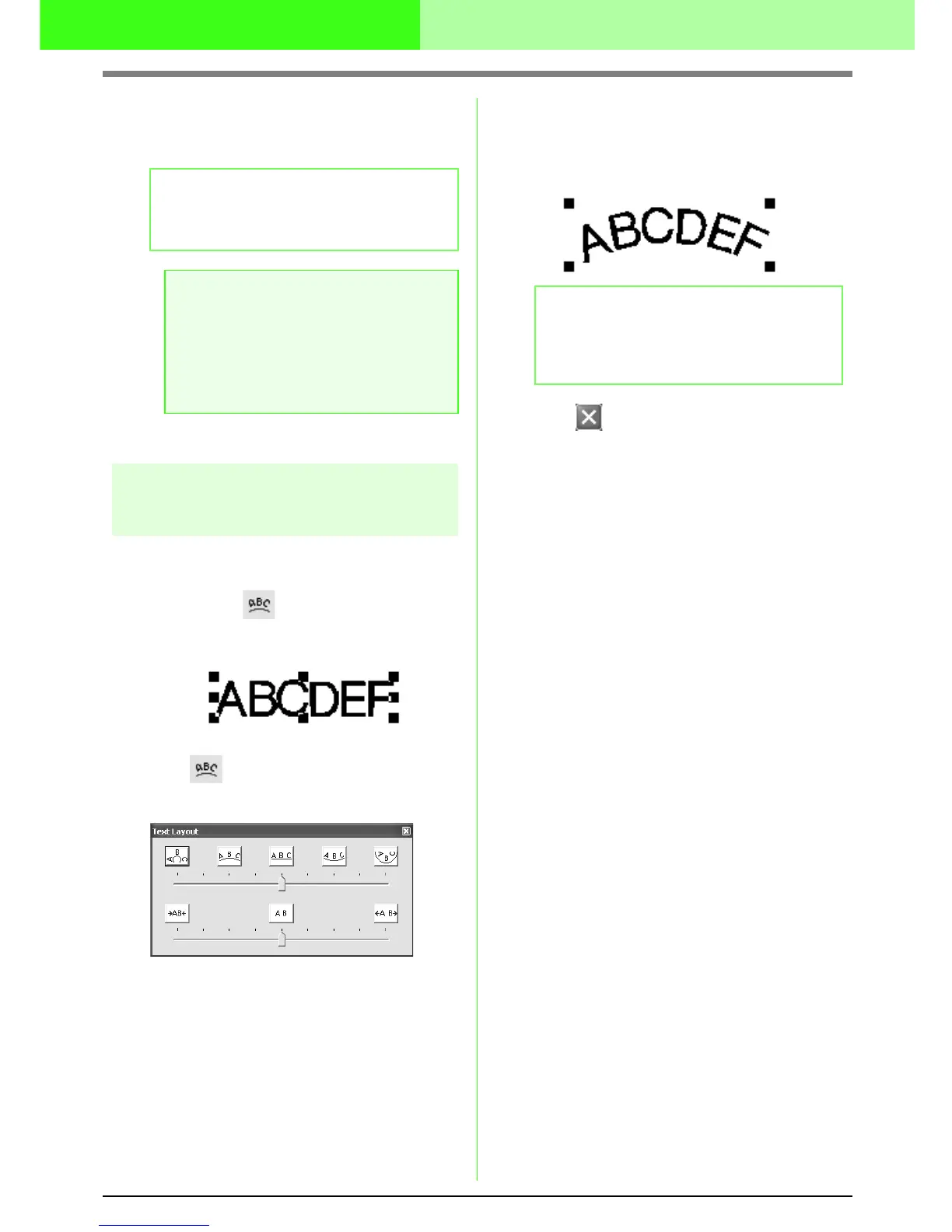
A line of text can be arranged along a curved line.
Toolbar button:
1. Select the text.
2. Click or Text, then Text Layout.
→ The Text Layout dialog box appears.
3. Click one of the top buttons, or move the top
slider to select the desired curving.
4. Click one of the bottom buttons or move the
bottom slider to select the desired spacing.
→ The text is displayed with the selected
characteristics.
5. Click in the upper-right corner of the
dialog box to close the dialog box.
b Memo:
To close the dialog box without applying the
changes, click Cancel.
a Note:
If you entered a character that is not
available for the selected font, an error
message appears. Click OK to close the
message and return to the Edit Text
Letters dialog box, where you can correct
the text.
b Memo:
To cancel the text arrangement, select the
center button or move the slider to the
center.



 To Next Page
 Loading...