Printing
50
5
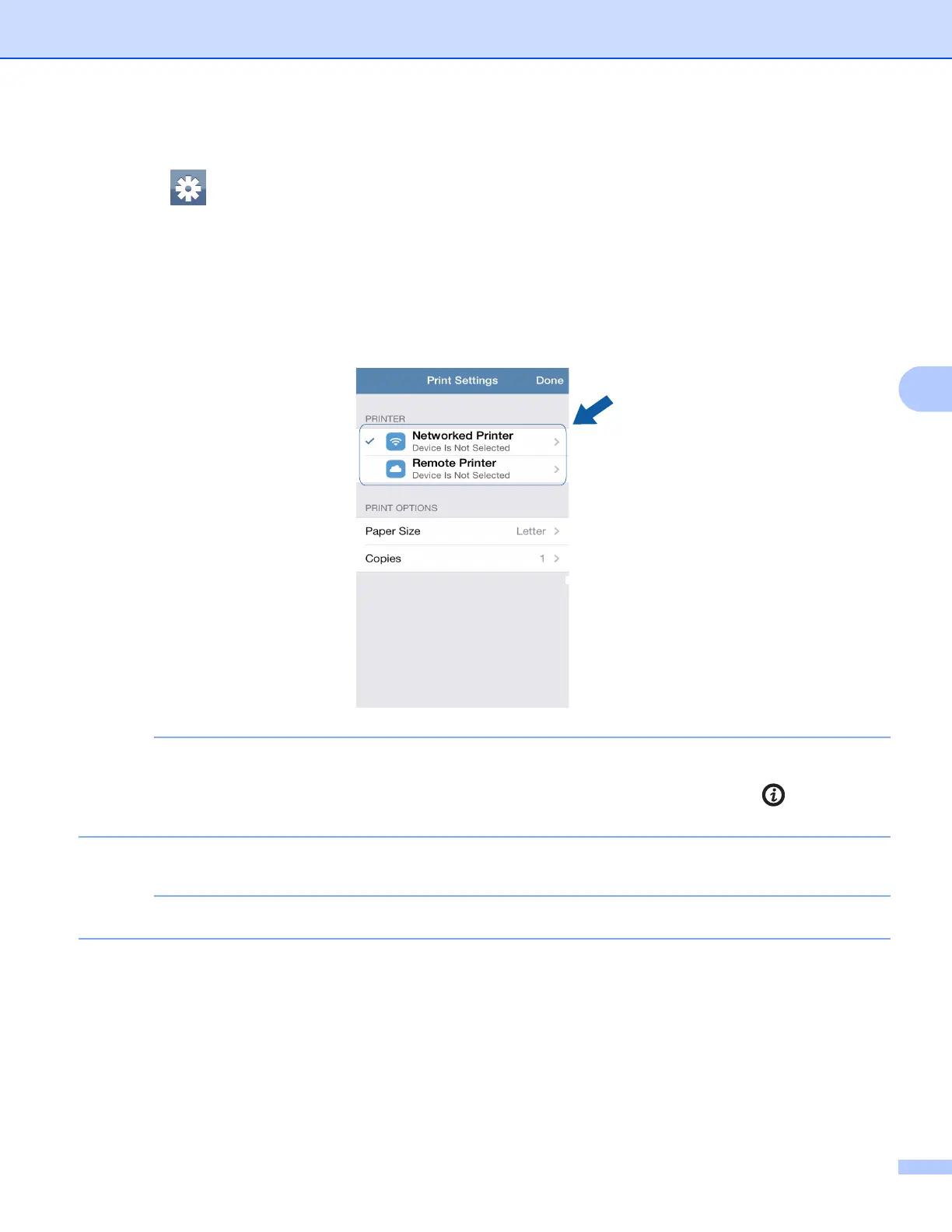
f If a different machine is selected or if Device Is Not Selected is displayed, follow these steps:
1Tap .
2 Do one of the following:
To print using the Wi-Fi connection, make sure your Brother machine is turned on, and then tap
Networked Printer on your mobile device. Select your Brother machine from the list.
To print using Remote Print (Google Cloud Print), tap Remote Printer on your mobile device.
Available machines registered with your Google Account will be displayed. Select your Brother
machine.
If the Google Account setup screen is displayed, follow the on-screen instructions to sign in with your
Google Account. You can change the Google Account by tapping the information button on the main
Print screen.
3Tap Print Settings.
To change the print options, see Print Settings on page 74.
4Tap Done to exit the Print Settings screen.
g Tap Print. The print data will be sent to your machine.



 To Next Page
 Loading...