Scanning
79
6
Sending by email 6
For iPhone and iPod touch 6
a Load your document on to your machine.
b Tap the Brother iPrint&Scan icon on the Home screen.
If the Print screen is displayed, switch to the scan function by tapping Scan.
c Make sure your machine is selected.
Do one of the following:
If your machine is selected, go to step f.
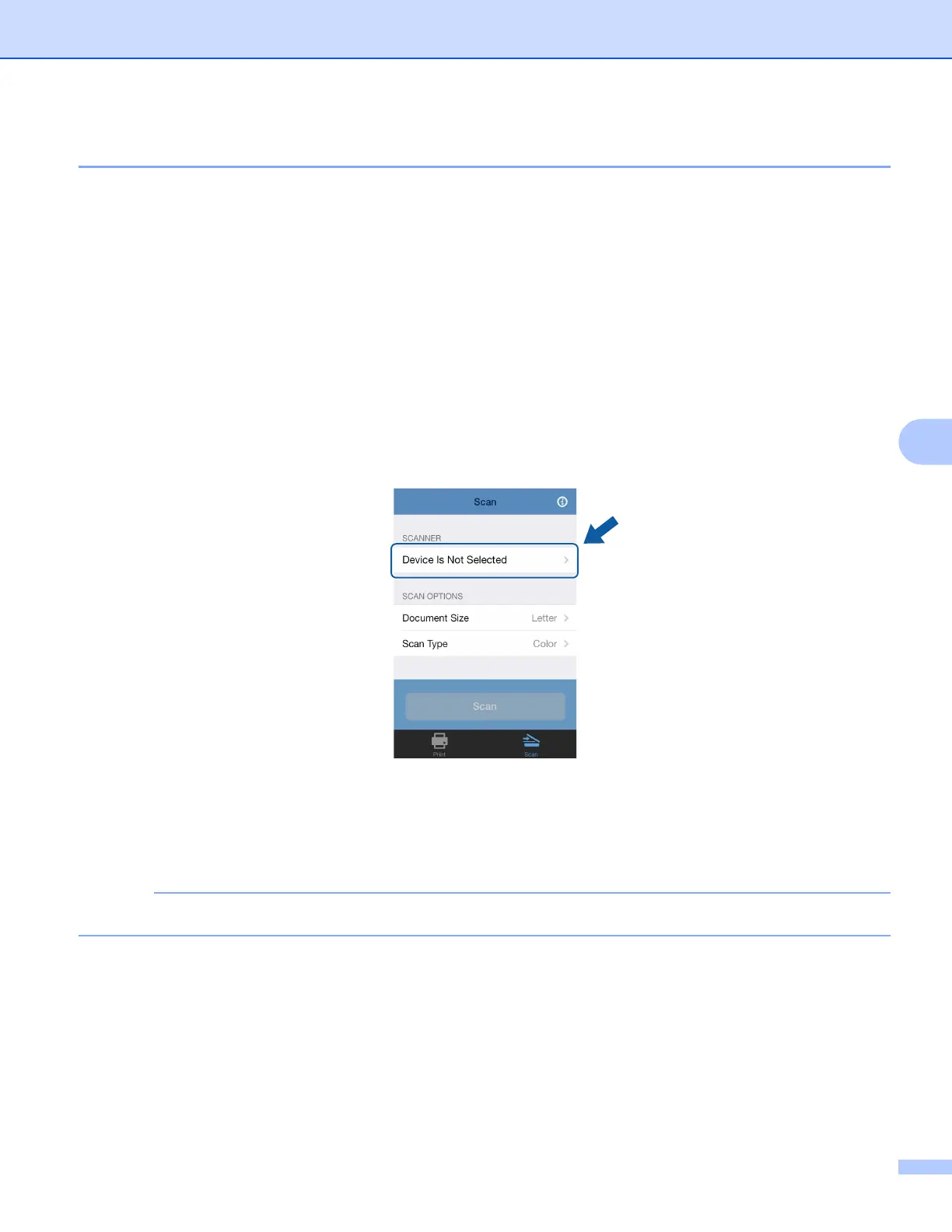
If a different machine is selected or if Device Is Not Selected is displayed, make sure your machine
is turned on and then tap the displayed scanner name or Device Is Not Selected. Go to step d.
d The application will search your network and display a list of available machines. Tap your machine in
the list.
e Tap Scan.
To change the scan options, see Scan Settings on page 93.



 To Next Page
 Loading...