Printing
20
2
Printing email messages 2
You can use Brother iPrint&Scan to view and print email messages from your Gmail™ account (Google
Account). To print the email messages, your mobile device must be configured to access the Gmail™
account.
a Open the Launcher on the mobile device.
b Tap the Brother iPrint&Scan icon.
When the license agreement screen appears, carefully read and accept the terms of the agreement.
c Tap Email Print.
If your mobile device has been configured for multiple Gmail™ accounts (Google Accounts), choose the
account that you want to access.
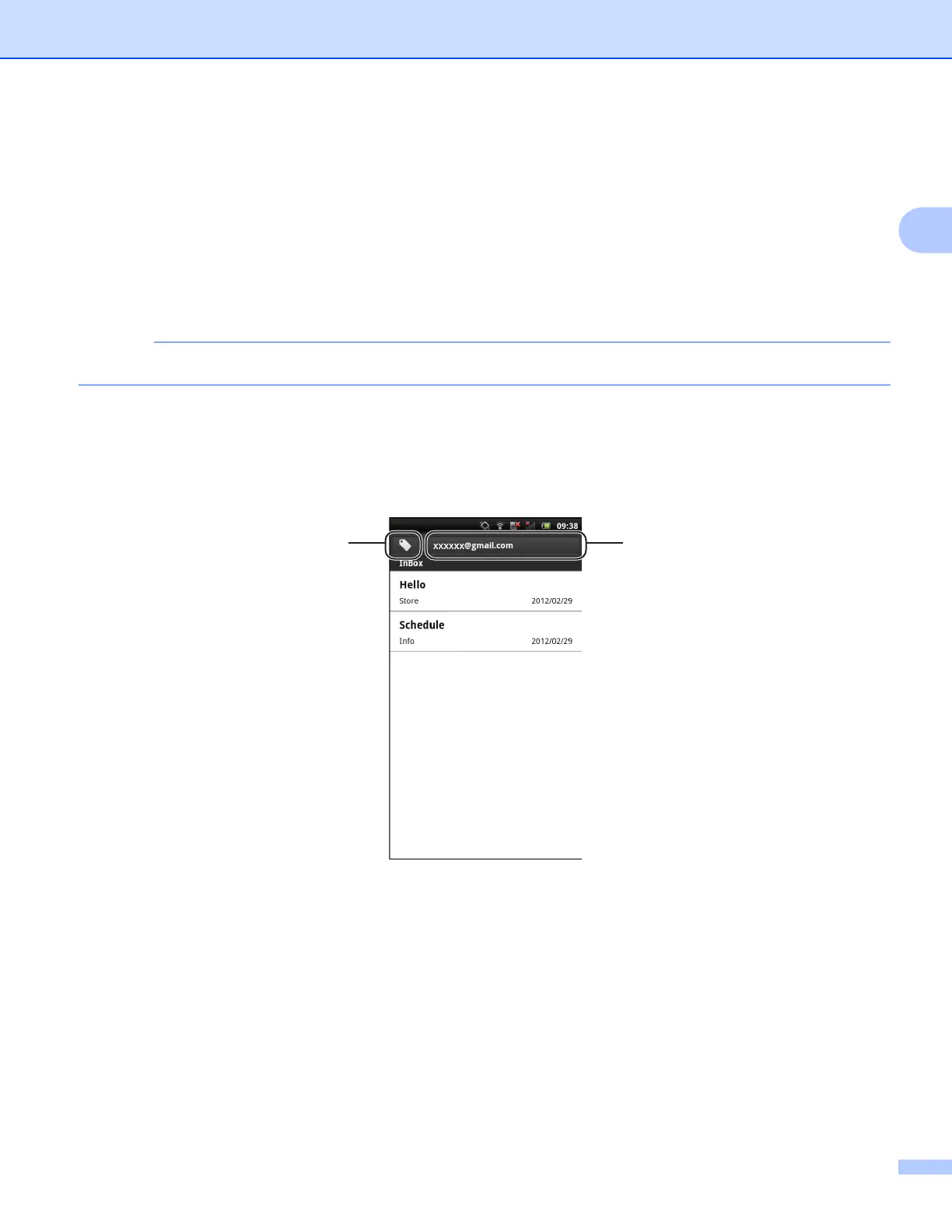
d The email list is displayed. Choose the email message that you want to print.
1 Label button
Tap this button to display other label messages.
2 Account button
Tap this button to change the account.
e The email message is displayed. Tap Print Preview.
2
1



 To Next Page
 Loading...