24
3
Read the license agreement
and click [Agree] if you
agree with the terms and
conditions.
4
Click [Install] to start the
installation and follow the
on-screen instructions.
For Windows Vista
®
and
Windows
®
7, when the User
Account Control screen
appears, click [Allow] or [Yes].
5
Choose Wireless Network
Connection, and then click
[Next].
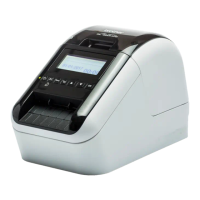
The QL-710W does not
support wired network
connections (Ethernet).
6
Choose Brother Peer-to-
Peer Network Printer
(recommended) or Network
Shared Printer, and then
click [Next].
The following step describes the
operation when Peer-to-Peer is
selected.
For details on Network Shared
Printer connections please see
Brother Solutions Center
http://solutions.brother.com/
7
When this screen appears,
choose Change the
Firewall port settings to
enable network
connection and continue
with the installation.
(Recommended) and click
[Next].


 To Next Page
 Loading...