Printer Tips
When a line of print is split apart or the left edge of a block of
lines don’t line up with the left edge of the other lines the Print
Cartridges have to be synchronized horizontally. Perform a
Horizontal adjustment whenever the large solid line and the
set of 18 thin vertical lines do not form long vertical lines for
the whole bank of Print Cartridges.
Horizontally
Synchronizing a
Bank of Print
Cartridges
The following steps are an example of how to synchronize
Print Cartridges for Bank A. The same steps are taken for
horizontally synchronizing Bank B and any extra banks of
Print Cartridges.
Example:
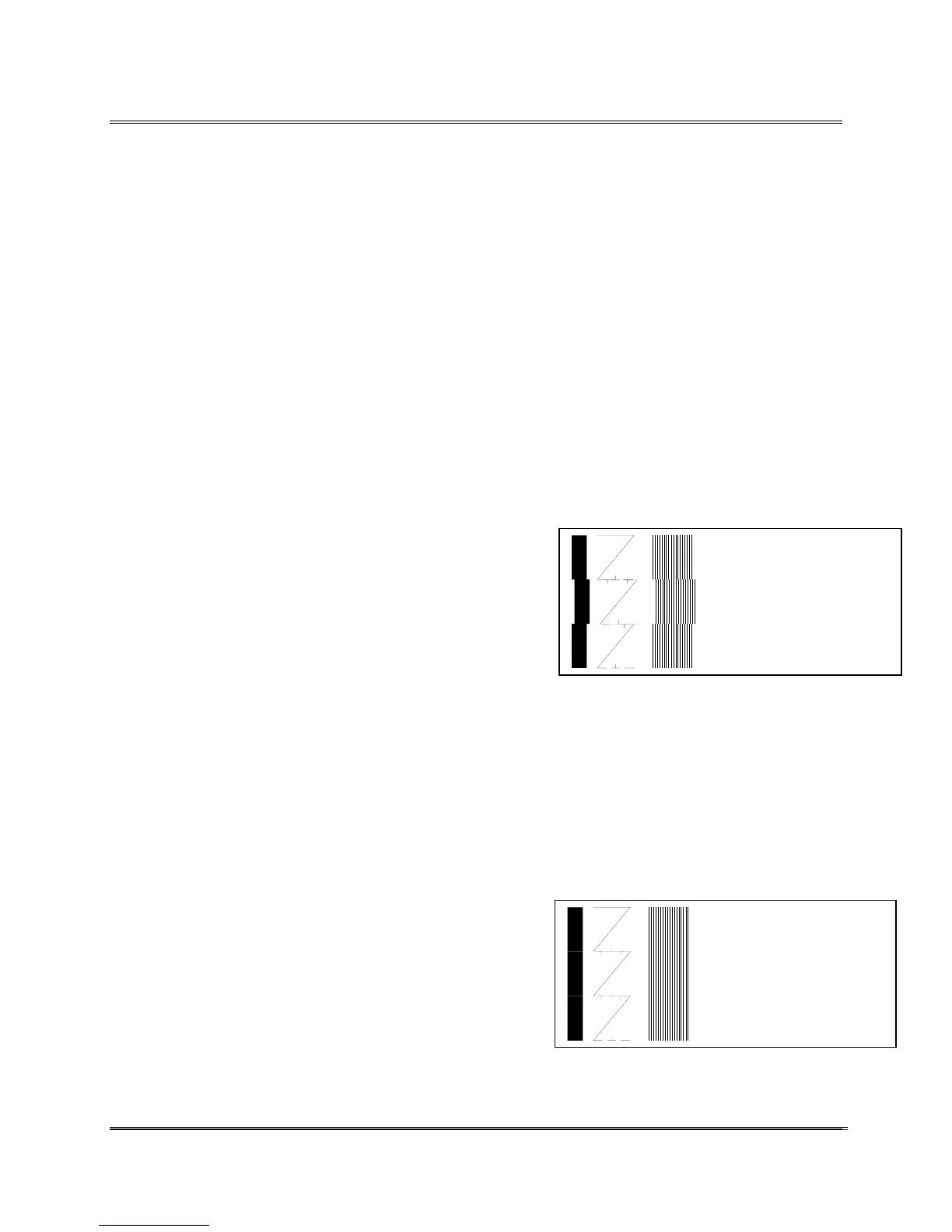
In the example below the large vertical line on the left and 18
thin vertical lines indicate Print Cartridge #2 has to have the
printer perform a horizontal Print Adjustment.
Use the following steps to adjust Print Cartridge #2:
• Access the ADJUST PRINT menu. See example
in Vertically Synchronizing a Bank of Print
Cartridges.
Head 3 Bank A
Head 2 Bank
Head 1 Bank A
• Print out a Test Pattern by pressing the [Test
Env] button. The printer will print a test pattern
like the following example:
The example shows Print Cartridge #2 is to far to the right.
• Scroll to the menu option HEAD 2 SIDE TO SIDE and
select the option.
• Press the [+] plus
(LEFT) button to increment the
horizontal line value on the LCD display.
• Press the [Enter] button to select the desired
value. An Asterisk (*) will appear in front of the
new selection.
Head 3 Bank
Head 2 Bank
Head 1 Bank
• Press the [Test Env] button to print another test
pattern. This time the test pattern is printed using
the entered selection. The pattern printed should
look like the example to the right.
Revision C 30K USERS MANUAL Section 4 -
P/N 90-00203-001
7


 To Next Page