SP3 PREAMP / PROCESSOR
APPENDIX F: WEB INTERFACE GUIDE continued
SP3 Web Interface Guide Page 2 of 7
Bios Name” of the SP3, or its IP address in the browser URL window and pressing enter, should bring on the
following screen:
2. File upload screen.
Click on the top “File” menu link on the main SP3 web interface screen brings the “Firmware Upload” screen.
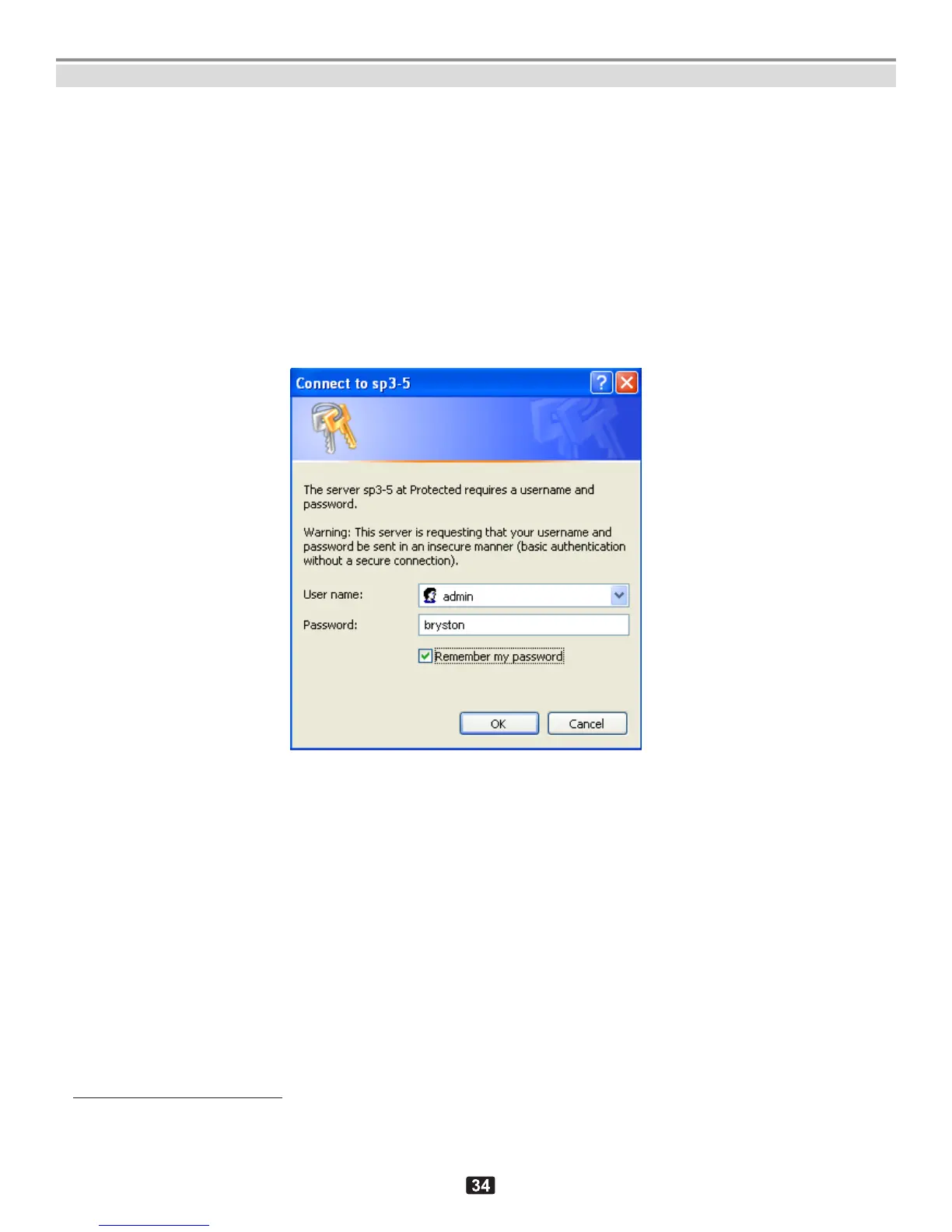
All SP3 screens except Main and Help require a password. The first time File is clicked on the Main screen, an
intermediate password entry screen will show up:
Firmware Upload screen
Insert the user name admin and password bryston as shown above and click OK button
1
. Once this is done, it is
valid for as long as the browser is not exited and the user will not have to re-enter it again.
1
In the new firmware revision (from 2012.08+), an alternative user name of bryston with the same password bryston, will also be
accepted



 To Next Page