1
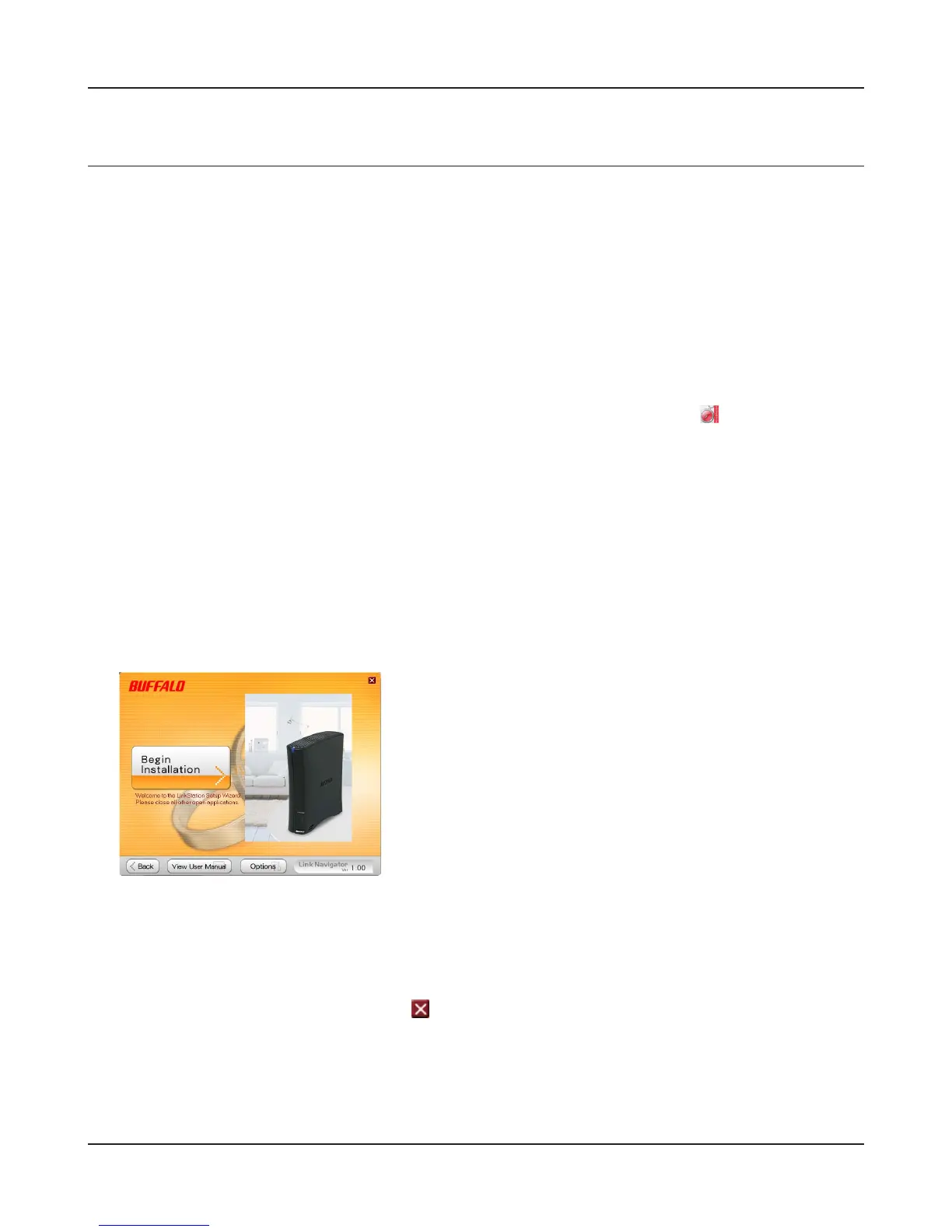
Insert the Utility CD in your computer’s CD drive. LinkNavigator will launch.
Click ‘Begin Installation’.
Note: – If LinkNavigator doesn’t open, open the Utility CD and double-click
‘LSNavi.exe’.
– If you are using Windows 7 or Vista, the autoplay screen may appear. Click ‘Run LSNavi.
exe’.
– If “Do you want to allow the following program to make changes to this computer ?”is
displayed in Windows 7, please click ‘Yes’.
– If “Your permission is necessary to continue program” is displayed in Windows Vista,
please click ‘Continue’.
– For Mac OS, double-click on the LinkNavigator icon in the utility CD.
2
3
Follow the instruction on the screen to install NAS Navigator2.
4
After NAS Navigator2 is installed, click on the right top of the LinkNavigator to close it.
Then, open the shared folder of the LinkStation using NAS Navigator2 which was just installed.
Chapter2 Using your LinkStation
LinkStation Setup Manual
1717
Open shared folder from the second PC
You will not have to perform the setup (initial settings) again if you have already set up the LinkSta-
tion from one computer.
You will have to install NAS Navigator2 on each additional computer, to open the LinkStation shared
folders.
Click [Options] - [Additional Software Installation].
For Mac OS, click [Install NAS Navigator].















 To Next Page