Chapter1 Setup
LinkStation Setup Manual
7
1
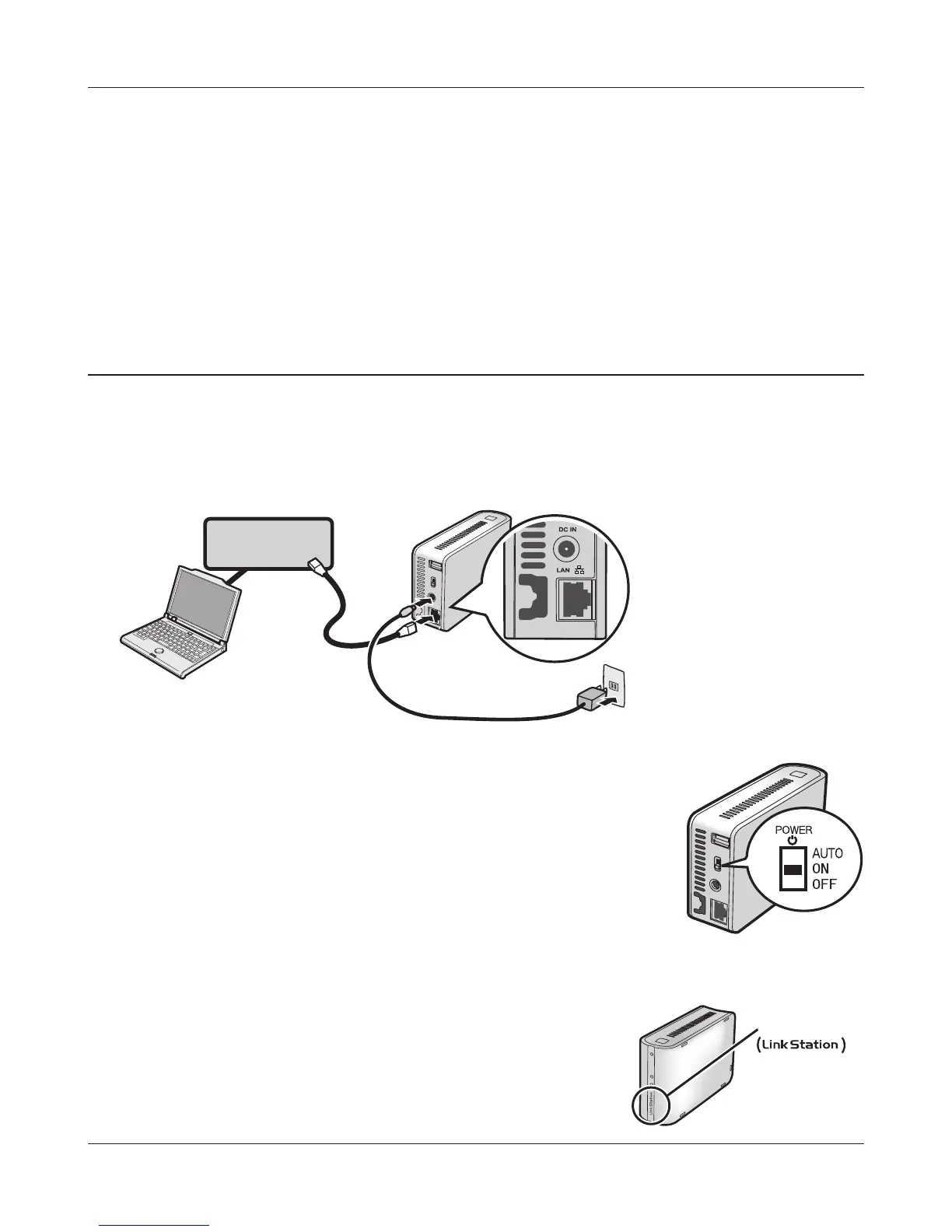
Connect an Ethernet cable and AC adaptor to the LinkStation.
The Ethernet cable will “click” and lock in place when inserted properly.
ÈõâïòÒïõôåò
2
Move the power mode switch on the back of the LinkStation to ‘On’.
Note: – Do not set the power mode switch to “Auto” at this time.
After the initial installation is complete, then the auto
power mode may be used.
3
Wait until the power LED stops blinking and
becomes a steady blue.
LinkNavigator Setup (LS-WSXL)
Power LED
You can now use the LinkStation’s shared folder to save les just like another hard drive.
Note: – With Mac OS, the LinkStation is mounted as a drive icon on the desktop, or it is displayed
in the sidebar of the Finder.
Setup is now complete.















 To Next Page