Chapter 3 Useful Functions
LinkStation Setup Manual
6060
Direct Copy
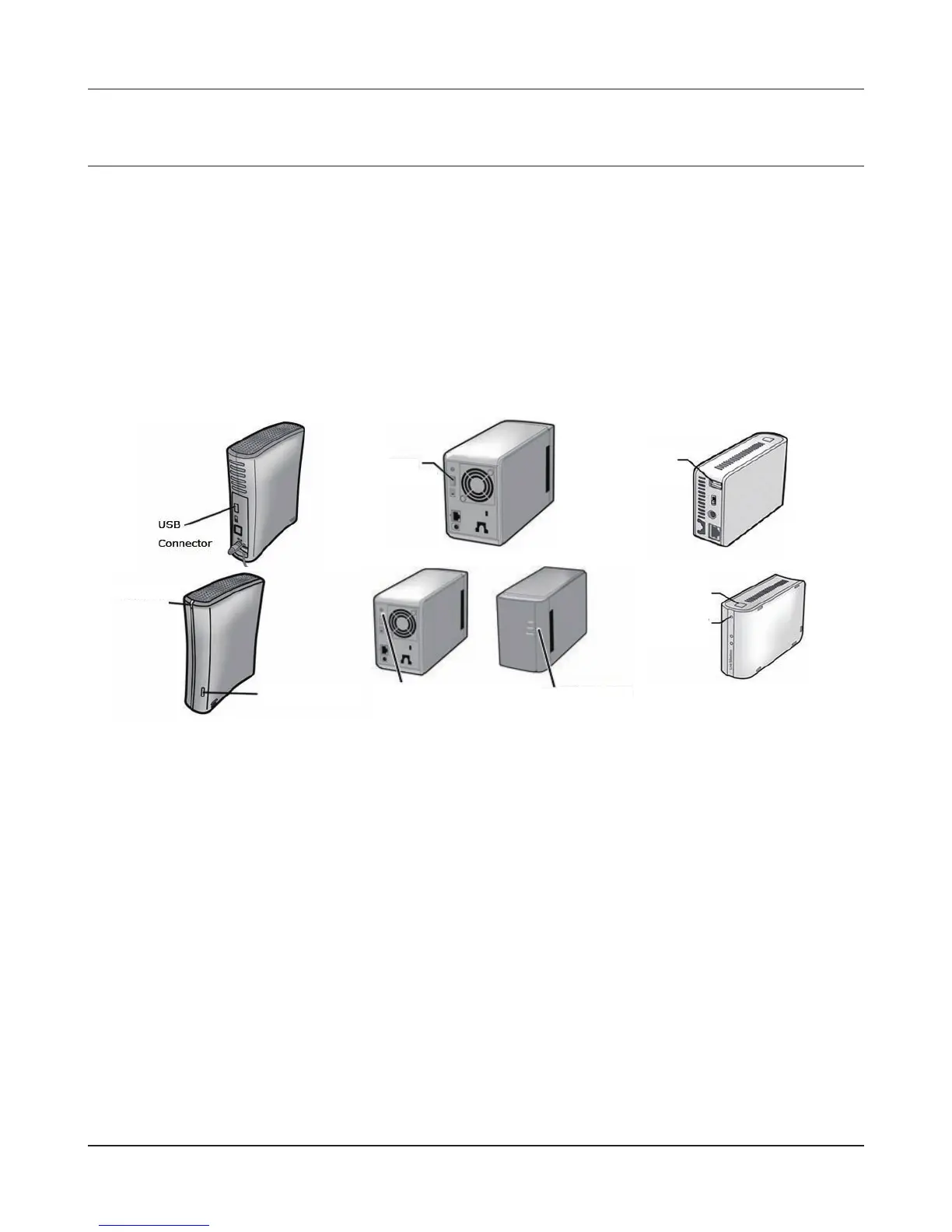
When you use the Direct Copy feature, you can connect a USB device to the LinkStation port to copy
movie, music, and image data directly to the LinkStation without using computers.
You can connect a USB mass storage class, a card reader (except for a card reader that can recognize
more than 2 memory cards), a UTP device such as digital camera, and the USB connector of the Link-
Station. You cannot connect any other USB devices (such as a USB hub, mouse, keyboards and so
on).
1
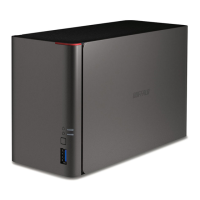
Connect a USB device (USB ash/digital camera/hard disk/card reader) to the LinkStation.
The following restrictions apply if a USB device does not fall into the USB Mass Storage class.
•After a USB device is recognized, the function switch turns blue (for about 60 seconds).
•You will be able to access the USB device after Blue function switch goes out.
2
Data is copied from a USB device to the Direct Copy folder after you connect a USB device and
push the function switch on the LinkStation while the function switch is ashing blue (for about
60 seconds).
Note: – While copying, the functions switch will flash blue. Pushing the function switch one
more time at this time will abort the Direct Copy.
The destination shared folder is set to a [share] folder as default.
Select a dierent shared from [Shared Folders] - [Direct Copy] - [Modify Settings] on the congu-
ration screen of a LinkStation and click [save]. Then you can change the shared folder’s destina-
tion folder.
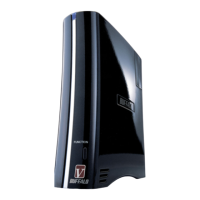
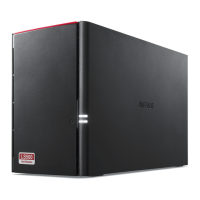
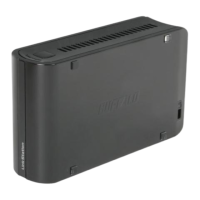
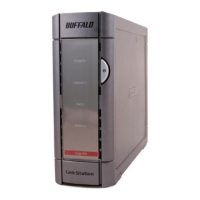
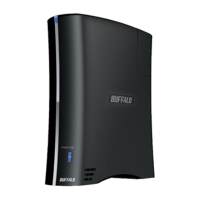
Power LED
Function Switch
USB
Connector
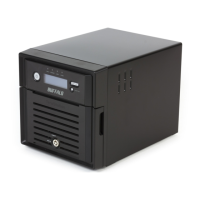
USB
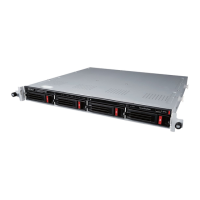
Connector
Function Switch
Function LED
Function
Switch
Function
LED



 To Next Page