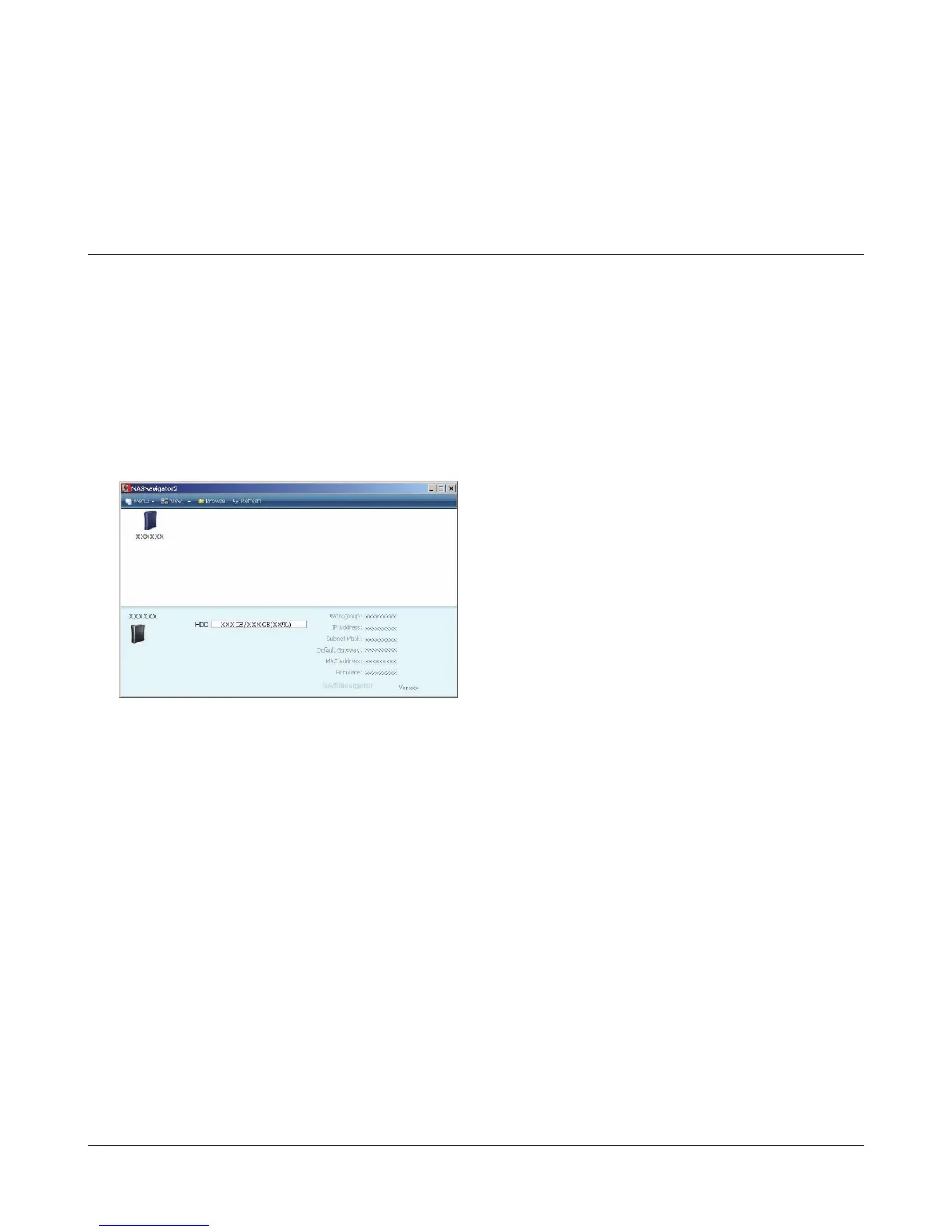
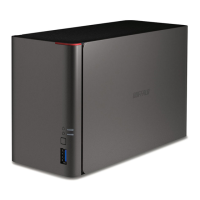
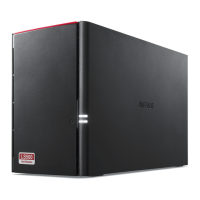
Double click on the LinkStation's icon.
The example here shows the Windows' screen
(on LS-XHL).
LinkStation Setup Manual
1616
1
Launch NAS Navigator2.
Note: – On Windows, click [start] - [All Programs] - [BUFFALO] - [BUFFALO NAS Navigator2] - [BUF-
FALO NAS Navigator2].
– On Mac OS, double click on [NAS Navigator2] icon in the Dock.
2
3
The shared folder of the LinkStation is displayed.
Note: – On Mac OS, LinkStation is mounted as a drive icon on the desktop, or displayed in the
sidebar on the Finder.
You can now use the LinkStation’s shared folder to save les just like another hard drive.
Chapter 2
Using your LinkStation
Open Shared Folder



 To Next Page