Chapter1 Setup
LinkStation Setup Manual
6
Note: – If you are using Windows 7 or Vista, the autoplay screen may appear. Click ‘Run LSNavi.
exe’.
– If “Do you want to allow the following program to make changes to this computer?” is
displayed in Windows 7, please click ‘Yes’.
– If “Your permission is necessary to continue program” is displayed in Windows Vista,
please click ‘Continue’.
– For Mac OS, double-click on the LinkNavigator icon in the utility CD.
– Temporarily disable your anti-virus software and software rewall before installing. You
may not be able to set up this device if they are enabled. Refer to the software’s manual
for instructions. After setup is complete, re-enable the software.
– If your computer doesn’t have a CD drive, you may download the LinkNavigator soft-
ware from www.bualotech.com.
.
5
6
7
The LinkStation’s shared folder opens. You can now use the LinkStation’s shared folder to save
les just like any other hard drive.
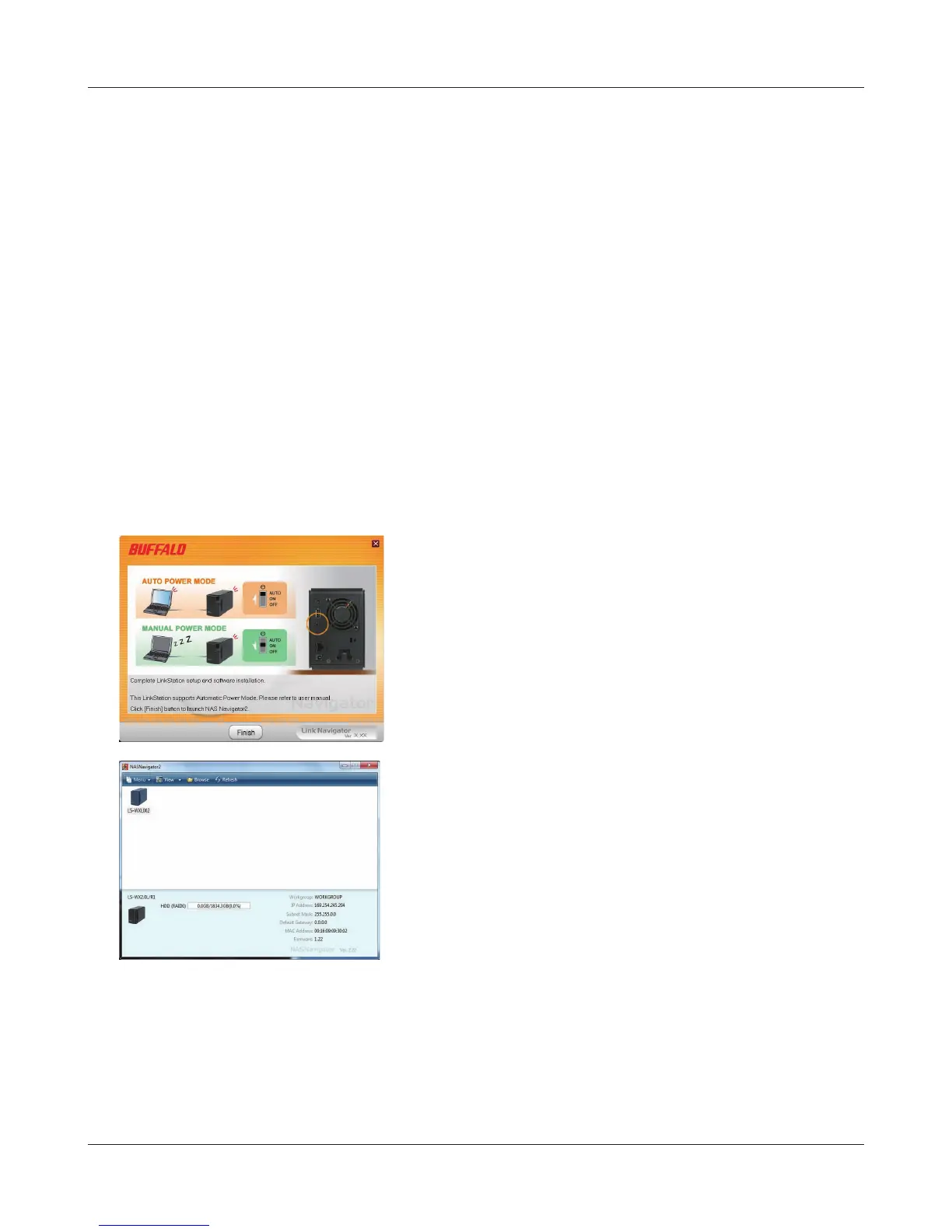
Click 'Finish'. NAS Navigator2 starts automatically.
In NAS Navigator2, double-click your LinkStation’s icon.















 To Next Page