40417 GT PLATINUM
43
(This screen is displayed for only certain vehicles.)
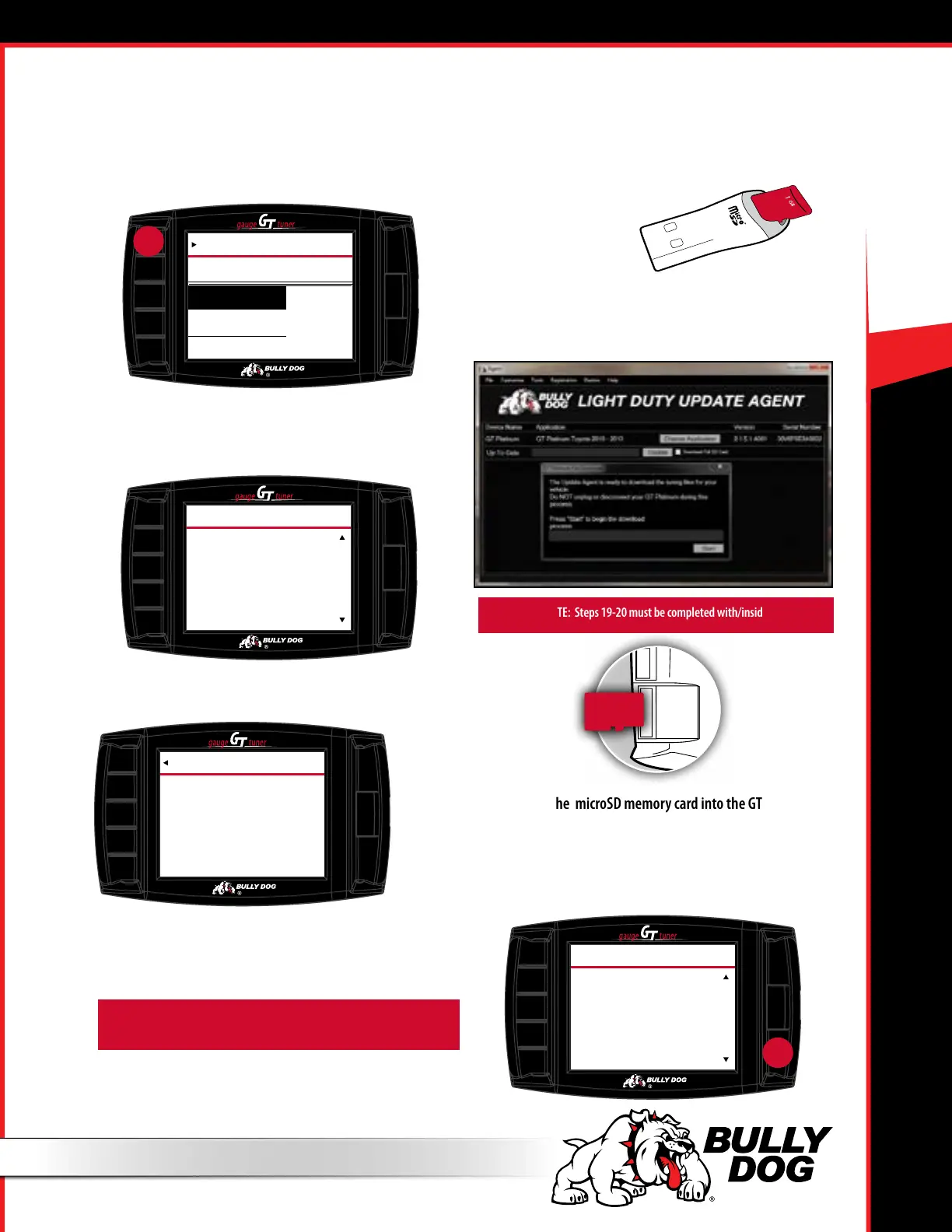
14. Tune has been set up. Up to 3 tunes may be configured. The
tunes are labled in the order that they were created, “A”, “B”,
and “C”. Power levels for these tunes can be duplicated
If setting up additional tunes, select YES and go back to 13.
Otherwise, proceed to 15.
15. The code below will display when vehicle data has been
successfully retrieved and the GT Platinum needs to be con-
nected to the Update Agent.
Unplug your GT Platinum. Steps 16-18 must be completed outside the
vehicle on a computer with Internet access.
16. Open the Bully Dog Update Agent on your PC. (see step C-1).
17. Connect the microSD memory card to
your PC. (see step C-2b).
18. Retrieve the tuning files
by clicking START. The Update Agent will display a progress bar.
Click OK when the process is complete.
IMPORTANT NOTE: Steps 19-20 must be completed with/inside the vehicle.
19. Reinstall the microSD memory card into the GT Platinum.
20. Connect HDMI to GT Platinum. (see step D-3).
21. Go Back to STEP 1.
22. Read Tune Selection explanation, tap MORE and press
CONTINUE.
INSTALL THE TUNE (TOYOTA VEHICLES)
You Have Already Selected
Do You Want To Select
Another Tune?
X of 3
Tune X has been Set.
S
TUNING
YES
NO
CODE 550
EXIT
VEHICLE DATA. Vehicle Data
Successfully Retrieved. Please
disconnect GT and go to the Bully
Dog Update Agent to get the
required les and continue the
download process. It is safe to
cycle the key. If you need any
assistance please Contact
Technical Support.
www.bullydog.com +1 (940)
783-9915
TOP
MORE
The next screen will display
“Tune A”, “Tune B”, “Tune C”,
and “Stock”. After you select
one of these options, the GT
will ask you to Conrm the
tuning options selected.
TUNE SELECTION
press
SPEED LIMITER
Premium
65 MPH
75 MPH
Select Speed Limiter
Stock
press
ENTER


 To Next Page