10.3. Appendix 3: Updating Firmware on 7710&7720 Controllers
This procedure describes the steps involved in updating firmware on 7710 and 7720 Controllers
that have older versions of firmware running.
Required Materials:
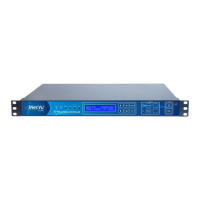
• iNetVu™ 7710 Controller
• iNetVu™ 7720 Controller
• iNetVu7710_BOX_FW.S19 (file)
• iNetVu7720_RTCTL_FW.S (file)
• PC
• USB - A to B Cable
Procedure:
1. Power ON the PC and the 7710 Controller which will also provide power to 7720 (it is
assumed that the Power & Data cable is connected to 7720 remote drive module).
2. Open the iNetVu 7710 Controller Software
3. Connect the PC to the Controller through a USB interface.
4. Press the “Reset” Button on the 7710 Controller. While the controller is resetting, hold the
‘↑’ and ‘↓’ keypads simultaneously on the front panel. A message indicating “Updating
Firmware” should appear and window will flip over to Maintenance.
5. Advance to the Maintenance button menu and click on the “Load FW For 7710” button.
Note** DO NOT turn the power off during Firmware upgrade as this may cause damage to
the controller board(s).
6. Wait until the Loading firmware process is complete (monitor the LCD Screen to ensure
flashing to memory has completed); controller will reset itself once firmware upgrade
completes.
7. Repeat steps 4 to 6 to update 7720 firmware. Note step 5, click on the “Load FW For 7720”
button.
8. Congratulations you have uploaded the new firmware onto your 7710 and 7720
Controllers.


 To Next Page