31
1002595 ISSUE 5 M172 VARIHEAT
Using an Android/iOS mobile device
The Variheat touchscreen can be controlled by a mobile device. To access e
Variheat by a mobile device, e Vijeo Design’Air app must be installed on e
device. A free version is available wi restricted usage time. A paid version is
available wi unlimited access. The setup procedure depends how e remote
access is to be used.
If e Variheat is ONLY to be accessed when e device is connected to
e SAME network as e Variheat:
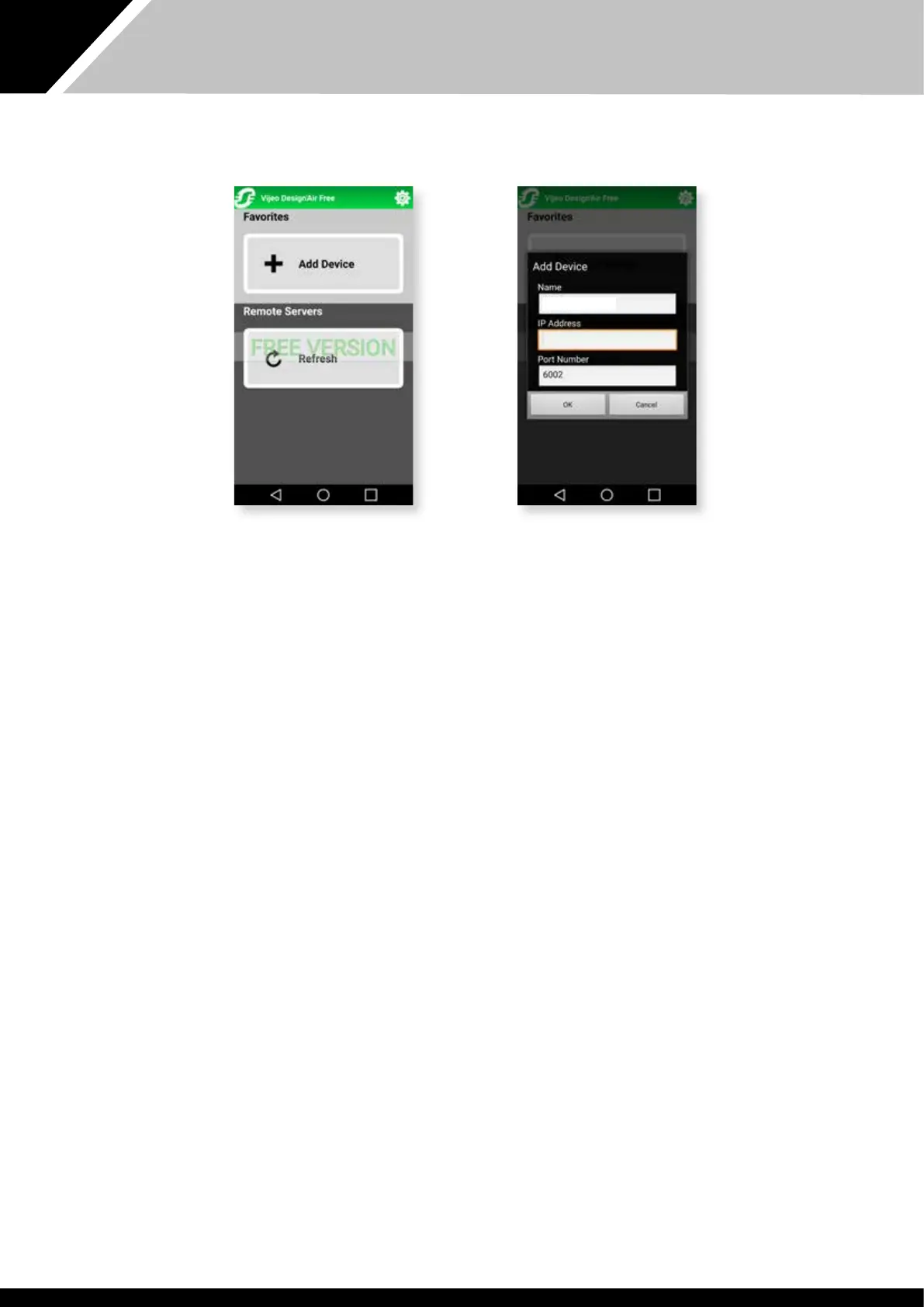
Aer installing e app, open it and select “Add Device”. In e fields at
appear enter a name (e.g. Variheat), e network IP address of e Variheat
(see section 2.1 Network setting) and leave e port number as e default
setting. From now on e Variheat can be controlled from your mobile device
by selecting it from “Favourites”. Read e disclaimer carefully before accepting
e terms and conditions of e app. The box needs to be ticked before e OK
button can be pressed.
When e login window appears, login wi e username “Webgate” and
password. Bo are case sensitive. The default password is “DefaultPass”. For
security reasons e Danerm Group recommend is password is changed.
(See section 2.1 User Security settings.)
If e Variheat is to be accessed when e device could be anywhere:
First obtain e public IP address of e network e Variheat is connected to
using anoer device at is connected to e same network. Search for “What
is my IP” in a search engine and make a note. Ensure port forwarding has been
set on e router as mentioned on page 30.
It is recommended to perform e app setup when e device is NOT
connected to e same network as e Variheat (turn off wi-fi or leave e
network area). Aer installing e app, open it and select “Add Device”. In
e fields at appear enter a name, e.g. “Variheat”, e public IP address of
e network and leave e port number as e default setting. From now on
e Variheat can be controlled from your mobile device by selecting it from
“Favourites”. Read e disclaimer carefully before accepting e terms and
conditions of e app. The box needs to be ticked before e OK button can be
pressed.
When e login window appears, login wi e username “Webgate” and
password. Bo are case sensitive. The default password is “DefaultPass”. For
security reasons e Danerm Group recommend is password is changed.
(See section 2.1 User Security settings.)
Depending on e router specification, is ese settings may also work whilst
e device is connected to e same network as e Variheat. This can be
tested wi e device connected to e same network. If it does not work,
it will be necessary to add a second device to e app, e.g. “Variheat home”,
using e network IP address (see above). Use e “Variheat” device when not
connected to e same network and “Variheat home” device when connected
to e same network.
Variheat


 To Next Page