32
1002595 ISSUE 5 M172 VARIHEAT
VARIHEAT AA SYSTEM OWNER INSTALLATION MANUAL
Using an ActiveX web browser on a networked computer
To access e Variheat by a networked computer, a browser at can run
ActiveX is required. This function has been designed and tested to work wi
Internet Explorer. Oer browsers are not formally supported.
For first time setup instructions, see right.
Once e computer and browser have been setup, screen mirroring can be
accessed as follows:
If e Variheat is ONLY to be accessed when e computer is connected
to e SAME network as e Variheat:
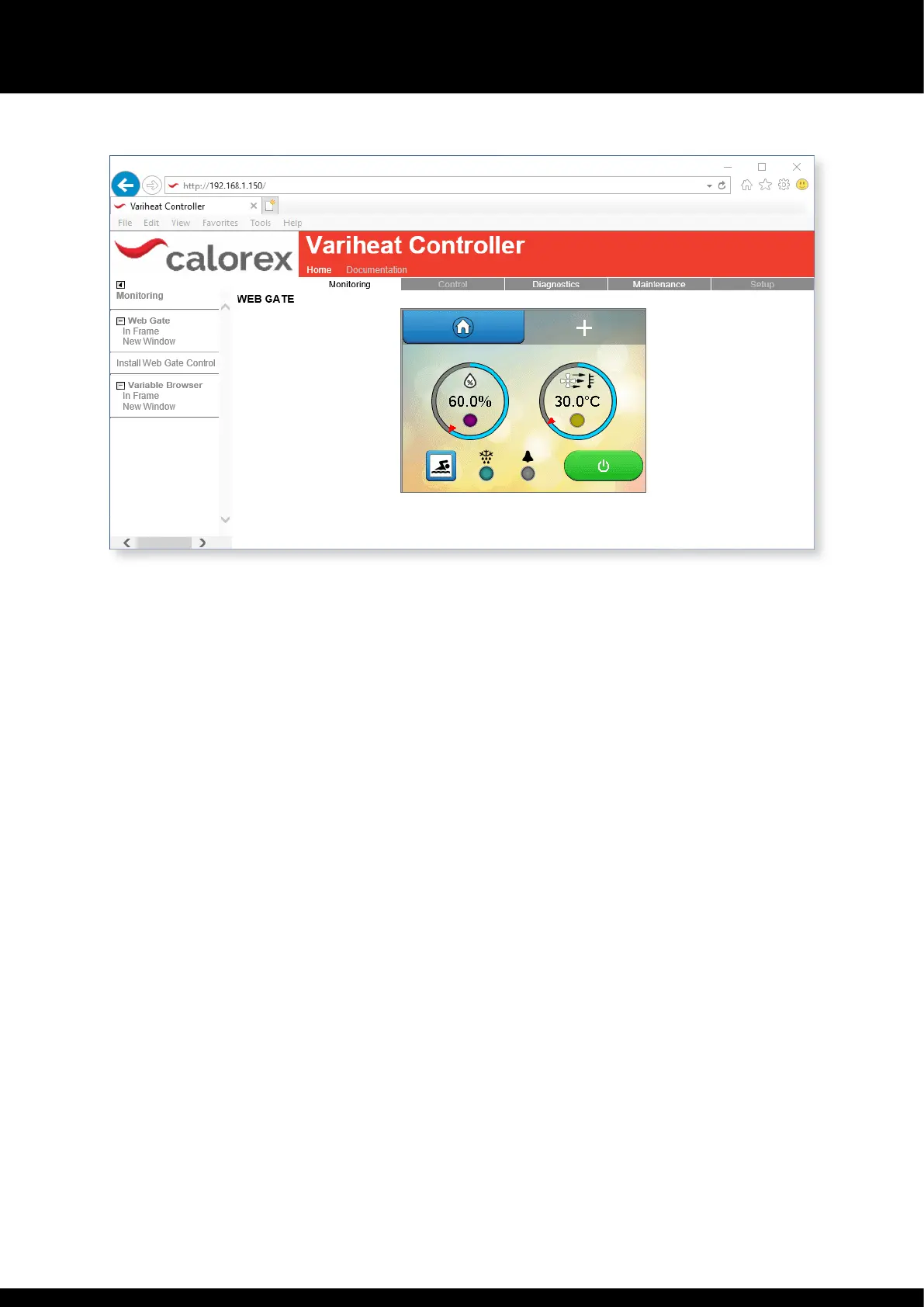
In your browser address bar, enter e Variheat network IP address (default
address 192.168.1.150) and press Enter or click Go.
If e Variheat is to be accessed when e device could be anywhere:
First obtain e public IP address of e network e Variheat is connected to
using a computer at is connected to e same network. Search for “What is
my IP” in a search engine and make a note. Ensure port forwarding has been
set on e router as mentioned on page 30.
It is recommended to test is when e computer is NOT connected to e
same network as e Variheat (turn off wi-fi or leave e network area). In your
browser address bar, enter e public IP address of e network and press Enter
or click Go.
Depending on e router specification, e public IP address may also work
whilst e device is connected to e same network as e Variheat. If it does
not work, it will be necessary to use e Variheat network IP address when e
computer is connected to e same network.
Whichever meod is used, when e Variheat Controller appears:
y Click “Monitoring” in menu bar of e main window.
y Click “In Frame” or “New Window” from under Webgate in e le-hand
menu.
y When e login window appears, login wi e username “Webgate” and
password. Bo are case sensitive. The default password is “DefaultPass”.
For security reasons e Danerm Group recommend is password is
changed. (See 2.1 User Security settings.)
y Read e warning message carefully and click “Continue to Main Screen.”
The Variheat can be controlled wi a mouse as if using e integral
touchscreen. Numbers and text can be entered wi a keyboard.
Note at some settings can not be changed rough remote access, e.g.
Network Settings and Webgate Password.
ActiveX browser first time set up procedure
Follow e user access instructions on e le, wi e following
additional steps.
y When prompted, install e Vijeo-Webgate Control. This is stored on e
Variheat controller, so internet access is not necessary. When prompted,
allow Windows to install.
y When prompted, e Variheat IP address must be added to e browser
Trusted Sites list. This is accessible on e Internet Explorer menu – Tools
> Internet Options > Security > Trusted Sites > Sites > Add. It may be
necessary to uncheck e “Require server verification” box to complete
is action. This may be rechecked aer e site has been added. If e IP
address of e Variheat is changed, e new IP address must be added to
e Trusted Sites list.
y When prompted, install e Active X runtime. This is stored on e Variheat
controller, so internet access is not necessary. When prompted, allow
Windows to install. If flagged by your anti-virus or firewall soware, e
runtime files should be allowed access.
y The browser should be restarted and standard user access instructions can
en be followed.


 To Next Page