76 BRIO 36 Audio Production System with Optional Networking GETTING SIGNALS IN AND OUT
Icons
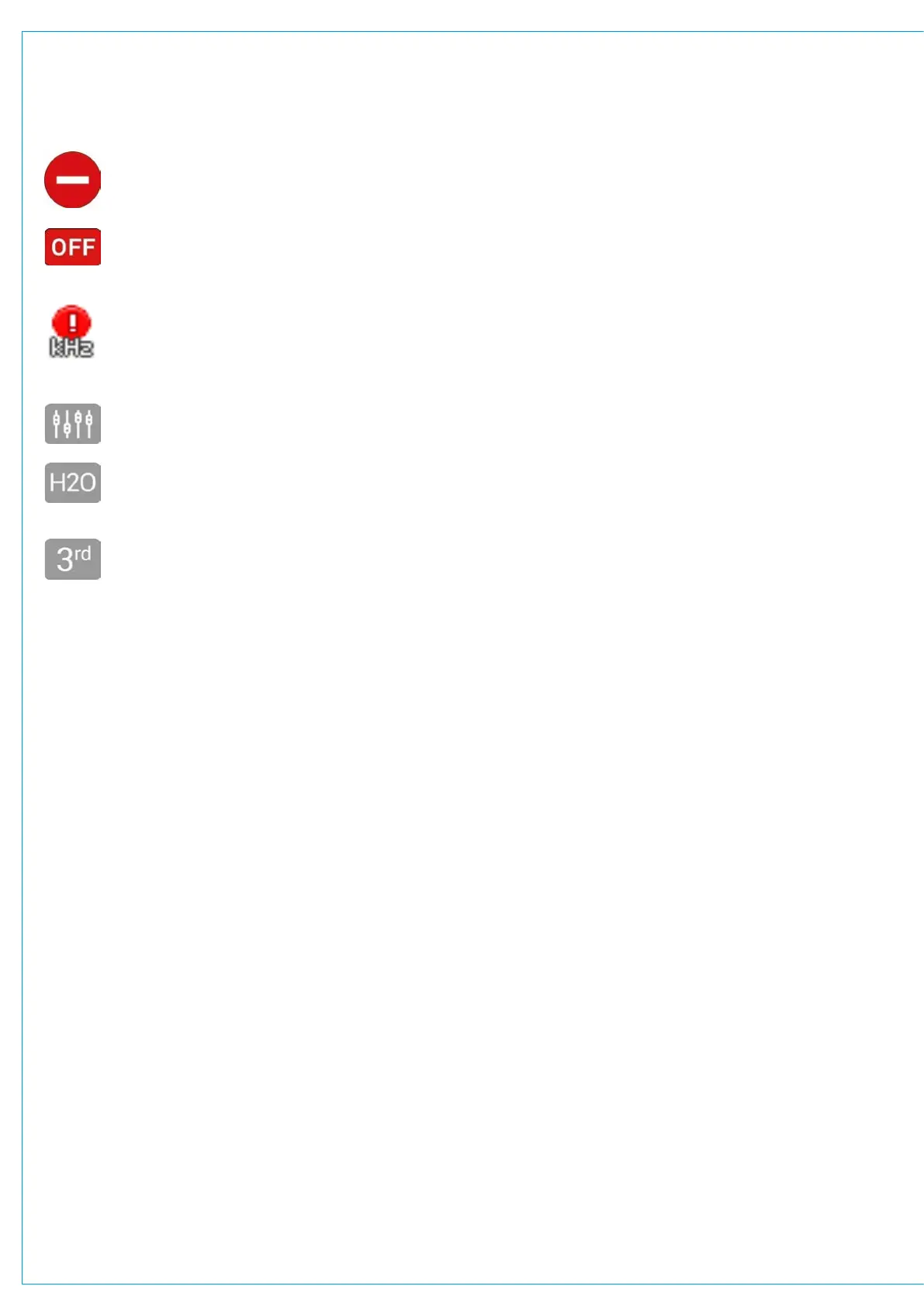
The following icons can be displayed in the I/O patching screen:
This symbol will be displayed if you have been denied access to the port via H2O by the network
administrator.
Whenever a port goes offline this icon is displayed.
Whenever a box or port is set to a different sampling frequency to the console.
If a port has been patched to/from by another Hydra2 user this icon is displayed.
If a port has been patched to/from via H2O this icon will be displayed.
If a port has been patched via a 3rd party controller this icon will be displayed.
Within the I/O patching screen, sources and destinations have separate settings, which are accessible from the left
and right of the control screen footer. The available settings vary depending on which port type is in view:
Channel Settings
If channel inputs are in view, the user can globally switch between viewing input 1 or input 2.
Layer View
When viewing fader specific paths, such as channel inputs or fader inserts, layer view options will be available.
Select layers A or B to view only faders on that layer.
Surface Interaction
When viewing fader specific paths, such as channel inputs or fader inserts, surface interaction options are available.
Checking the FADER SELECTION FOLLOWS FADER ACCESS check box brings the currently accessed fader directly
into view within the I/O patching screen at all times.
Connected Destination
The user can view connected destinations from sources and view connected sources from destinations. Both are
displayed within the centre columns with this option selected.
Information Display
When viewing Hydra patchbays or I/O boxes, the information display split-selection button is available to choose
between viewing path descriptions or connected source/destinations within the two centre columns of the screen.


 To Next Page