16
1
2
3
4
5
Introduction
Contents at
a Glance
Basic
Operation
Advanced
Operation
Advanced
Image Editing
and Printing
Editing JPEG
Images
Index
Processing
Large Numbers
of Images
Reference
O To check all the images, do not select an image in the main
window
When step 2 is performed with no image selected in the main window,
you can check in the quick check window all the images that were
displayed in the main window.
O Switch between images using the keyboard
You can also switch between images by pressing the <
> or <
>
keys on the keyboard.
O Switch between screens using the keyboard
You can also switch between full screen display/normal screen
display by pressing the < > + <F11> keys.
O Operate using the menu
Each operation can also be performed with the menu which appears
by clicking on the image while holding down the <control> key.
Convenient functions of the quick check window
O The enlargement ratio when an image is enlarged is half (50%) of
the actual pixel size (100%).
O For a list of quick check window functions, refer to p.92.
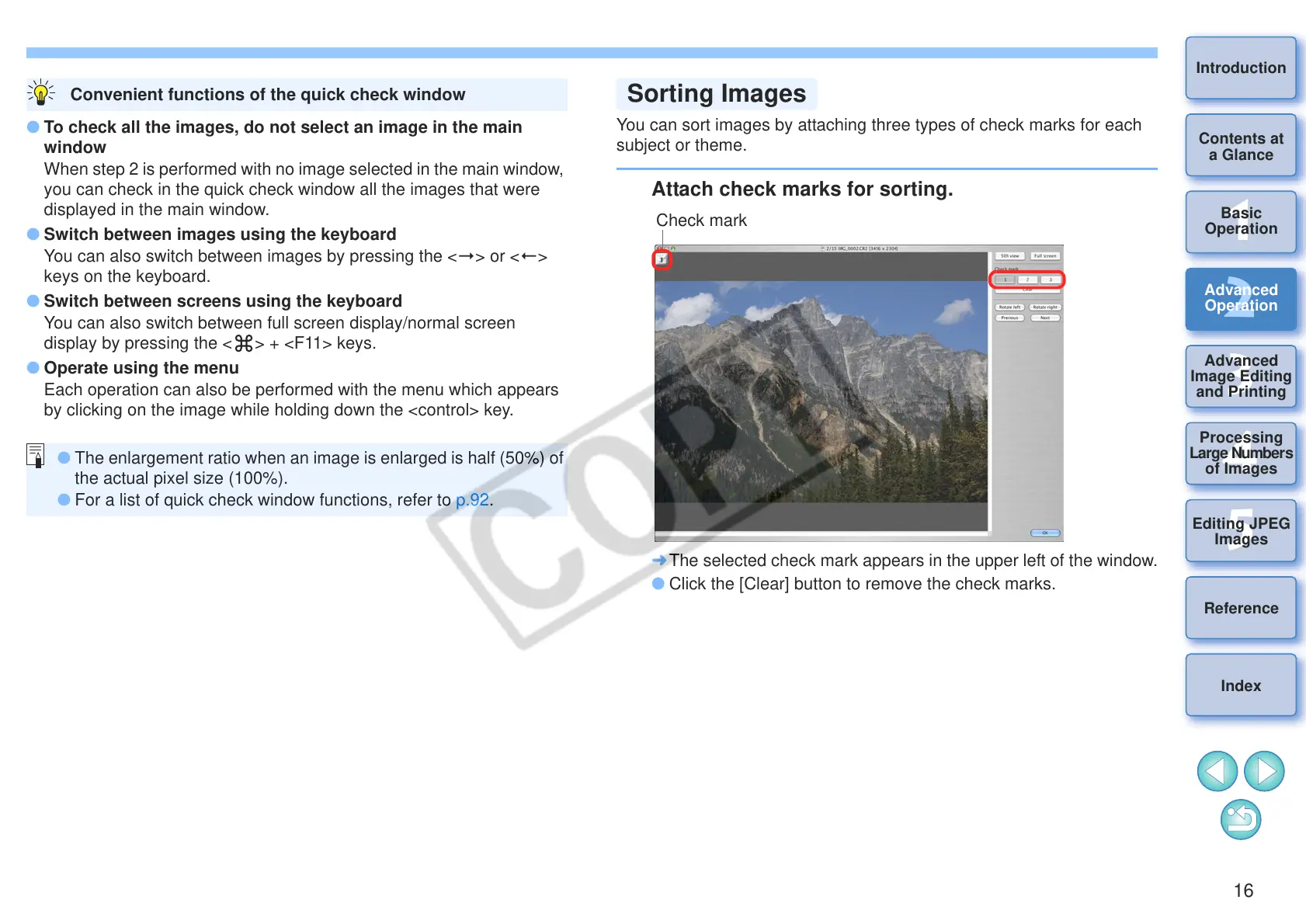
You can sort images by attaching three types of check marks for each
subject or theme.
Attach check marks for sorting.
¿ The selected check mark appears in the upper left of the window.
O Click the [Clear] button to remove the check marks.





 To Next Page