34
1
2
3
4
5
Introduction
Contents at
a Glance
Basic
Operation
Advanced
Operation
Advanced
Image Editing
and Printing
Editing JPEG
Images
Index
Processing
Large Numbers
of Images
Reference
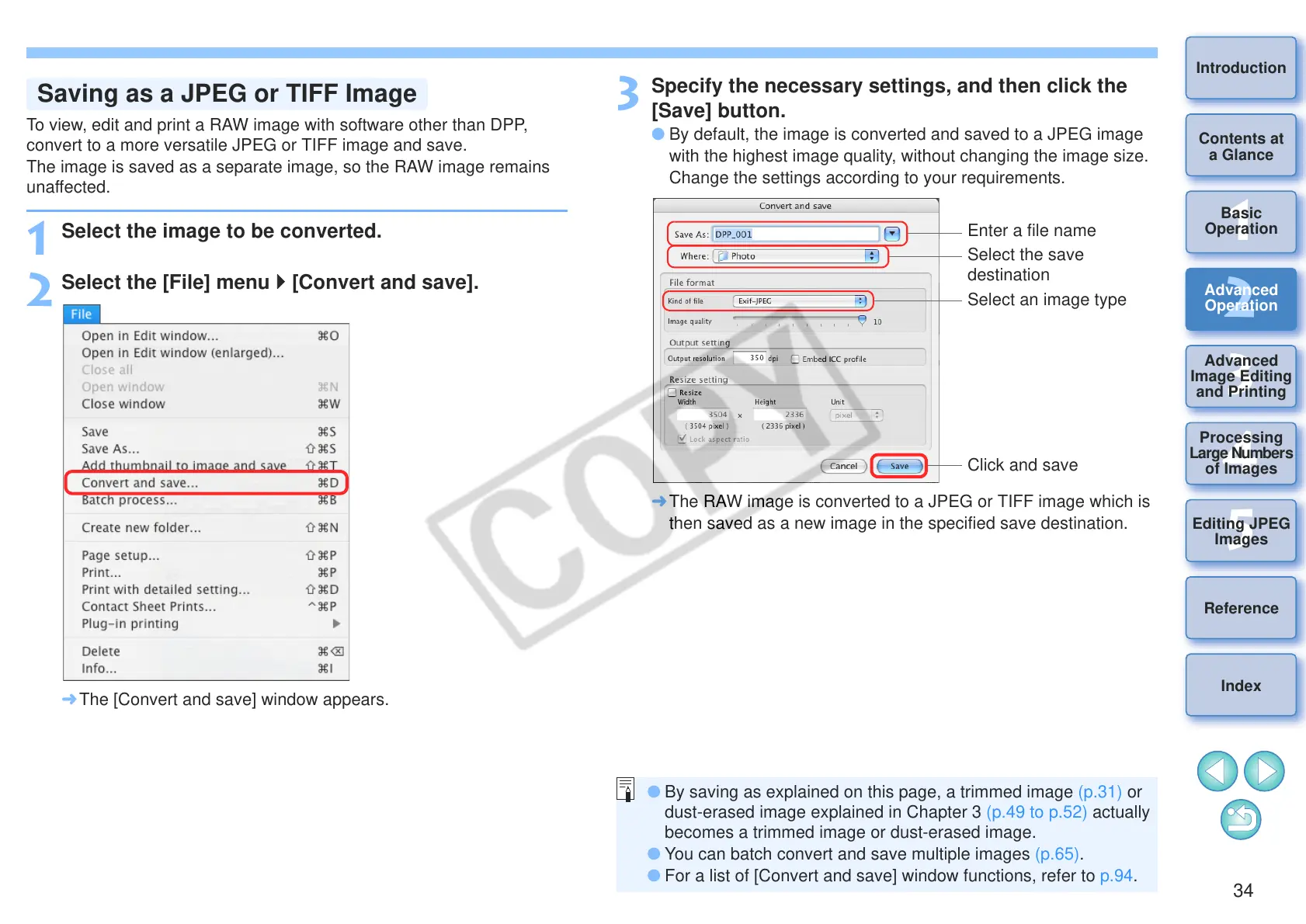
To view, edit and print a RAW image with software other than DPP,
convert to a more versatile JPEG or TIFF image and save.
The image is saved as a separate image, so the RAW image remains
unaffected.
1
Select the image to be converted.
2
Select the [File] menu [Convert and save].
¿ The [Convert and save] window appears.
Saving as a JPEG or TIFF Image
3
Specify the necessary settings, and then click the
[Save] button.
O By default, the image is converted and saved to a JPEG image
with the highest image quality, without changing the image size.
Change the settings according to your requirements.
¿ The RAW image is converted to a JPEG or TIFF image which is
then saved as a new image in the specified save destination.
Click and save
Select the save
destination
Select an image type
Enter a file name
O By saving as explained on this page, a trimmed image (p.31) or
dust-erased image explained in Chapter 3 (p.49 to p.52) actually
becomes a trimmed image or dust-erased image.
O You can batch convert and save multiple images (p.65).
O For a list of [Convert and save] window functions, refer to p.94.




 To Next Page