56
1
2
3
4
5
Introduction
Contents at
a Glance
Basic
Operation
Advanced
Operation
Advanced
Image Editing
and Printing
Editing JPEG
Images
Index
Processing
Large Numbers
of Images
Reference
You can use DPP to print with the DPP-compatible Canon large-format
imagePROGRAF printer. To print with DPP, first install the
imagePROGRAF Print Plug-In for Digital Photo Professional on your
computer.
O A single image can be printed at a time
You can print a single image selected in DPP at a time. When printing
multiple images, perform printing for each image individually.
O Functions set in DPP that are not applied to printing
Specified output resolution (p.57) and CMYK simulation (p.59, p.60)
are not applied.
O Printing with faithful colors
When a color space is set (p.52, p.59, p.60), it is automatically
transmitted from DPP to the Plug-In, allowing you to print with faithful
colors.
O Printing with a wide color reproduction
When the color space setting (p.52, p.59, p.60) is set to a color space
wider than sRGB (such as Adobe RGB), the color reproduction range
of the imagePROGRAF printer is fully utilized and the image is printed
with a wider color gamut than an image that has an sRGB color
space, with green and blue in particular being reproduced vividly.
1
Select the [File] menu [Plug-in printing] Plug-In
for the printer you use.
¿ The Plug-In starts up.
2
Specify the required settings for photograph
printing, and then print.
Additional information
Advantages of printing with the imagePROGRAF Print Plug-In
Printing with a Large-Format Canon Printer
Specifying Preferences
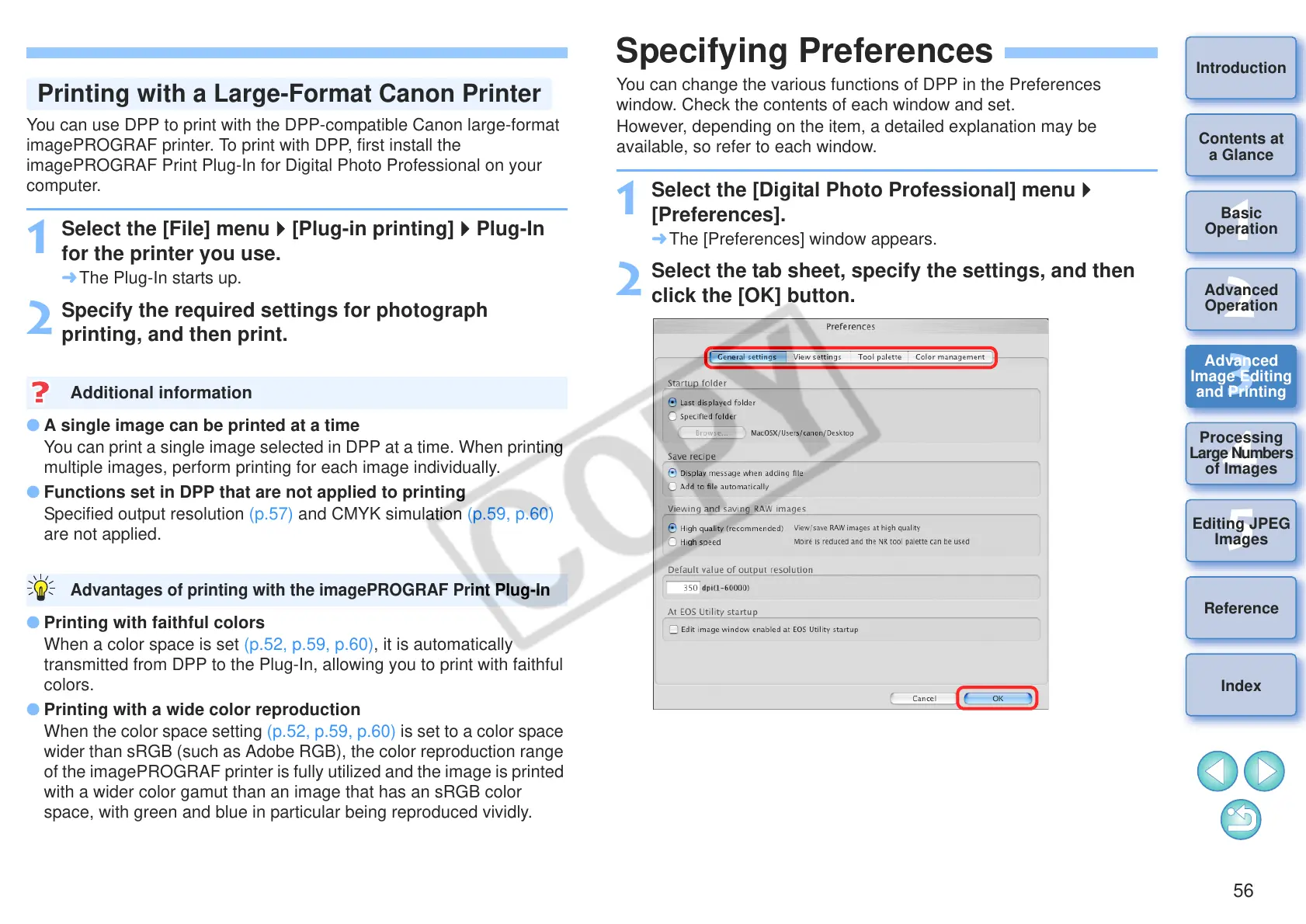
You can change the various functions of DPP in the Preferences
window. Check the contents of each window and set.
However, depending on the item, a detailed explanation may be
available, so refer to each window.
1
Select the [Digital Photo Professional] menu
[Preferences].
¿ The [Preferences] window appears.
2
Select the tab sheet, specify the settings, and then
click the [OK] button.




 To Next Page