30
1
2
3
4
5
Introduction
Contents at
a Glance
Basic
Operation
Advanced
Operation
Advanced
Image Editing
and Printing
Editing JPEG
Images
Index
Processing
Large Numbers
of Images
Reference
4
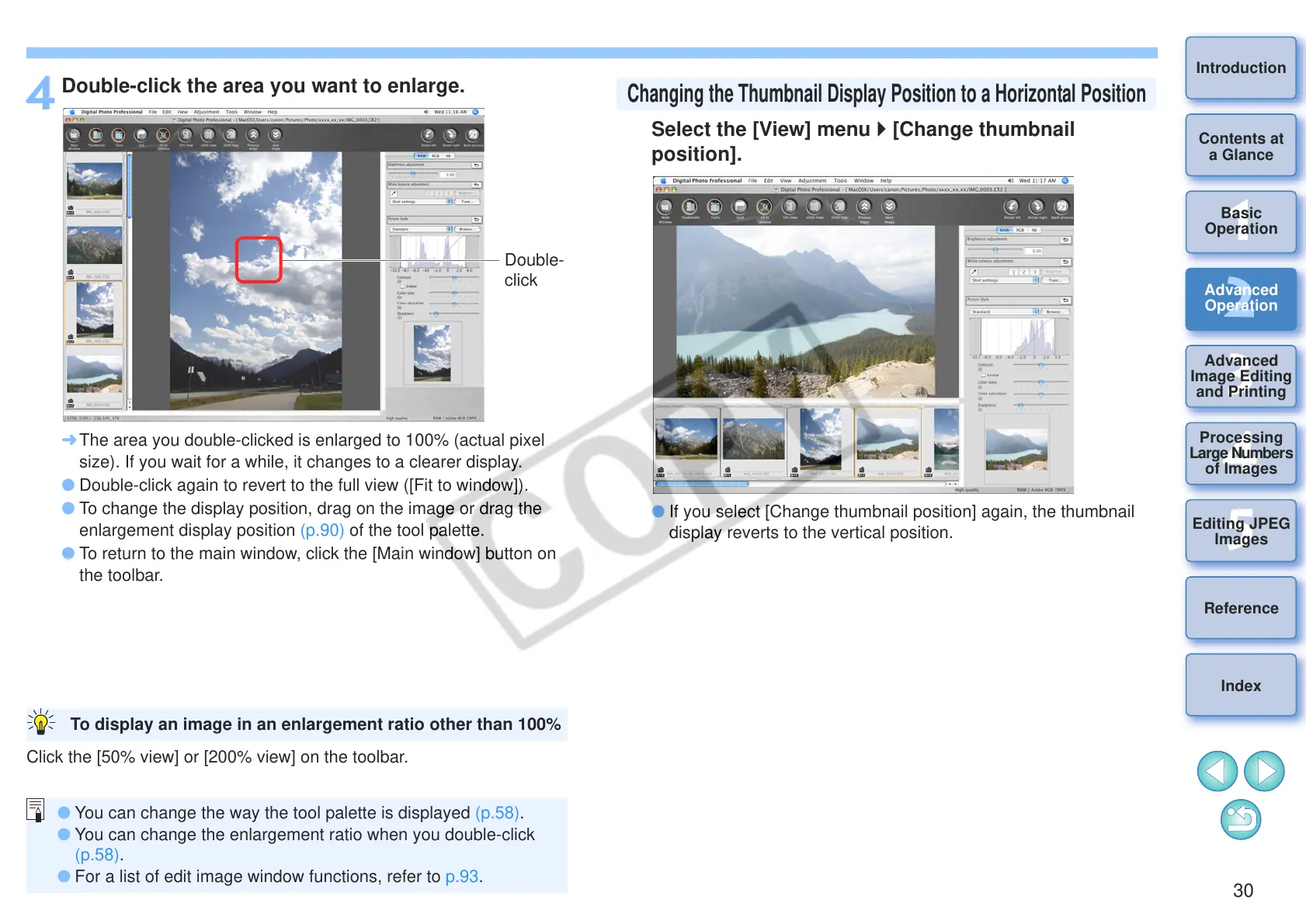
Double-click the area you want to enlarge.
¿ The area you double-clicked is enlarged to 100% (actual pixel
size). If you wait for a while, it changes to a clearer display.
O Double-click again to revert to the full view ([Fit to window]).
O To change the display position, drag on the image or drag the
enlargement display position (p.90) of the tool palette.
O To return to the main window, click the [Main window] button on
the toolbar.
Click the [50% view] or [200% view] on the toolbar.
To display an image in an enlargement ratio other than 100%
O You can change the way the tool palette is displayed (p.58).
O You can change the enlargement ratio when you double-click
(p.58).
O For a list of edit image window functions, refer to p.93.
Select the [View] menu [Change thumbnail
position].
O If you select [Change thumbnail position] again, the thumbnail
display reverts to the vertical position.
Changing the Thumbnail Display Position to a Horizontal Position




 To Next Page