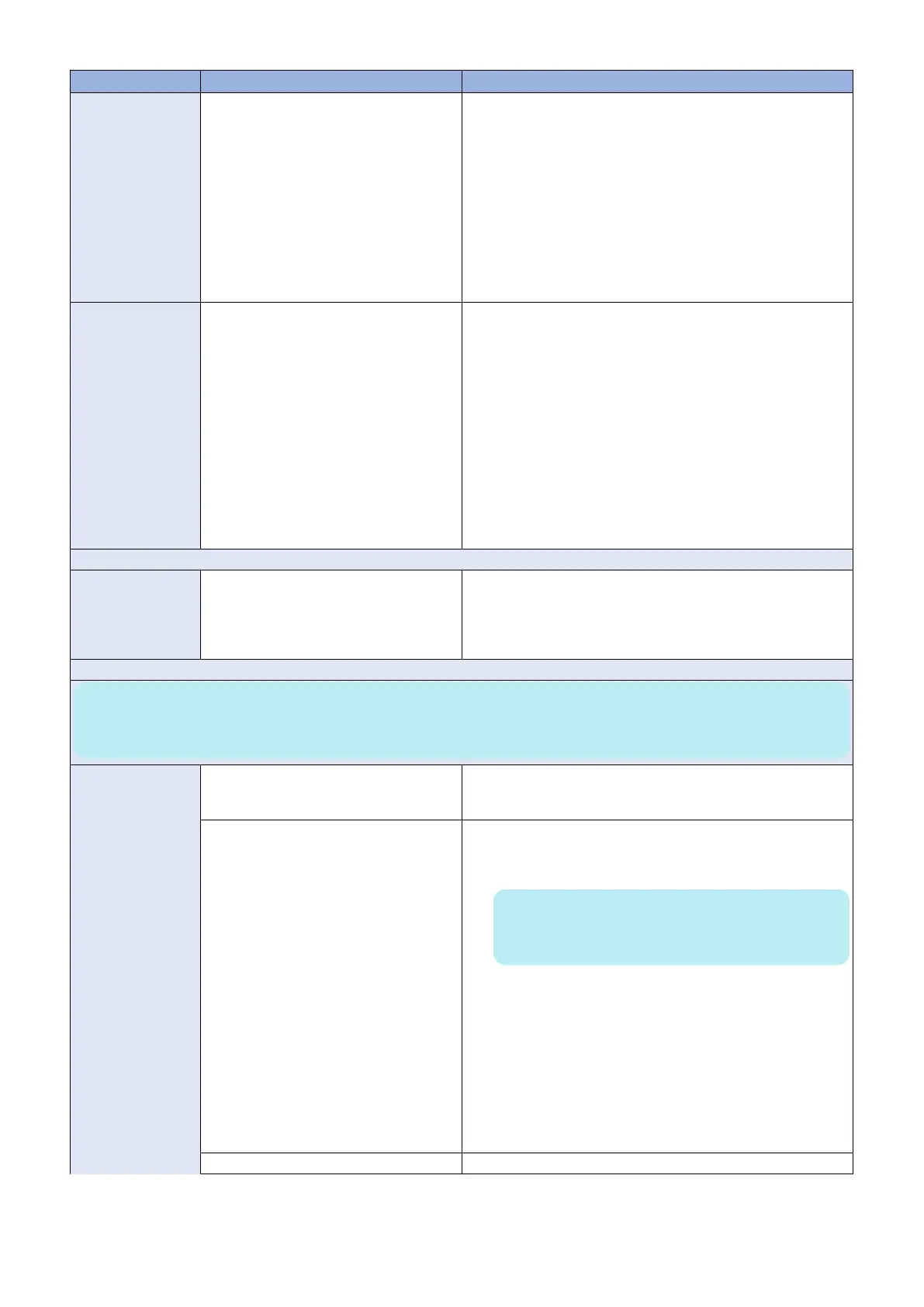
Symptom Possible cause Suggested action
Unable to connect to
the network; or nei-
ther LED on the
10/100/1000BaseT
network connector is
lit
One of the following:
• Wrong cable. Do not use a crossover
cable.
• Wrong port. Do not use the printer port.
The printer port is reserved for the print-
er and for installing system software
from a PC.
• Faulty network cable or connection
• Faulty network
• Faulty Ethernet port on the mother-
board
1. Make sure that the network cable is the correct type and con-
nected to the designated LAN port on the imagePRESS Server
connector panel.
2. Check the cable connection to the network.
3. Replace the cable with a new or tested cable.
4. Request that the network administrator check Network Setup.
5. Request that the network administrator check other devices on
the network.
If other devices are not functioning, there could be a problem
with the network.
6. If the rest of the network is functioning properly and the prob-
lem persists, replace the motherboard.
System starts up
slowly (seems to
hang) and the Con-
figuration page dis-
plays an error on the
“IP Address” line un-
der “Network Setup”
One of the following:
• Normal behavior
System is searching for a nonexistent
DHCP server.
DHCP is enabled by default on the im-
agePRESS Server, but the customer’s
network is not using DHCP.
• If the customer’s network is using
DHCP:
• Network cable or connection is
faulty
• Network is faulty
• Faulty Ethernet port on the moth-
erboard
1. Request that the network administrator change the default in
imagePRESS Server Network Setup.
2. If neither LED on the designated network port is lit on the im-
agePRESS Server, check the cable connection to the image-
PRESS Server and the network. Make sure that the cable is
the correct type.
3. If the network cable is the correct type and is properly con-
nected to the imagePRESS Server, connect a new network
cable to the imagePRESS Server.
4. Request that the network administrator check other devices on
the network.
If other devices are not functioning, there could be a problem
with the network.
5. Replace the motherboard.
Scanning
Problems with scan-
ning or sending files
• Loose, incorrect, or missing connection
between the imagePRESS Server and
printer
• The printer does not have an IP ad-
dress
1. Check and reseat the printer interface cable between the im-
agePRESS Server and the printer.
2. Power off/on the printer.
3. Replace the printer interface cable.
Printing
NOTE:
Intermittent print quality problems are difficult to trace. Before you try to troubleshoot print quality problems, print a test page to
make sure that the printer itself does not need servicing or adjusting.
Test page fails to
print
Print engine is not ready to print 1. Make sure that the printer is powered on and ready to print.
2. Check the printer touch panel for indications or messages
about the printer status.
There is a problem with the connection be-
tween the imagePRESS Server and the
printer
1. Make sure that the imagePRESS Server LED is lit. If not, press
the power switch to turn on the imagePRESS Server.
2. Power off/on the printer.
NOTE:
Power off the printer using the main power switch on the
front.
3. Make sure the network and scanning options are available
from the printer touch panel.
4. Check again that the printer interface cable is present and
properly connected to the imagePRESS Server and the print-
er.
5. Check again that the printer interface board is present and
properly connected to the motherboard.
6. Replace the printer interface cable.
7. Replace the printer interface board.
8. If the problem persists, you may need to service the printer.
Corrupted system software Reinstall system software.
5. TROUBLESHOOTING
73


 To Next Page