6
Enter a desired name in Name, such as Photos for Presentations or Monthly Report.
7
Choose a fitting icon for these print settings in the Icon list.
8
In Comment, enter a description of the favorite to be added, as desired.
9
Click OK to close the Add dialog box.
The favorite you have added is now displayed in A Favorites.
Note
• To save a favorite as a file, click J Export and specify the file to save.
Printing using the favorite
Follow the steps below to print using the favorite you have registered.
1
Choose Print in the application menu.
2
Select the printer in the dialog box, and then display the printer driver dialog box. (See "Accessing the Printer
Driver Dialog Box from Applications .") ➔ P.164
3
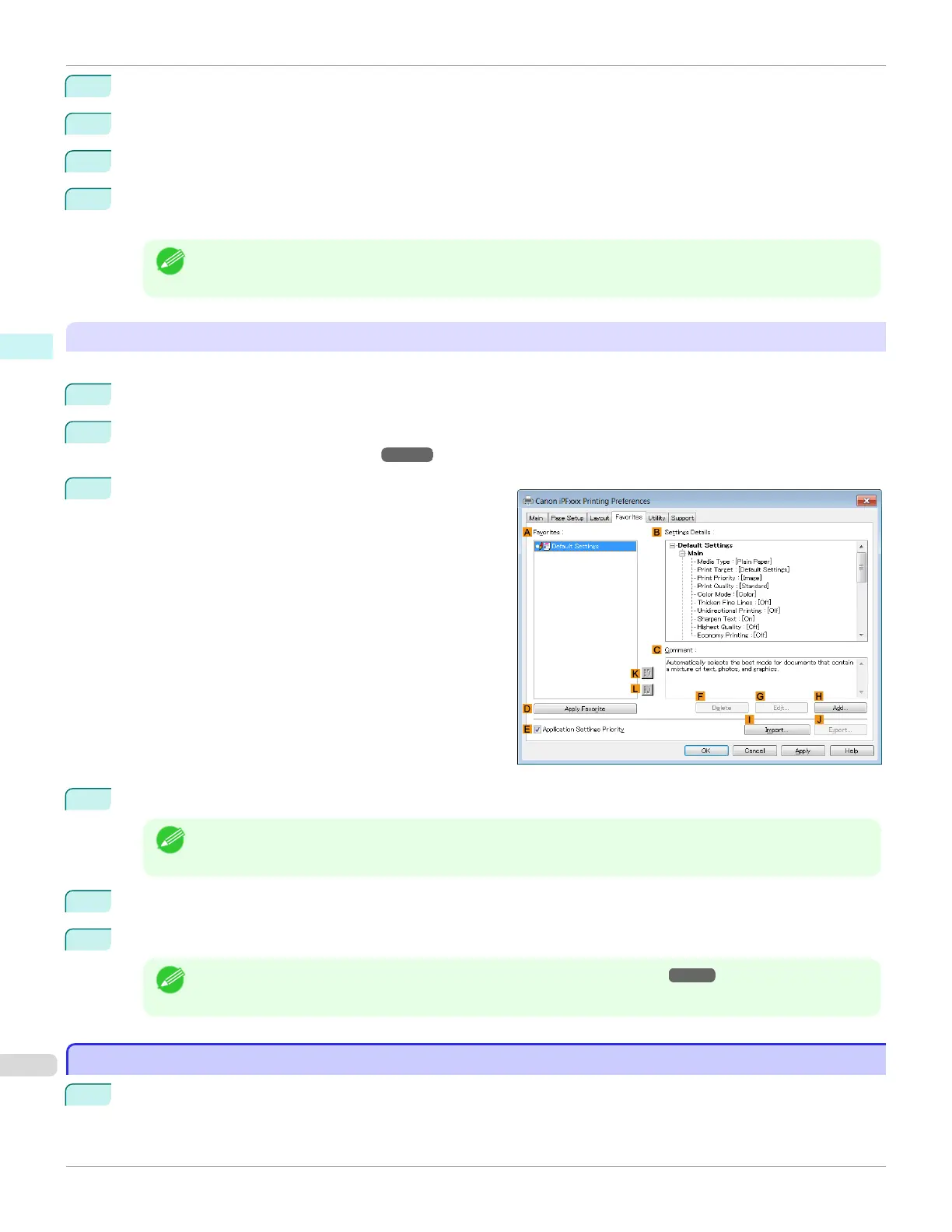
Click the Favorites tab to display the Favorites sheet.
4
In the A Favorites, choose the favorite you registered.
Note
• To import a favorite, click I Import and specify the favorite file.
5
Click D Apply Favorite to replace the favorite settings with the current print settings.
6
Confirm the print settings and print as desired.
Note
• For instructions on confirming print settings, see "Confirming Print Settings ." ➔ P.161
Accessing the Printer Driver Dialog Box from Applications
Accessing the Printer Driver Dialog Box from Applications
1
Choose Print from the File menu to display the dialog box for printing conditions.
Accessing the Printer Driver Dialog Box from Applications
iPF685
User's Guide
Windows Software Printer Driver
164










 To Next Page