Installing the CAPT Software
2-14
Setting Up the Network Environment for Printing
2
Installing the Printer Driver Manually Using Various Utility
Software
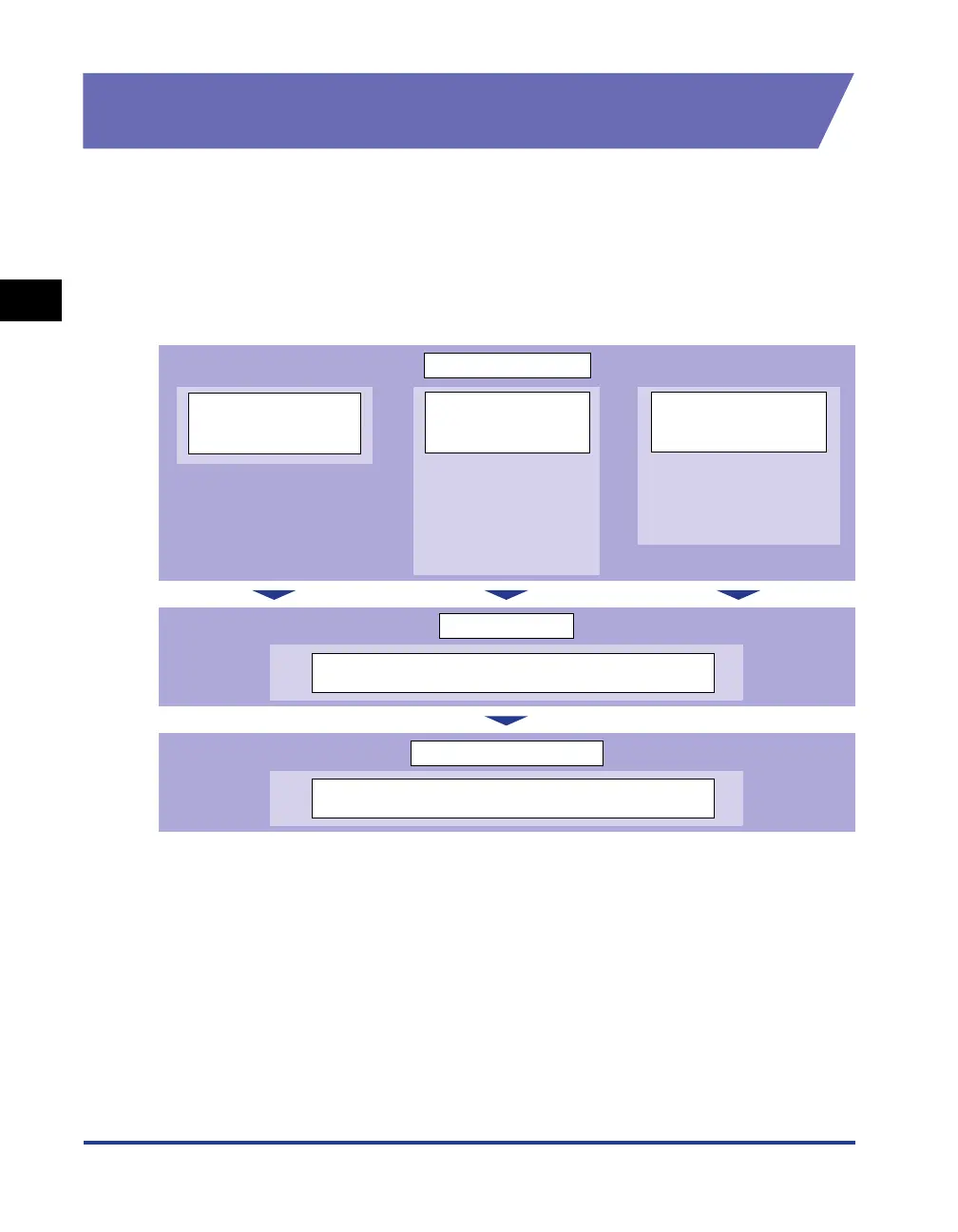
This section describes the procedures for installing the printer driver manually
using various utility software. Before installing the printer driver from [Add Printer
Wizard], you need to set the IP address and create a port (Canon CAPT Port) in
order to configure the environment in which the printer and computer you are using
can correspond to each other as shown in the following figure. Install the printer
driver after configuring the network environment, following the procedure described
in the figure.
IP Address Setting
IP Address Setting Using
NetSpot Device Installer
(See p. 2-15)
IP Address Setting
Using the ARP/PING
Command (See p. 2-22)
*
If you are using Windows
XP Service Pack 2 or
another operating
system equipped with
Windows Firewall, set
the IP address using the
ARP/PING command.
IP Address Setting Using
the Printer Status Window
(See p. 2-24)
* You can set the IP address
from the Printer Status
Window if the printer driver
has already been installed
by the USB connection.
Creating a Port
Installing Canon CAPT Print Monitor Using Print Monitor
Installer (See p. 2-26)
Installing the Printer Driver
Installing the Printer Driver from [Add Printer Wizard] (See
p. 2-31)






 To Next Page