EasyManua.ls Logo

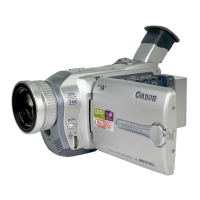
Canon MVX25i - User Manual

Canon MVX25i
164 pages
Print Icon
To Next Page IconTo Next Page
Loading...
Digital Video Camcorder
Instruction Manual
English
PAL
CANON INC.
Canon Europa N.V.
P.O. Box 2262, 1180 EG Amstelveen, the Netherlands
Canon UK Ltd.
CCI Service Centre, Unit 130
Centennial Park, Borehamwood, Hertfordshire, WD6 3SE, England
Telephone 0870-241-2161
Canon Australia Pty. Ltd.
Info-Line: 131383
www.canon.com.au
Canon New Zealand Ltd.
Customer Care: (09) 489 0470
www.canon.co.nz
Canon Singapore Pte. Ltd
1 HarbourFront Avenue, #04-01 Keppel Bay Tower, Singapore 098632
Tel: (65) 6799 8888
Fax: (65) 6799 8882
Canon Hongkong Company Ltd
19/F., The Metropolis Tower, 10 Metropolis Drive, Hunghom, Kowloon, Hong Kong
Canon Latin America, Inc.
Sales & Enquiries: 703 Waterford Way Suite 400 Miami, FL 33126 USA
Printed on 100% reused paper.
PRINTED IN JAPAN
© CANON INC. 2004
DY8-9020-136-000
0041W571
PUB.DIE-205
0000Ni0.0
PUB.DIE-205
PUB.DIE-205
Introduction
Basic Functions
Advanced
Functions
Editing
Using a
Memory Card
Direct
Printing
Additional
Information
Mini
Digital
Video
Cassette
Please read also the following instruction
manuals.
• Digital Video Software
•DV Network Software
Digital Video Software Version 12
Instruction Manual
E
If you are using Windows operating system, use the supplied
DIGITAL VIDEO SOLUTION DISK For Windows.
If you are using Macintosh operating system, use the supplied
DIGITAL VIDEO SOLUTION DISK For Macintosh.
PUB. DIE-203
This instruction manual explains how to install the software, connect the
camcorder to a computer, and download images from a memory card to a
computer. For more detailed operational instructions, refer to the PDF format
manual provided on the DIGITAL VIDEO SOLUTION DISK For Windows or
DIGITAL VIDEO SOLUTION DISK For Macintosh.
DV Network Software Version 2
Instruction Manual (Installation and Preparation)
This software is for use with Windows
®
XP only.
PUB. DIE-204
E
This manual covers the installation and the connection procedures only.For
more operating instructions, refer to the PDF format manual provided on the
DIGITAL VIDEO SOLUTION DISK For Windows.
Transferring
Images

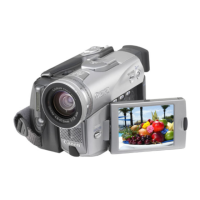
Table of Contents

Questions and Answers

  • K
    Kathryn ArcherSep 10, 2025
    What does it mean when Canon Camcorder displays “SET THE TIME ZONE, DATE AND TIME”?
    • T
      thorntonkelseySep 10, 2025
      If your Canon Camcorder displays “SET THE TIME ZONE, DATE AND TIME” on the screen, it means the time zone, date and time are not set, or the backup battery is exhausted. Set the time zone, date and time, or replace the backup battery and reset the date and time.
  • E
    edwardsmartinSep 9, 2025
    Why memory card cannot be played back on Canon Camcorder?
    • E
      Elizabeth SalazarSep 9, 2025
      If the memory card cannot be played back on your Canon Camcorder, ensure the camcorder is set to CARD PLAY mode. Also, check if a memory card is inserted; if not, insert a memory card.
  • N
    Nicole WilliamsSep 8, 2025
    Why LCD/viewfinder of Canon MVX25i Camcorder switches on and off?
    • A
      Ashley MarshallSep 8, 2025
      If your Canon Camcorder's LCD/viewfinder switches on and off, the battery pack may be exhausted; in this case, replace or charge the battery pack.
  • S
    Sara SuarezAug 22, 2025
    How to fix a Canon MVX25i Camcorder that will not turn on?
    • D
      David MaynardAug 23, 2025
      If your Canon Camcorder won't turn on, it might be due to an exhausted battery pack. Try replacing or charging the battery pack. Also, check if the battery pack is correctly attached; if not, attach it correctly.
  • N
    noahclarkSep 5, 2025
    Why memory card cannot be recorded on Canon MVX25i?
    • B
      butlerpatrickSep 6, 2025
      If the memory card cannot be recorded on your Canon Camcorder, it could be due to several reasons: 1. The memory card is full. Replace the memory card or erase images. 2. The memory card is not formatted. Format the memory card. 3. The memory card is not inserted. Insert a memory card. 4. The file number reached maximum value. Set [FILE NUMBERS] to [RESET] and insert a new memory card. 5. The SD Memory Card is protected. Change the position of the protect switch.
  • T
    Thomas HarmonSep 4, 2025
    Why image will not appear on the TV screen from my Canon MVX25i?
    • S
      sarah55Sep 4, 2025
      If the image will not appear on the TV screen from your Canon Camcorder, check the following: * [AV/PHONESH] is set to [PHONESH] in the menu, set [AV/PHONESH] to [AV] in the menu. * [AV \ DV OUT] is set to [ON], set [AV \ DV OUT] to [OFF].
  • T
    Timothy BrownSep 3, 2025
    What does it mean when “v“ flashes on the screen of Canon Camcorder?
    • J
      Justin HallSep 3, 2025
      If “v“ flashes on the screen of your Canon Camcorder, it means that a cassette is not loaded. Load a cassette.
  • O
    ofieldsSep 2, 2025
    What to do if pressing the playback button does not start playback on Canon MVX25i?
    • J
      Jennifer RiveraSep 2, 2025
      If pressing the playback button does not start playback on your Canon Camcorder, ensure the camcorder is turned on and set to PLAY (VCR) mode. Also, check if a cassette is loaded. If the tape has reached the end, rewind the tape.
  • U
    uonealSep 1, 2025
    Why the buttons of my Canon Camcorder will not work?
    • W
      williamcastilloSep 1, 2025
      If the buttons on your Canon Camcorder will not work, first ensure that the camcorder is turned on. Also, check if a cassette is loaded; if not, load a cassette.
  • P
    Peter BarrettAug 30, 2025
    What to do if cassette compartment of Canon MVX25i Camcorder will not open?
    • R
      rachelcampbellAug 31, 2025
      If the cassette compartment of your Canon Camcorder will not open, it might be because the battery pack is exhausted; in this case, replace or charge the battery pack. Also, check if the cassette compartment cover is fully open; if not, open it fully.

Canon MVX25i Specifications

General IconGeneral
Optical Sensor Size1/4 inch
SensorCCD
LCD Screen2.5 inches
ViewfinderColor
Recording MediaMini DV
Image StabilizationElectronic
FocusAuto/Manual
Exposure ControlAuto, Manual
Minimum Illumination2 lux
MicrophoneStereo
BatteryLithium-ion
TypeCamcorder
White BalanceAuto, Presets
Audio Recording12/16 bit PCM
InterfaceIEEE 1394 (FireWire)
Supported memory cardsSD Card

Related product manuals