66 ImageBrowser Software User Guide
Chapter 6
Using Supplementary Features
Saving the “My Camera Settings” to the Camera (7/10)
10.
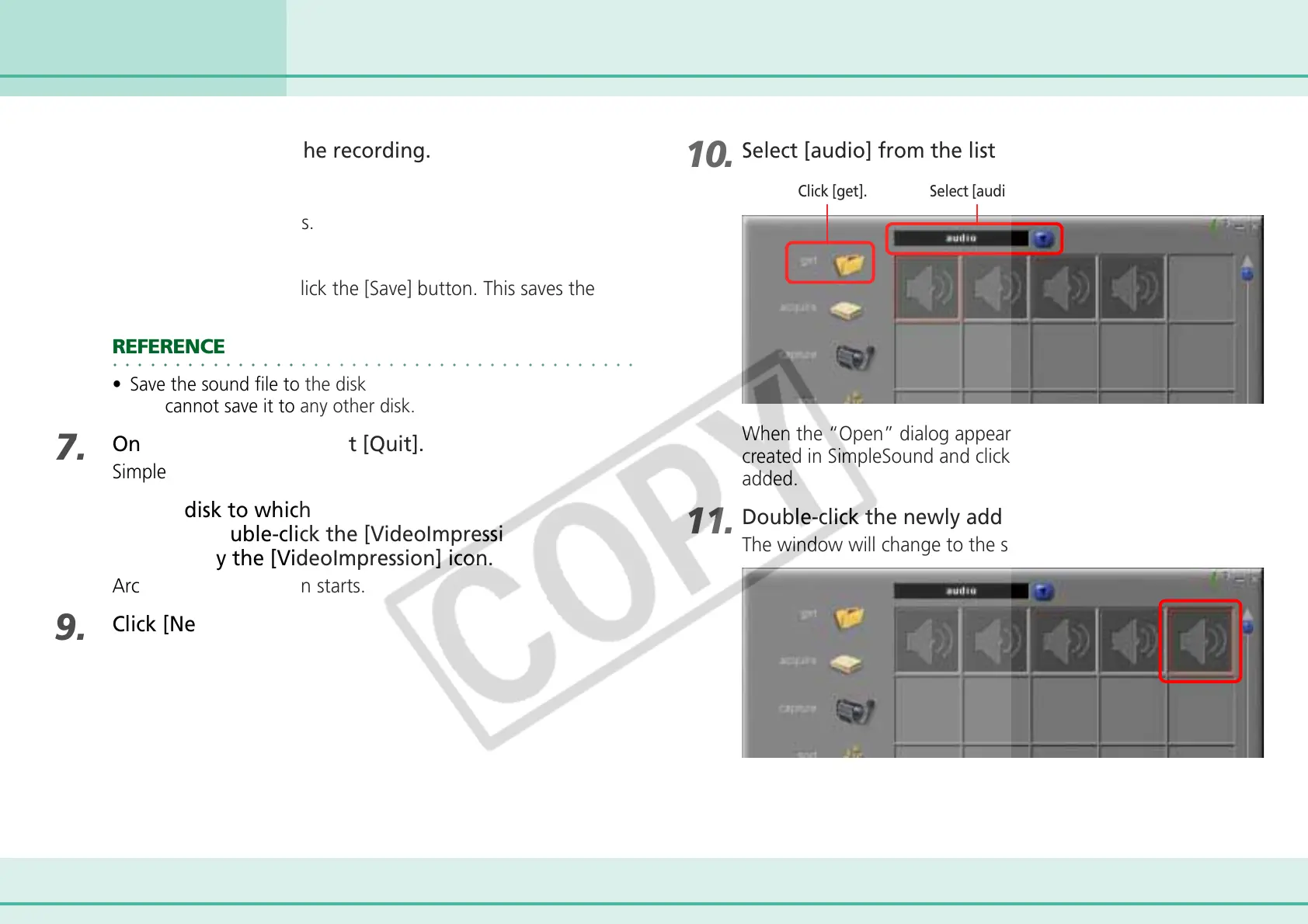
Select [audio] from the list box and click [get].
Click [get]. Select [audio].
When the “Open” dialog appears, select the sound file you
created in SimpleSound and click [Open]. A new sound icon is
added.
11.
Double-click the newly added sound icon.
The window will change to the sound editing window.
4.
Click [Stop] to halt the recording.
5.
Click [Save].
The Save dialog appears.
6.
Save the file.
Input a file name and click the [Save] button. This saves the
recorded sound.
○○○○○○○○○○○○○○○○○○○○○○○○○○○○○○○○○○○○○○○○○○
REFERENCE
• Save the sound file to the disk containing the System folder.
You cannot save it to any other disk.
7.
On the [File] menu, select [Quit].
SimpleSound closes.
8.
On the disk to which ArcSoft VideoImpression was
installed, double-click the [VideoImpression] folder,
followed by the [VideoImpression] icon.
ArcSoft VideoImpression starts.
9.
Click [New].




 To Next Page