67 ImageBrowser Software User Guide
Chapter 6
Using Supplementary Features
Saving the “My Camera Settings” to the Camera (8/10)
13.
Click [Play Movie].
The first window is restored.
14.
Click [Save].
15.
Click [QuickTime].
16.
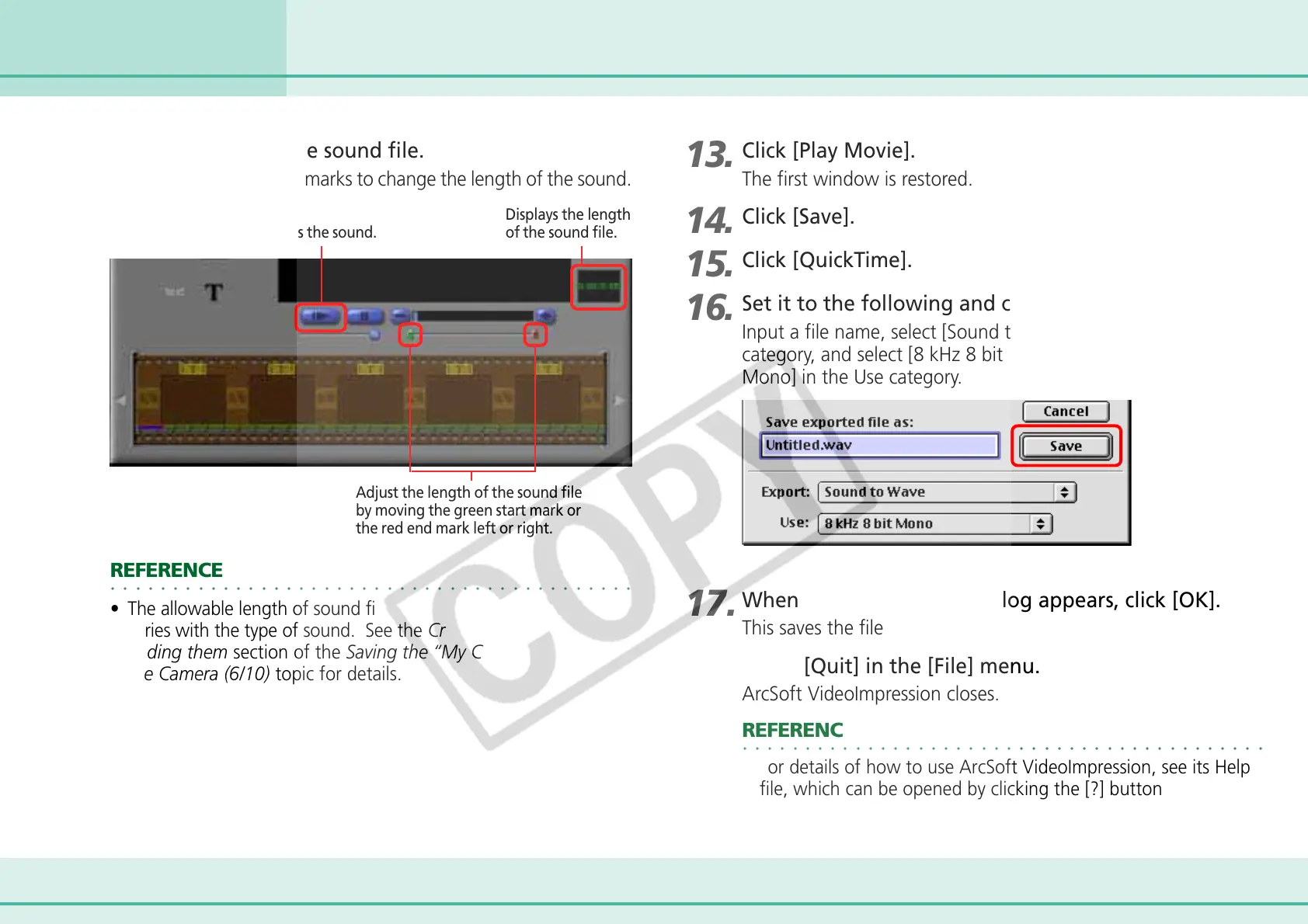
Set it to the following and click [Save].
Input a file name, select [Sound to Wave] in the Export
category, and select [8 kHz 8 bit Mono] or [11.025 kHz 8 bit
Mono] in the Use category.
Plays the sound.
Displays the length
of the sound file.
Adjust the length of the sound file
by moving the green start mark or
the red end mark left or right.
12.
Edit the length of the sound file.
Adjust the start and end marks to change the length of the sound.
○○○○○○○○○○○○○○○○○○○○○○○○○○○○○○○○○○○○○○○○○○
REFERENCE
• The allowable length of sound files used as My Camera Settings
varies with the type of sound. See the Create new files before
adding them section of the Saving the “My Camera Settings” to
the Camera (6/10) topic for details.
17.
When the [Add Album] dialog appears, click [OK].
This saves the file you created.
18.
Select [Quit] in the [File] menu.
ArcSoft VideoImpression closes.
○○○○○○○○○○○○○○○○○○○○○○○○○○○○○○○○○○○○○○○○○○
REFERENCE
• For details of how to use ArcSoft VideoImpression, see its Help
file, which can be opened by clicking the [?] button at the top
right of its window.




 To Next Page