EasyManua.ls Logo

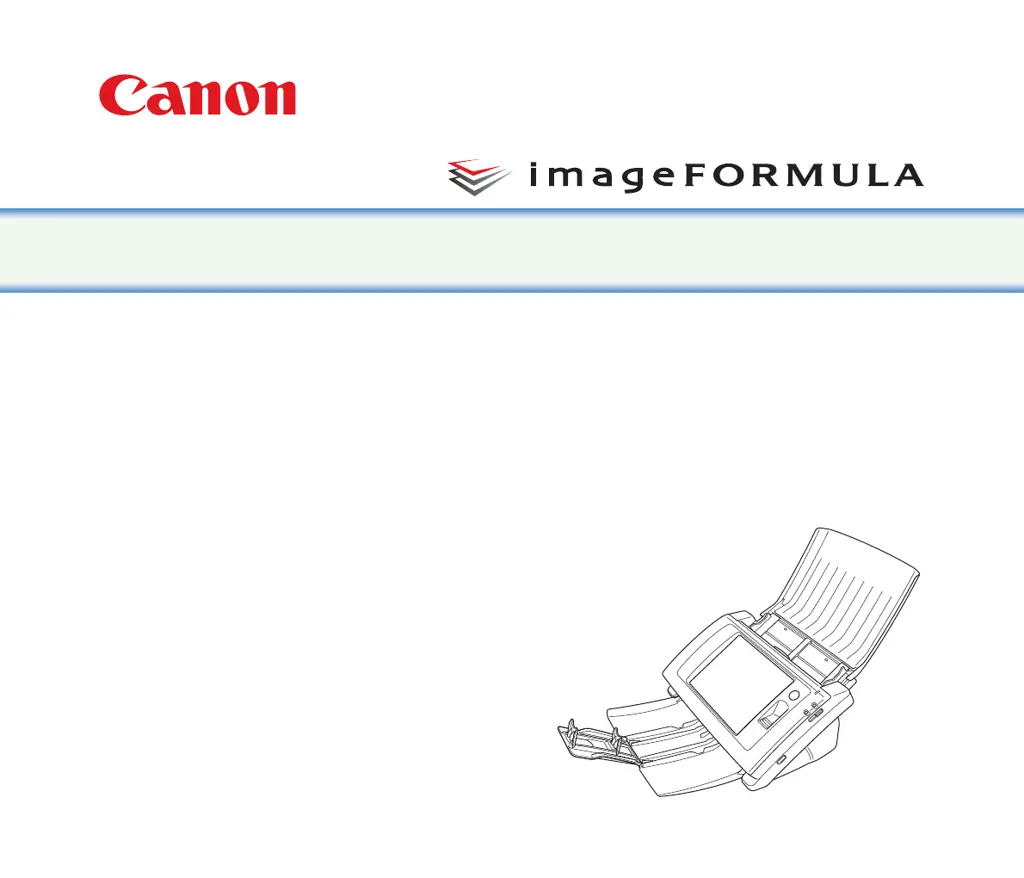
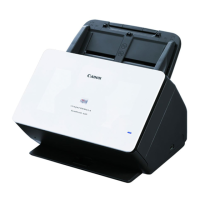
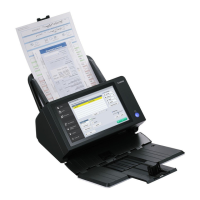
Canon ScanFront 300 - User Manual

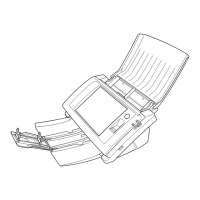
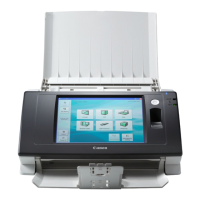
Canon ScanFront 300
201 pages
Print Icon
To Next Page IconTo Next Page
Loading...
Please read this manual before using the scanner.
After you finish reading this manual, keep it in a safe place
for future reference.
INSTRUCTIONS
ScanFront 300/300P/330

Table of Contents

Other manuals for Canon ScanFront 300

Questions and Answers

  • J
    James AlvaradoAug 21, 2025
    How to troubleshoot Canon Scanner that cannot turn on?
    • S
      Sarah CalhounAug 21, 2025
      The most common cause is an improperly connected AC adapter or power plug. Check these connections. If the problem persists after verifying the connections, it's best to contact your local authorized Canon dealer for further assistance.
  • H
    harrissamuelSep 3, 2025
    Why Canon ScanFront 300 paper jams occur frequently?
    • N
      nharmonSep 3, 2025
      The rollers (consumable parts) have likely worn out. Purchase an Exchange Roller Kit and replace the rollers on your Canon Scanner.
  • S
    stevenpughSep 1, 2025
    How to fix streaks appearing in Canon ScanFront 300 Scanner images?
    • M
      Michael McbrideSep 1, 2025
      This happens because the scanning glass is dirty. Clean the scanning glass of your Canon scanner. If there are scratches on the scanning glass, contact your local authorized Canon dealer.
  • E
    Eileen BurnsAug 30, 2025
    Why Canon ScanFront 300 Scanner feeds a stack of documents together?
    • S
      Steven WhiteAug 30, 2025
      This issue occurs because the feed selection lever is set to 'Page Separation OFF'. To fix this, set the feed selection lever to page separation feeding on your Canon scanner.
  • M
    Michael MooreAug 29, 2025
    What to do if Canon ScanFront 300 Scanner cannot connect to the network (IP address conflict)?
    • S
      Shirley MendozaAug 29, 2025
      This can happen if the IP address set for the Canon Scanner is already in use by another device on the network. Contact your network's system administrator to change the IP address setting for the scanner.
  • A
    agarciaAug 27, 2025
    How to enable JavaScript for Canon ScanFront 300 Scanner Web menu login?
    • A
      Ashley WilliamsAug 27, 2025
      If you cannot log in to the Web menu of your Canon Scanner, the most likely cause is that JavaScript is disabled in your web browser. To resolve this, simply enable JavaScript in your browser's settings.
  • R
    rayleeAug 26, 2025
    Why are Canon Scanner documents double fed?
    • S
      Shannon EsparzaAug 27, 2025
      If the documents are sticking together due to static electricity, fan the documents before loading them. Another cause might be related to the paper type, which can lead to paper feed errors. In this case, load no more than ten pages or use bypass feeding to scan the pages one by one.
  • W
    William HallAug 25, 2025
    What to do if Canon Scanner cannot connect to the network (device name conflict)?
    • L
      Linda MontesAug 25, 2025
      This issue occurs because the device name set for the Canon Scanner is already being used by another device on the network. Contact the system administrator of the network to change the device name setting. When you install two or more ScanFront scanners, ensure duplicate device names are not set.
  • H
    Hannah ElliottAug 23, 2025
    Why my Canon Scanner cannot connect to the network (LAN cable)?
    • R
      Rebecca BurtonAug 23, 2025
      This issue occurs when the LAN cable is not properly connected. Ensure that the LAN cable is securely connected to your Canon Scanner and the network.

Summary

Chapter 1 Before Use

Important Safety Instructions

Provides critical warnings and precautions for safe scanner operation and installation.

Features of the ScanFront 300;300 P;330

Details the main capabilities and functions of the ScanFront scanner.

Names and Functions of Parts

Identifies and explains the purpose of various physical components of the scanner.

Network Environment

Outlines the requirements and considerations for connecting the scanner to a network.

Chapter 2 Handling

Documents

Specifies the types, sizes, and thicknesses of documents that can be scanned.

Preparing the Scanner

Details how to set up the document feed and eject trays for scanning.

Placing Documents

Explains the correct procedure for loading documents into the scanner feed tray.

Clearing a Paper Jam or Double Feed Error

Provides steps to resolve paper jams and double feed issues.

Fingerprint Sensor (ScanFront 300 P)

Describes the handling and care of the fingerprint sensor for authentication.

Chapter 3 ScanFront Setup

Before Setting Up the Scanner

Covers essential pre-setup considerations like installation location and environment.

Turning the Power ON and OFF

Explains the procedure for powering the scanner on and off using the switch and panel.

Configuring the Scanner Settings

Details initial scanner configuration, including administrator settings.

Configuring Administrator Settings

Guides on logging into administrator settings and configuring network options.

Chapter 4 ScanFront Service

About ScanFront Service

Explains the purpose and functionality of the ScanFront Service software.

Installing ScanFront Service

Provides system requirements and step-by-step instructions for installing the service.

ScanFront Service Setup

Details the necessary configuration steps for ScanFront Service after installation.

Chapter 5 Operating Procedures

Login Screen

Describes the two types of login screens and server authentication.

Fingerprint Registration (Only Available with the ScanFront 300 P)

Details the process of registering fingerprints for user authentication on the 300P model.

Scanning Procedures

Explains how to perform scanning operations from the Home or Job Button screens.

Registering and Editing Addresses

Guides on adding and managing destination addresses in the address book.

Scan;Delivery Options

Covers settings for scan conditions, file formats, and delivery options.

Chapter 6 Web Menu (Administrator Mode)

Web Menu Overview

Introduces the Web Menu functionality for scanner configuration.

Logging In to the Web Menu

Provides instructions on how to access the Web Menu using a browser.

User Administration

Explains how to register, manage, and restrict user functions.

Address Book Settings

Details how to register and manage entries in the Shared Address Book.

Device Configuration

Covers settings for network, language, timezone, and device operation.

Server Settings

Configures mail, authentication, address book, and FTP server settings.

System Settings

Covers backup, restore, version updates, and log settings.

Chapter 7 ScanFront Administration Tool

About ScanFront Administration Tool

Describes the purpose and capabilities of the administration tool.

Installing ScanFront Administration Tool

Provides system requirements and installation steps for the tool.

Managing the ScanFront Scanners

Details how to select, check connections, change passwords, and manage scanners.

Chapter 8 Web Menu (User Mode)

Logging In to the Web Menu

Explains how to access the User Mode Web Menu from a browser.

User Settings

Allows users to change their login information and screen preferences.

Address Book Settings

Details how users can manage their personal address books.

Job Button Settings

Explains how users can register and manage their job buttons.

Chapter 9 Maintenance

Routine Cleaning

Provides instructions on cleaning the scanner unit, touch panel, and fingerprint sensor.

Replacing the Rollers and Document Holding Guide

Details the process of replacing consumable parts like rollers and guides.

Chapter 10 Troubleshooting

Troubleshooting

Lists common network and scan-related problems and their solutions.

Error Messages (ScanFront)

Explains error messages displayed on the scanner and their corresponding solutions.

Adjusting the Touch Panel

Provides steps for calibrating the touch panel if it becomes unresponsive.

Initializing ScanFront

Details the process of resetting the scanner to factory defaults.

Chapter 11 Appendices

Specifications

Lists detailed technical specifications for the scanner unit and its components.

Canon ScanFront 300 Specifications

Document Handling IconDocument Handling
document size width2.0” – 8.5”
document size length2.1” – 14”
feeder capacity50 Sheets
Scanning Specifications IconScanning Specifications
optical resolution600 dpi
output resolution100/150/200/300/400/600 dpi
scanning speed black and white simplex30 ppm
Power IconPower
power consumption30W or Less
Weight and Dimensions IconWeight and Dimensions
dimensions6.3’’ x 12.2’’ x 8.7’’
weight7.9 lb

Related product manuals