EasyManua.ls Logo

Canon ScanFront 400 - User Manual

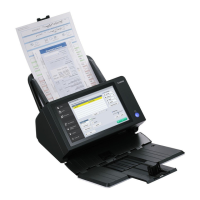
Canon ScanFront 400
206 pages
Print Icon
To Next Page IconTo Next Page
Loading...
Please read this manual before using the scanner.
After you finish reading this manual, keep it in a safe place
for future reference.
INSTRUCTIONS

Table of Contents

Questions and Answers

  • P
    Penny CollinsAug 18, 2025
    What to do if I cannot log in to my Canon ScanFront 400?
    • D
      Diane TorresAug 19, 2025
      If you cannot log in to the Canon Scanner, consider the following: * Ensure that you enter uppercase and lowercase letters correctly for the user name and password. * If [Authentication Method] is set to [Active Directory] for the authentication server, and an IP address or PC name is specified in [Host Name], specify the FQDN in [Host Name], and configure the DNS server to which the specified FQDN is registered in the [Network Setting] screen. * If [Authentication Method] is set to [Active Directory] for the authentication server, and a NetBIOS domain name is specified in [Domain], specify the DNS domain name in [Domain], and configure the DNS server to which the specified DNS domain name is registered in the [Network Setting] screen.
  • L
    Lisa Johnson DDSAug 21, 2025
    How to fix streaks appearing in images from my Canon ScanFront 400 Scanner?
    • S
      Shannon SmithAug 21, 2025
      If streaks appear in images from the Canon Scanner, the scanning glass may be dirty. Clean the scanning glass.
  • K
    krystal98Aug 23, 2025
    What to do if I cannot connect to the network due to an IP address conflict problem with my Canon ScanFront 400?
    • K
      Kaitlin SimsAug 23, 2025
      If the Canon Scanner cannot connect to the network due to an IP address conflict, the IP address that was set is already being used by another device. Contact the system administrator of the network, and change the IP address setting.
  • M
    Michelle StewartAug 26, 2025
    What to do if my Canon Scanner displays an "invalid password" error even when the correct password is entered?
    • J
      John BeckAug 26, 2025
      If the Canon Scanner displays an "invalid password" error message even when the correct password is entered, the date and time settings on the computer and ScanFront 400 may not match. Match the date and time settings on the computer and ScanFront 400.
  • S
    Sierra FranklinAug 27, 2025
    How to resolve Canon ScanFront 400 not turning on?
    • J
      jdavisAug 28, 2025
      If the Canon Scanner cannot turn on, check the connections of the AC adapter and power plug. They may not be connected properly or the power plug may not be inserted.
  • M
    Melissa WintersAug 30, 2025
    What to do if I cannot connect to the network due to a LAN cable connection problem with my Canon Scanner?
    • A
      amanda38Aug 30, 2025
      If the Canon Scanner cannot connect to the network due to a LAN cable connection problem, the LAN cable may not be connected properly. Check the connections of the LAN cable.
  • J
    joshuafranklinSep 1, 2025
    What to do if I cannot connect to the network due to a device name conflict problem with my Canon ScanFront 400?
    • R
      Robert CalhounSep 1, 2025
      If the Canon Scanner cannot connect to the network due to a device name conflict, the device name that was set is already being used by another device. Contact the system administrator of the network, and change the device name setting.
  • L
    Lynn HoffmanSep 3, 2025
    What to do if I cannot connect to an FTP server that can be accessed from outside the company using my Canon Scanner?
    • A
      antoniomartinSep 4, 2025
      If the Canon Scanner cannot connect to an FTP server that can be accessed from outside the company, there may be a problem with the firewall. Change the firewall configurations to allow access to an external FTP server, or use an FTP proxy server.
  • V
    Vanessa StoneSep 6, 2025
    What to do if Canon ScanFront 400 Scanner cannot access folders or servers despite successful connection tests?
    • B
      Bonnie HallSep 6, 2025
      If the Canon Scanner cannot access folders or servers despite successful connection tests, check that the other settings (user name, password, domain, path to folder, port number, etc.) are configured properly. The connection test is simply the results of issuing a PNG command to the specified host.
  • B
    brandonwilliamsSep 8, 2025
    What to do if Canon Scanner cannot update the settings?
    • T
      Traci StewartSep 8, 2025
      If the Canon Scanner cannot update the settings, the ScanFront may be in use, or a user has not logged out. Check the ScanFront status and then try again.

Summary

Chapter 1 Before Use

Important Safety Instructions

Covers essential precautions for safe scanner operation, including installation and handling guidelines.

Chapter 2 ScanFront Setup

Chapter 3 Handling

Clearing a Paper Jam or Double Feed Error

Offers step-by-step solutions for resolving paper jams and double-feed errors.

Chapter 4 Operating Procedures

Scanning Procedures

Details the steps for performing scans from various screens and selecting destinations.

Scan Send Settings

Covers configuration of scan conditions, file formats, and sending options.

Chapter 5 Administrator Settings

User Administration

Covers registering, editing, and restricting functions for users of the scanner.

Chapter 7 ScanFront Administration Tool for SF400

Installing ScanFront Administration Tool for SF400

Provides system requirements and step-by-step instructions for installing the management software.

Chapter 8 Maintenance

Replacing the Rollers

Guides on replacing consumable rollers (feed and retard) to ensure proper document feeding.

Chapter 9 Troubleshooting

Troubleshooting

Lists common problems related to network, settings, and server connectivity with their causes and solutions.

Error Messages

Details specific error messages and their corresponding solutions for resolving scanner issues.

Canon ScanFront 400 Specifications

General IconGeneral
Scanner TypeDocument Scanner
Scan SpeedUp to 45 ppm / 90 ipm
Optical Resolution600 dpi
ADF Capacity60 sheets
Scanning MethodContact Image Sensor (CIS)
ConnectivityEthernet
Supported ProtocolsSMB, FTP, SMTP
Output FormatsPDF, JPEG, TIFF
Daily Duty CycleUp to 6, 000 scans/day
InterfaceUSB 2.0

Related product manuals