71
Chapter 4 Operating Procedures
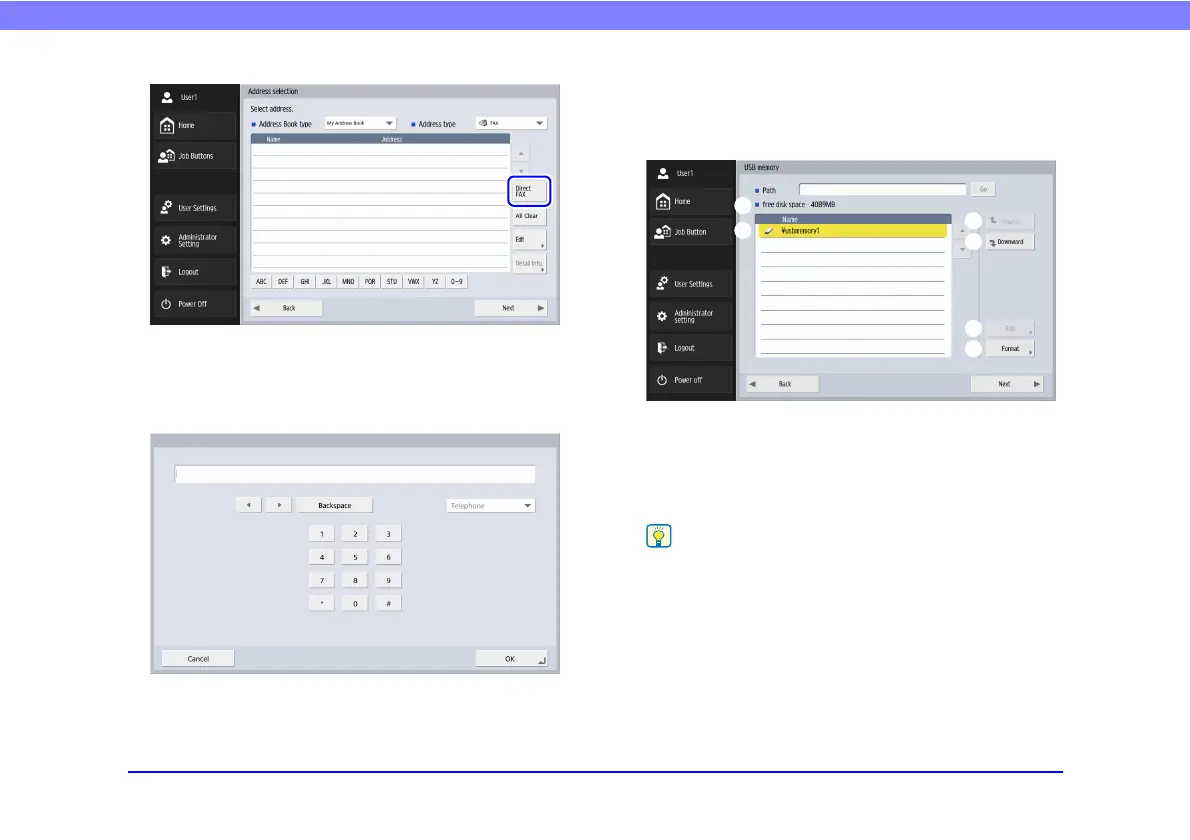
When you press [Direct FAX], the fax number entry box
appears.
When you press the entry box, the numeric keypad
appears.
Entering the fax number and pressing [OK] displays the
[Scan / Send Settings] screen.
❏ USB Memory Screen
The USB Memory screen enables you to specify the folder
in the USB memory to save the image file.
a Path
Enter the folder path of the USB memory. You can also
press [Downward] to select a folder.
b USB Memory Display
Displays the inserted USB memory.
• When you insert a USB memory device, you can assign a
number to it.
• If you want to insert or replace a USB memory stick while the
USB memory screen is open, press the [Back] button to return
to the Home screen, update the USB memory information,
and then reopen the USB memory screen.
c [Upward] button
Enables you to move to a higher level folder when a
lower level folder is selected in the USB memory.
a
b
c
d
e
f



 To Next Page