Setup Procedures
3
32 33
1
2
7
5
6
LAN
cable
Hub
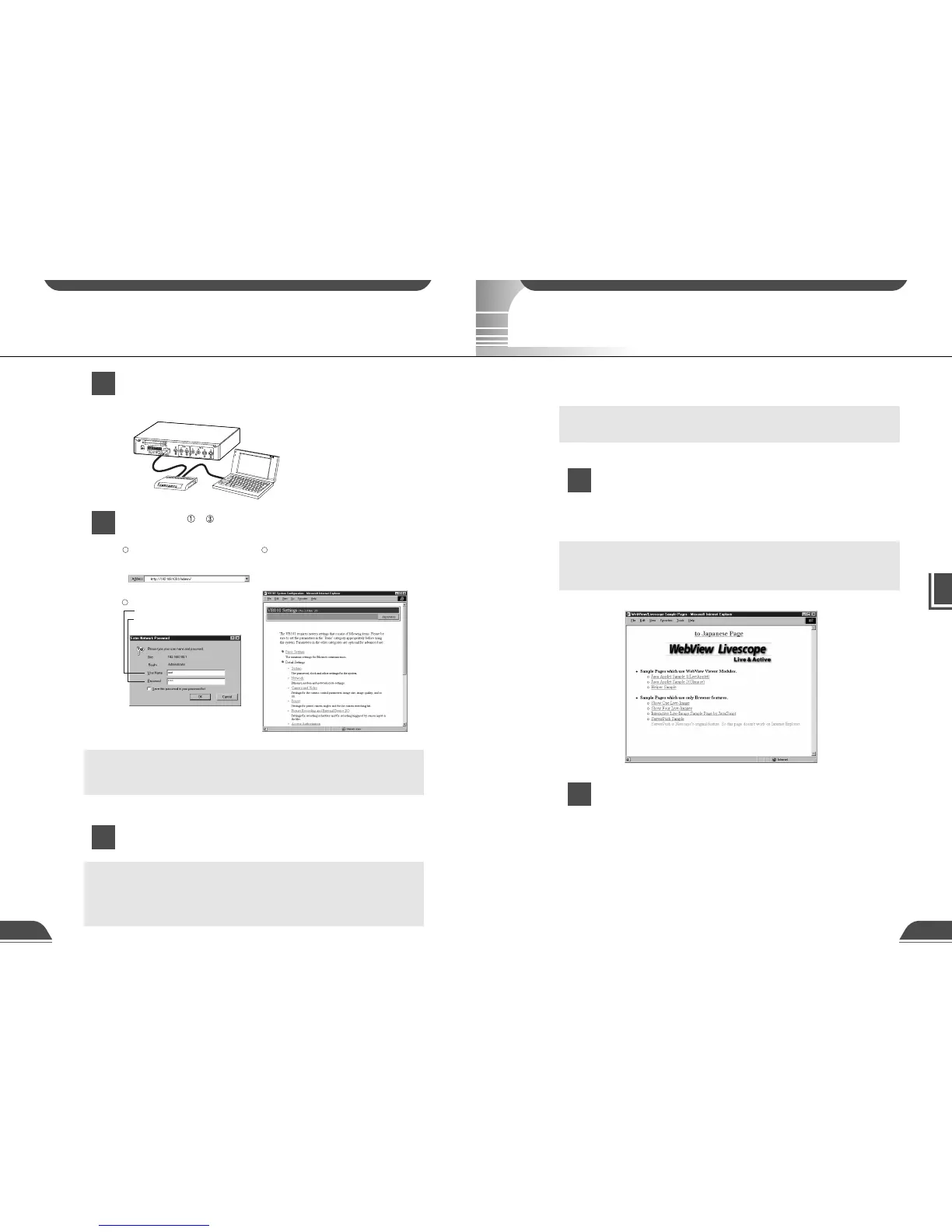
Enter the user name and password.
User name: root
Password: VB101
Launch the browser and enter the
following URL:
http://192.168.100.1/admin/
The title page for specify is displayed.
A sample page is shown at:
http://192.168.100.1/sample/
Settings page
2
1
3
Checking Operation
When you have completed the initial setup, check that the VB101 works normally. Use the
sample page to simplify checking.
c
Note
Install the Web browser on your PC beforehand.
c
Note
For the example, the IP address is given as "192.168.100.1". However, the actual
IP address must be changed to match your system settings.
Follow steps - below to launch the browser and enter
your user name and password.
Check the operation (→ P.33) and specify detailed settings
(→ P.34).
Remove the RS-232C path cable connected to the PC used
for initial setup and connect the LAN cable.
When you connect cable, turns off the VB101 power.
c
Note
For the example, the IP address is given as "192.168.100.1". However, the actual
IP address must be changed to match your system settings.
c
Note
● When you change the settings, always you should click the "Send Config.
to VB101", or the "Send Config. and Reboot VB101" button.
● Before check the operation, install the Web browser on your PC.
● To restore the factory initial settings, refer to P.106 in the appendix.
When you have completed initial setup, launch the Web
browser and enter the following URL:
(Example) http://192.168.100.1/sample/
Enter the value specified in the initial settings (→ P.31) as the IP address
(192.168.100.1).
Click on the sample page.
If the sample page appears and the video image is displayed, the VB101 is operating
normally.
Initial Setup
Sample page



 To Next Page