Creating Web Pages
4
76 77
1
1
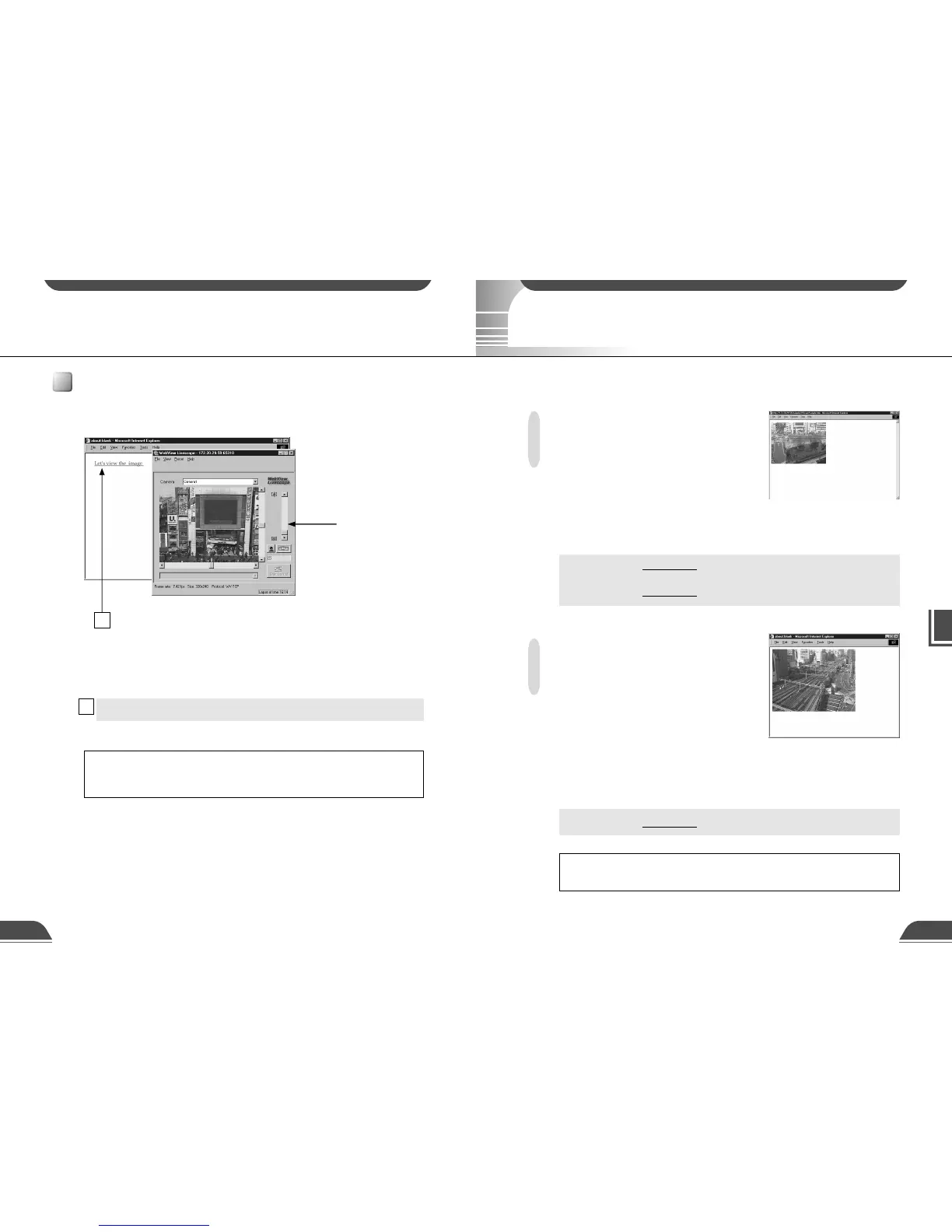
Include the tags that link to the wvh file in the text or images in the Web page.
<A HREF="WebView.wvh">Let's view the image</A>
Click the link to launch the
helper application.
Helper application
launched and displayed.
Example of a Web page Using the Helper Viewer
This section describes an sample web page in which the Helper Viewer is used.
e
Tip
To use the sample page template in the VB101 to supply video images,
specify <A HREF=http://VB101-IP-address/sample/helper/default.wvh>.
Transmitting Video Images Using a Browser Only
You can also use the WebView-HTTP protocol to provide images from the camera directly to a Web
browser. Some example of this are described in this section.
Displaying the Live Video Image
at Access as a Still Image
When a client accesses the Web page that provides video images, the video image shot at that
point can be supplied as a still image.
<IMG SRC=http://192.168.100.1*/-wvhttp-01-/GetStillImage>
(or)
<IMG SRC=http://192.168.100.1*/-wvhttp-01-/GetOneShot>
Displaying a Specified Number Of Live Video
Frames As a Movie at Access
The Server Push format provided as an extended function by Netscape Communications Corp.
can be used to transmit multiple-frame images. However, these images can only be displayed on
Netscape Navigator. In the coding example below, 100 frames of live video are transmitted when
the client accesses the server.
<IMG SRC=http://192.168.100.1*/-wvhttp-01-/GetOneShot?frame_count=100>
Using the Helper Viewer to Transmit Video Images
e
Tip
Setting frame_count=no_limit, removes the limits on the number of image
frames.



 To Next Page