5
97
Playback
Playback
This section explains how to play back clips and photos. For details on playing back recordings using an external
monitor, refer to Connecting to an External Monitor (A 107).
The Playback Index Screen
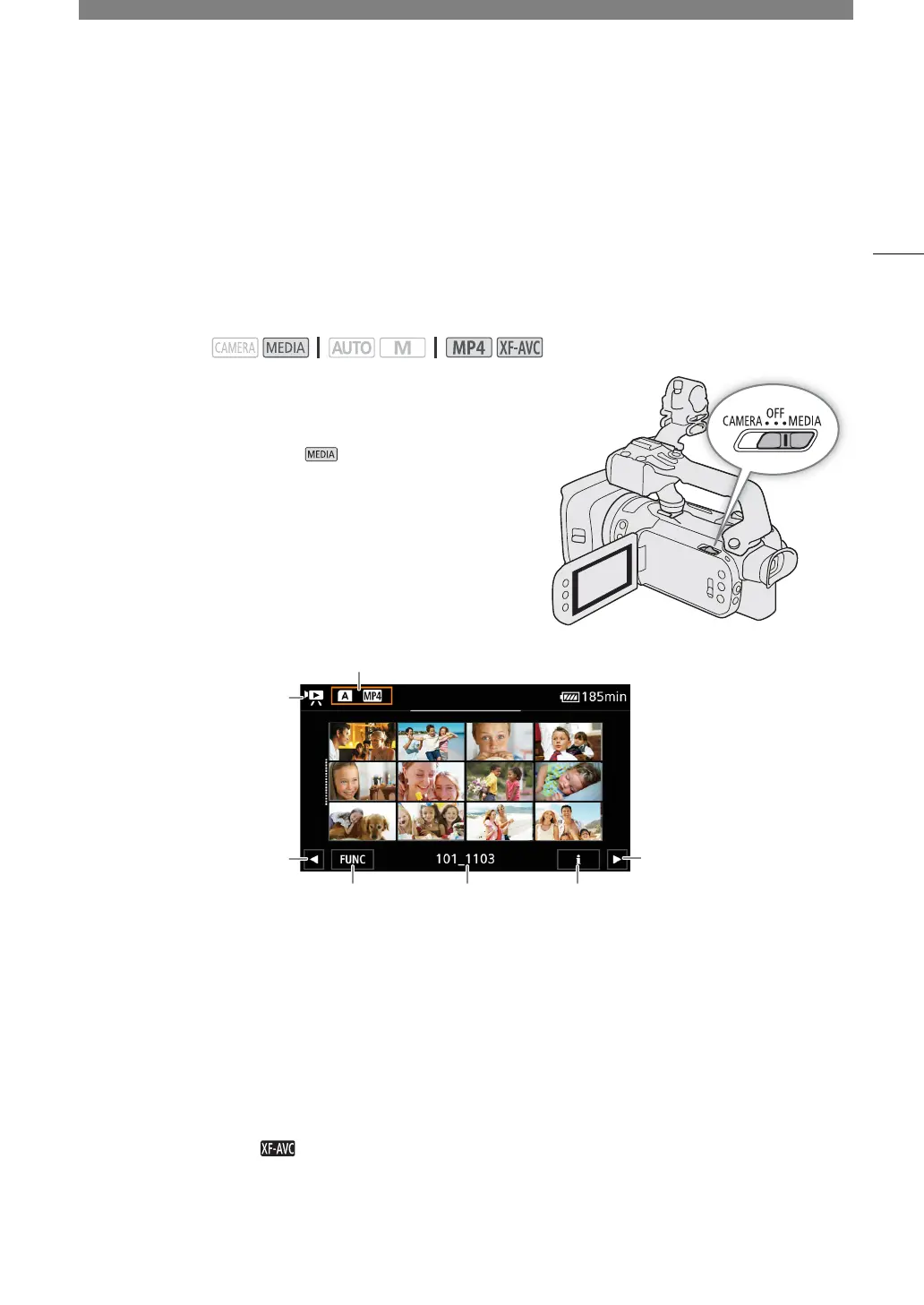
1 Set the power switch to MEDIA.
• The camcorder switches to mode and the clip index
screen appears.
2Look for the clip you wish to play back.
• Swipe left/right or touch [Ï]/[Ð] to check other index pages.
• To view photos or play back recordings on the other card,
change the index screen.
Changing the Index Screen
Change the index screen to play back a different type of recording (y clips or } photos), clips in a different
format (¸ MP4 clips or XF-AVC clips) or recordings on a different card (6 or 7).
Select the index screen button and then select the desired index screen.
• You can also press the G button on the supplied wireless controller to open the index selection screen.
Operating modes:
1 y: Clip index screen
}: Photo index screen.
2 Display the next/previous index page.
You can also swipe left/right on the screen.
3 Index screen button: Select to change the index
screen.
4 [FUNC] button: Clip/photo operations (A 101).
5 MP4 clips/photos only: Folder name. The last
4 digits indicate the recording date
(1103 = November 3).
6 Clips only: Clip information (A 100).


 To Next Page