10
Advanced Programming Options
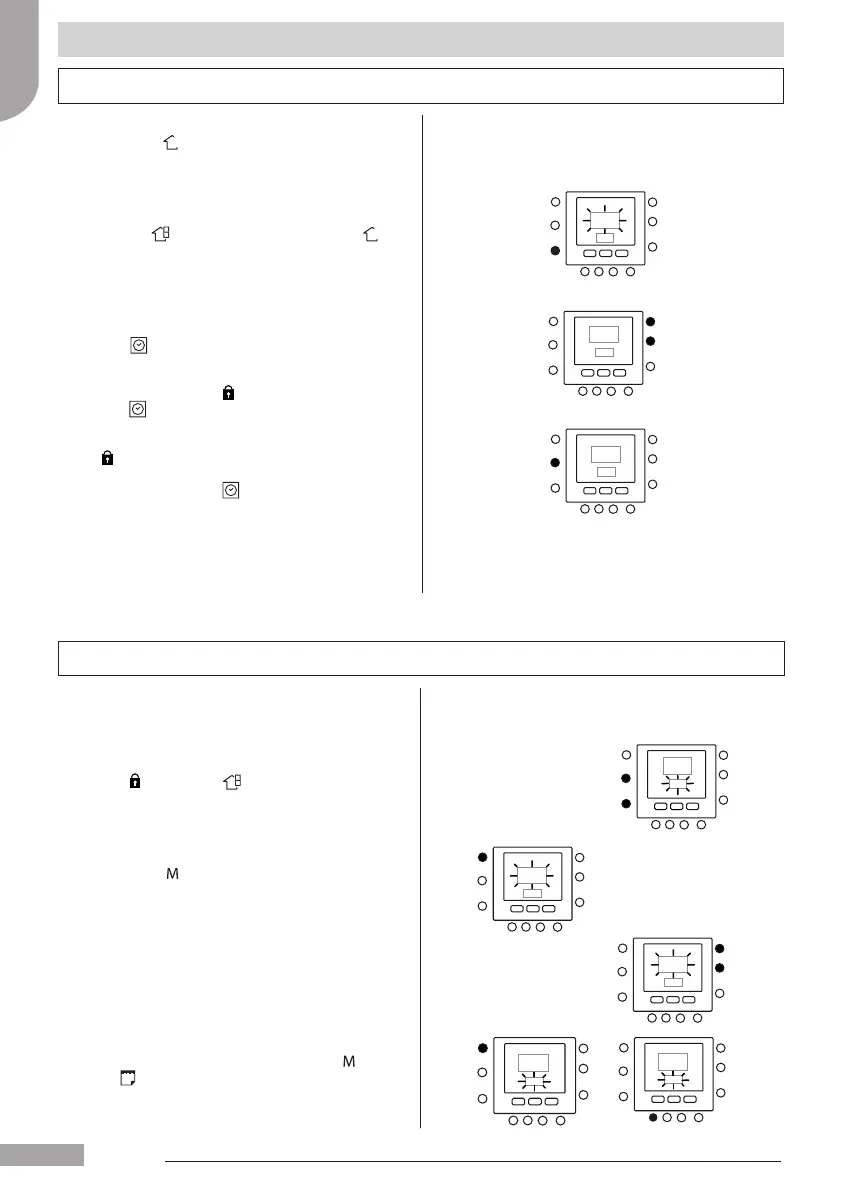
To access and manage the parameters in variable table
follow the steps below.
1. Open the lid.
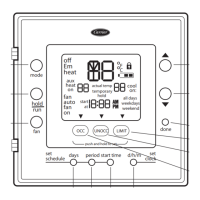
2. Press and zone key buttons and hold for 3
seconds. You will see parameter number “1” is ashing
in the time display area.
3. Press mode
button, you will see parameter value
will be ashing in the temperature display area of the
display.
4. Press up or down buttons to change the settings to
your desired value.
5. If the parameter has sub-parameters, use key, then
use
to switch between them. Use arrow keys to
select the desired value.
Changing/Holding the temperature
Advanced programming parameters in variable table
You can temporary change temperature setting. It works
only in own zone
, or using Par. 1 of Variable Table.
1. Open the lid.
2. Use zone
button be sure to be in own zone .
3. Press up or down buttons to set the new temperature
set point. This creates a “temporary hold” until the
next pre-set time period. You will see schedule active
icon (
) ashing on the display.
4. To maintain that temperature set point then the
schedule, press hold (
) button. The schedule active
icon (
) will disappear.
5. To return back to the schedule setting, press hold
(
) button. This releases the hold and the
temperature will return to temporary level. The
schedule active icon (
) will blink.
6. Close the lid.
Note: The feature works only if part 1.11 is set to 0. Otherwise
it's not possible to change the room temperature set point.
English
129H84_GB_8.indd 10 23/07/12 16.29






 To Next Page