D/A CONVERTER / USB SOUND SYSTEM DA5
36
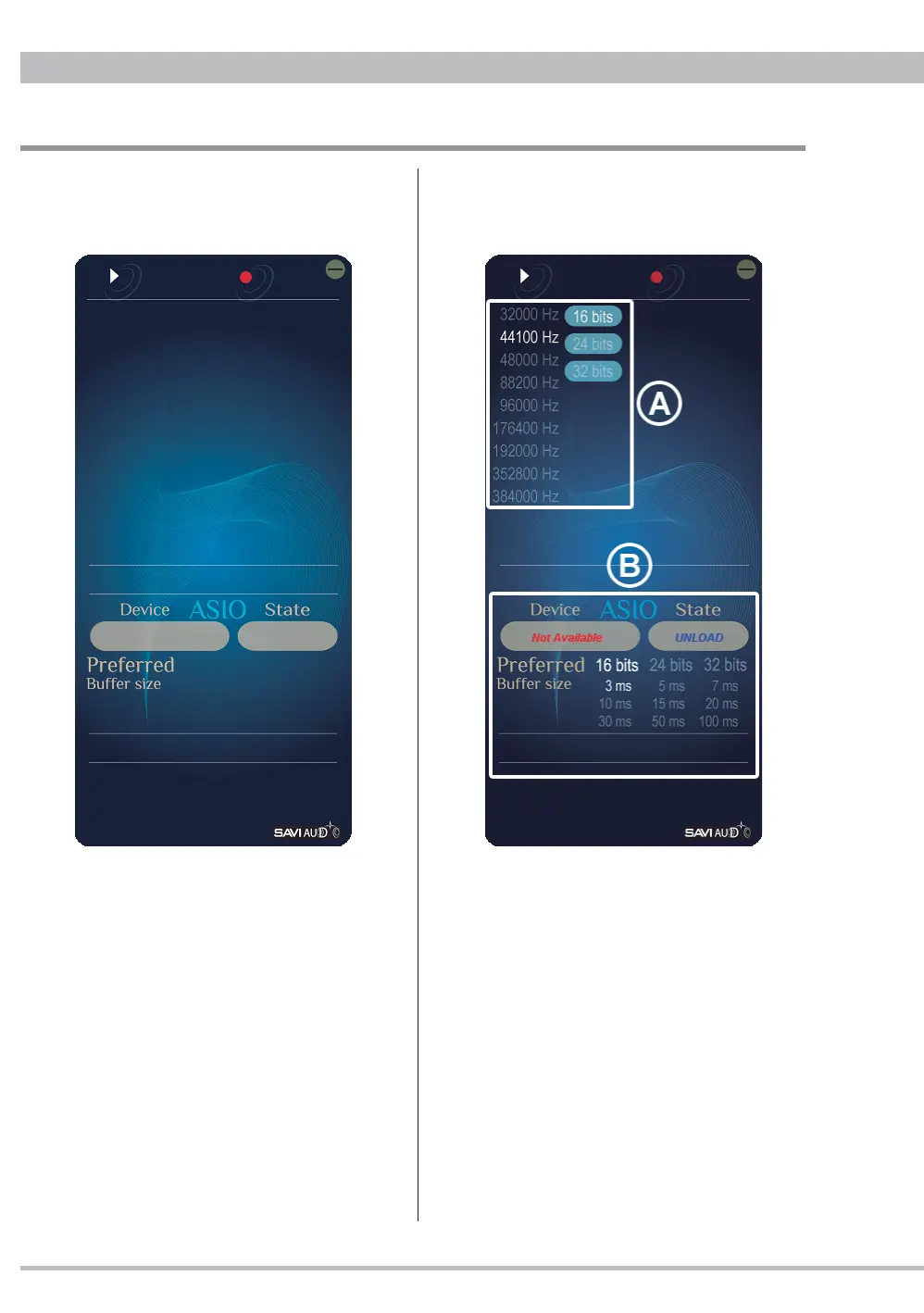
2. Turning on DA5 connected via USB cable the
BRAVO-HD control panel will change to show
a current setting.
In the area marked with
Ⓐ
click to change
the sample rate and/or bit rate to be used on
Windows sharing mode.
Note: WindowsXP does not have the sample
rate and bit rate settings for sharing mode, thus
Ⓐ
is not showed.
In the area marked with
Ⓑ
the current setting
and playback via foobar2000 ASIO output are
displayed. And click to change the bit rate and
buffer size.
Note:
Ⓑ
does not work on playback via other
than ASIO.
BRAVO-HD Control Panel
1. Start "BRAVO-HD Audio CPL" from the short-
cut on desktop or programs menu. BRAVO-
HD control panel will appear.


 To Next Page