Chapter 4 –Extract Phone Data
User Manual 15
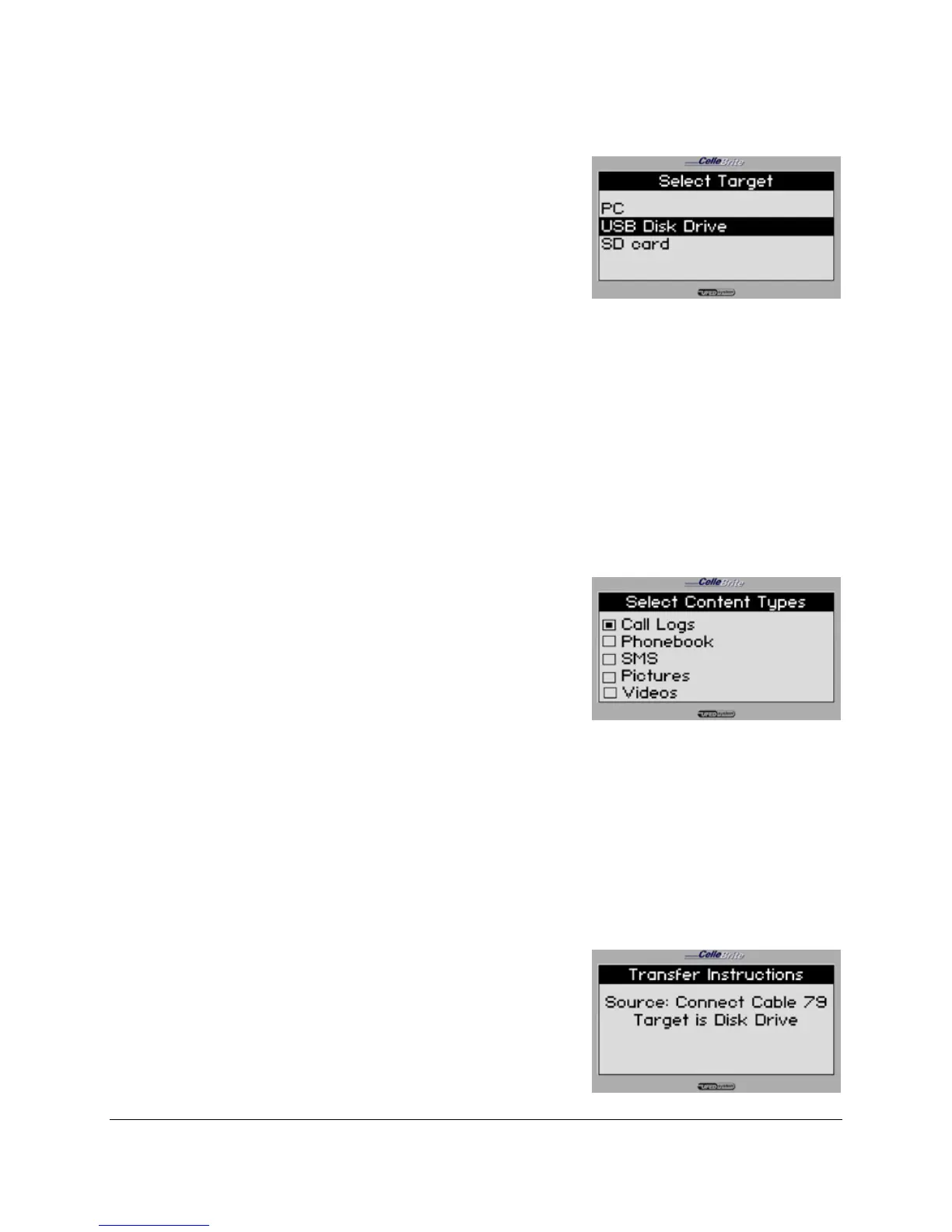
6. Target Selection
Select USB (or SD) as the target
location where the content will be
copied to.
NOTE: If you extract to PC, the content
goes directly into the UFED Report
Manager software. If you extract to USB
or SD, the content is stored in a
separate directory on the storage
device.
Use the ▲▼keys to move between
options. Press OK or ► to continue.
7. Content Types
Select content types to be extracted .
The UFED displays the options
according to the capabilities available in
the phone. (ex. If the phone does not
support video, the “Videos” option will
not appear).
Use the ▲▼ keys to move between
options. Press OK to select an option.
Pressing on F2 will select/deselect all
options. Press ► to continue.
8. Transfer Instructions: Connection
The UFED now displays the
connectivity instructions.
• If connecting via cable, the cable



 To Next Page