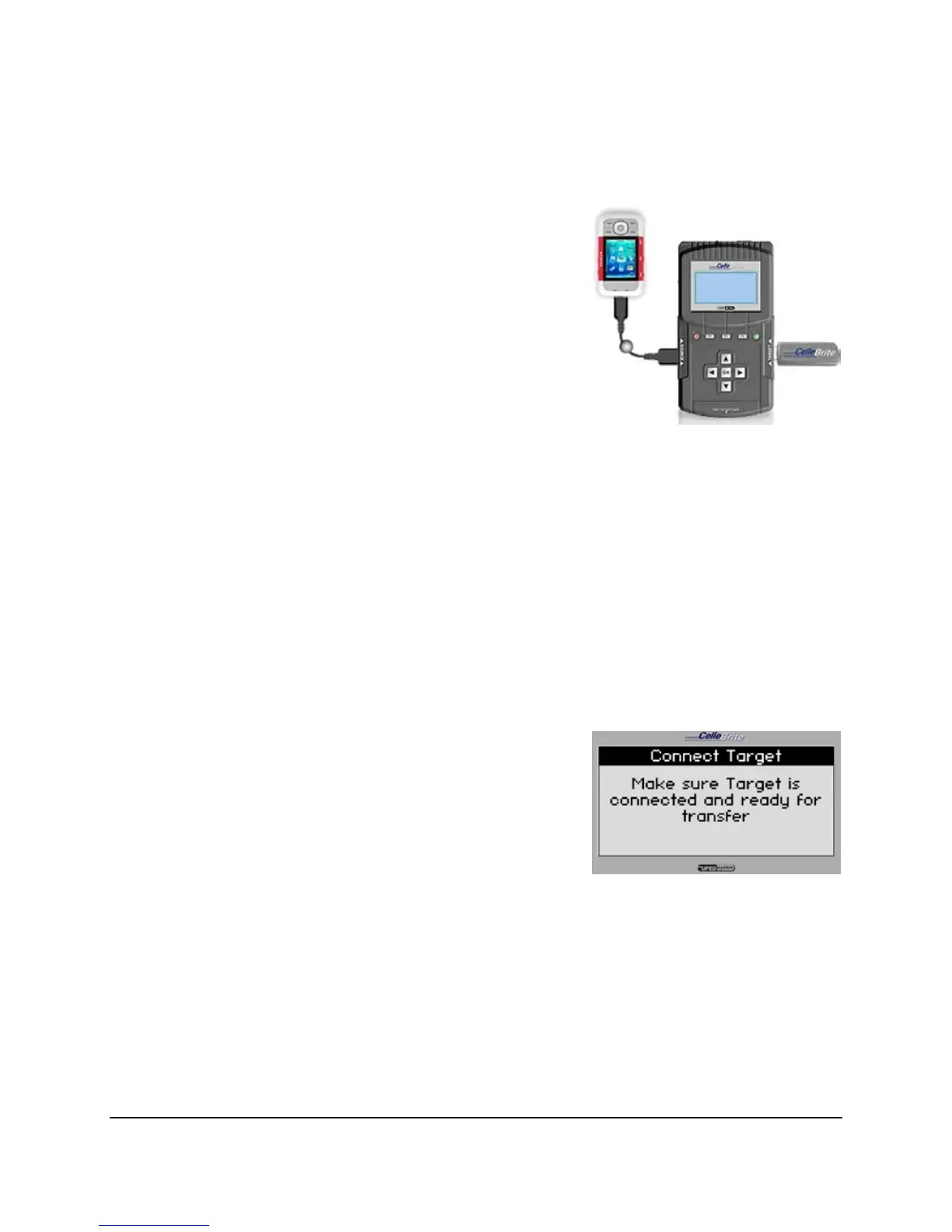
• If connecting via Bluetooth, refer to
Chapter 6 for details.
• If connecting via IrDA (Infrared),
place the phone with its infrared
port directly in front of the UFED’s
source or target infrared port.
Make sure that the phone is powered
on, and the data connector is clean.
NOTE: When connected to the UFED,
some phones will prompt you to
choose an operating mode, such
as “PC Suite” or “Phone Mode”.
Press ► to start extraction.
9. Connect Target Device
If you have not yet plugged the USB
drive or SD card into the UFED, do it
now. The UFED is ready to copy the
data to the storage device.
Press ► to continue.



 To Next Page