130
67. Using the operation keys below the arrows,
select the first letter or number of the old
password.
68. Press ENTER.
Note: If the password utilizes numbers only, use
the numeric keypad to enter the numbers for the
password.
69. Continue using the operation keys below
the arrows to select each letter or number
of the old password. Press ENTER after
each selection until the entire password is
selected.
70. Press READY.
71. Using the operation keys below the arrows,
select the first letter or number of the new
password.
72. Press ENTER.
Note: If the password utilizes numbers only, use
the numeric keypad to enter the numbers for the
password.
73. Continue using the operation keys to select
each letter or number of the new password.
Press ENTER after each selection until the
entire password is selected.
74. Press READY.
75. Using the operation keys below the arrows,
select each letter or number to re-enter the
password and press ENTER after each
selection.
76. Press READY to activate the selected
password.
77. Press any key to return to the Security
screen.
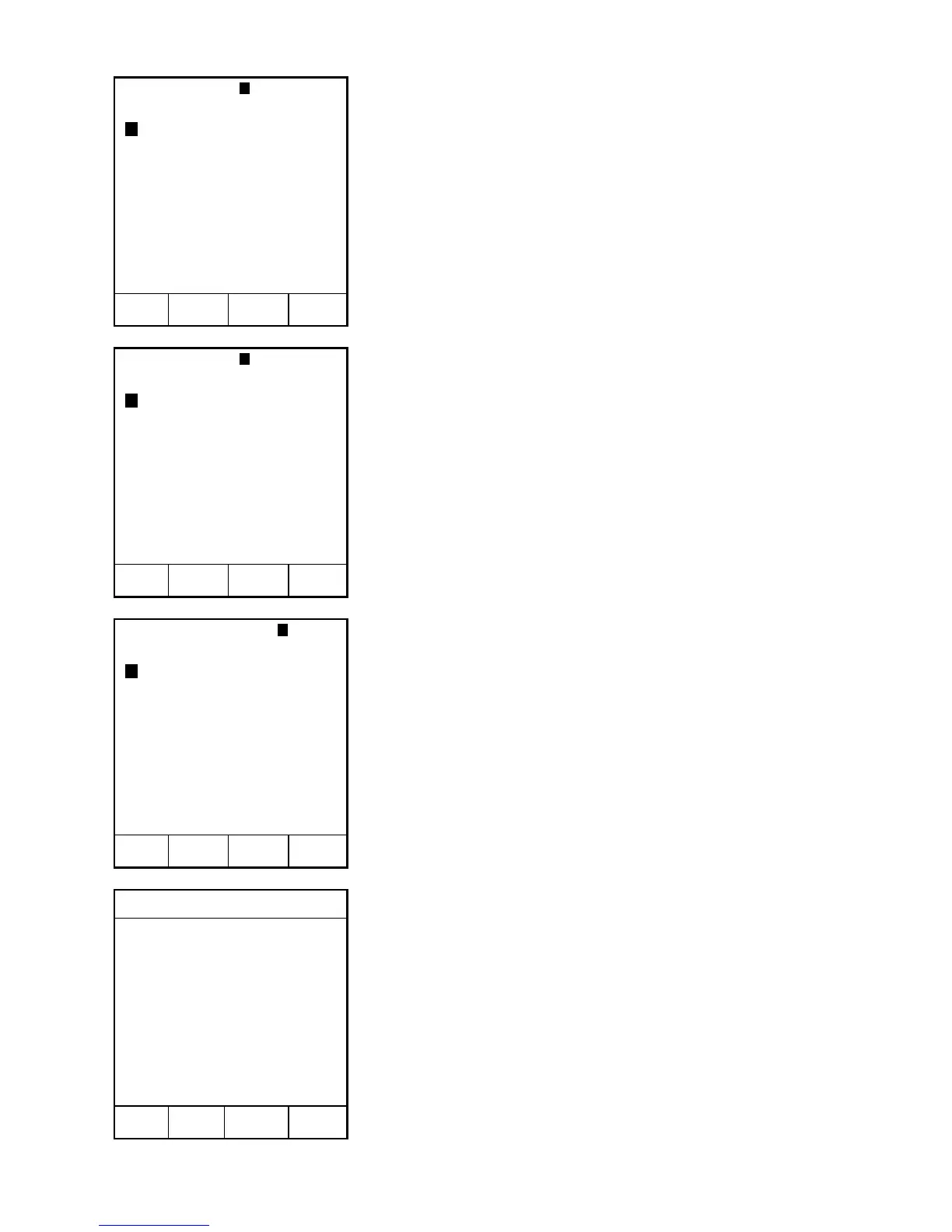
OLD PASSWORD:
0 1 2 3 4 5 6 7 8 9 A B
C D E F G H I J K L M N
O P Q R S T U V W X Y Z
Space Delete
Highlight choice, press ENTER.
Press READY to continue.
➞
➞
➞
➞
NEW PASSWORD:
0 1 2 3 4 5 6 7 8 9 A B
C D E F G H I J K L M N
O P Q R S T U V W X Y Z
Space Delete
Highlight choice, press ENTER.
Press READY to continue.
RE-ENTER PASSWORD:
0 1 2 3 4 5 6 7 8 9 A B
C D E F G H I J K L M N
O P Q R S T U V W X Y Z
Space Delete
Highlight choice, press ENTER.
Press READY to continue.
➞
➞
➞
➞
➞
➞
➞
➞
Password
NEW PASSWORD ACTIVATED.
PRESS ANY KEY TO CONTINUE.


 To Next Page