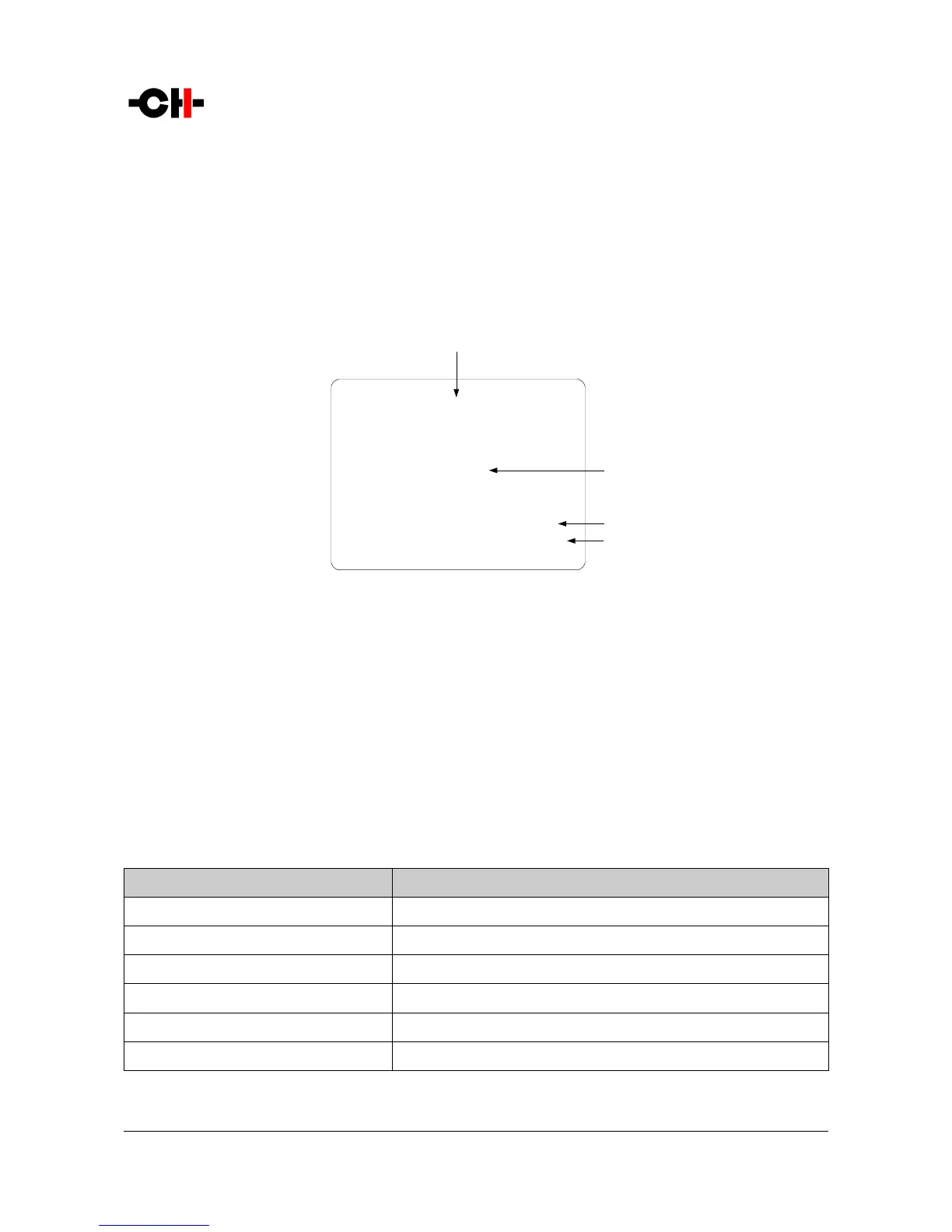
(1) Shortcut title (Parameter being adjusted)
(2) Arrow indicating UP button [N] if applies. The item below indicates the next parameter value (up direction)
(3) Next Parameter Value if UP button [N] is pushed (parameter up)
(4) Current Parameter Value
(5) Next parameter value if DOWN button [O] is pushed (parameter down)
(6) Arrow indicating DOWN button [O] if applies. The item below indicates the previous parameter value (down direction)
The last Shortcut (SETUP) is always the same and cannot be removed or altered. It gives access the Menu mode to access the
detailed setup of the unit.
DETAILED SETUP Shortcut screen
(1) Shortcut title. It indicates that Detailed Setup (Menu mode) can be entered at this stage
(2) Current value of the parameter. Default action is to exit (go back to Normal mode)
(3) Arrow indicating UP button [N]
(4) Next parameter value. If UP button [N] is pushed, the unit enters into Menu mode
6.3.3 Menu mode
The Menu mode allows the Configuration and Setup of the P1 phono stage. Menu mode is entered from the last Shortcut item (see
above). From Normal mode, enter the Shortcut mode by pushing the OK [R] button. By successive OK [R] button pushes, step to
the last Shortcut item (DETAILED SETUP) and push the TOP [N] button once to enter the Menu mode.
Navigation in Menu mode is based on UP [N] and DOWN [O] buttons to select an item or to change a value. The OK [R] button
is used for validation and CANCEL [Q] to exit without saving.
Front face push buttons Unit Action
STANDBY [S] Short Push Mute/Unmute the unit
STANDBY [S] Long Push Put the unit into Standby
UP [N] Move to next menu item upward
OK [R] Enter next menu level or Validate choice (save setting)
DOWN [O] Move to next menu item downward
CANCEL [Q] Return to previous menu level without saving
Push-button actions in Menu mode
22 P1 User Manual Rev 1.1



 To Next Page