RSR-000886-000 (1) Page 22 of 40
4.3.5. Operation
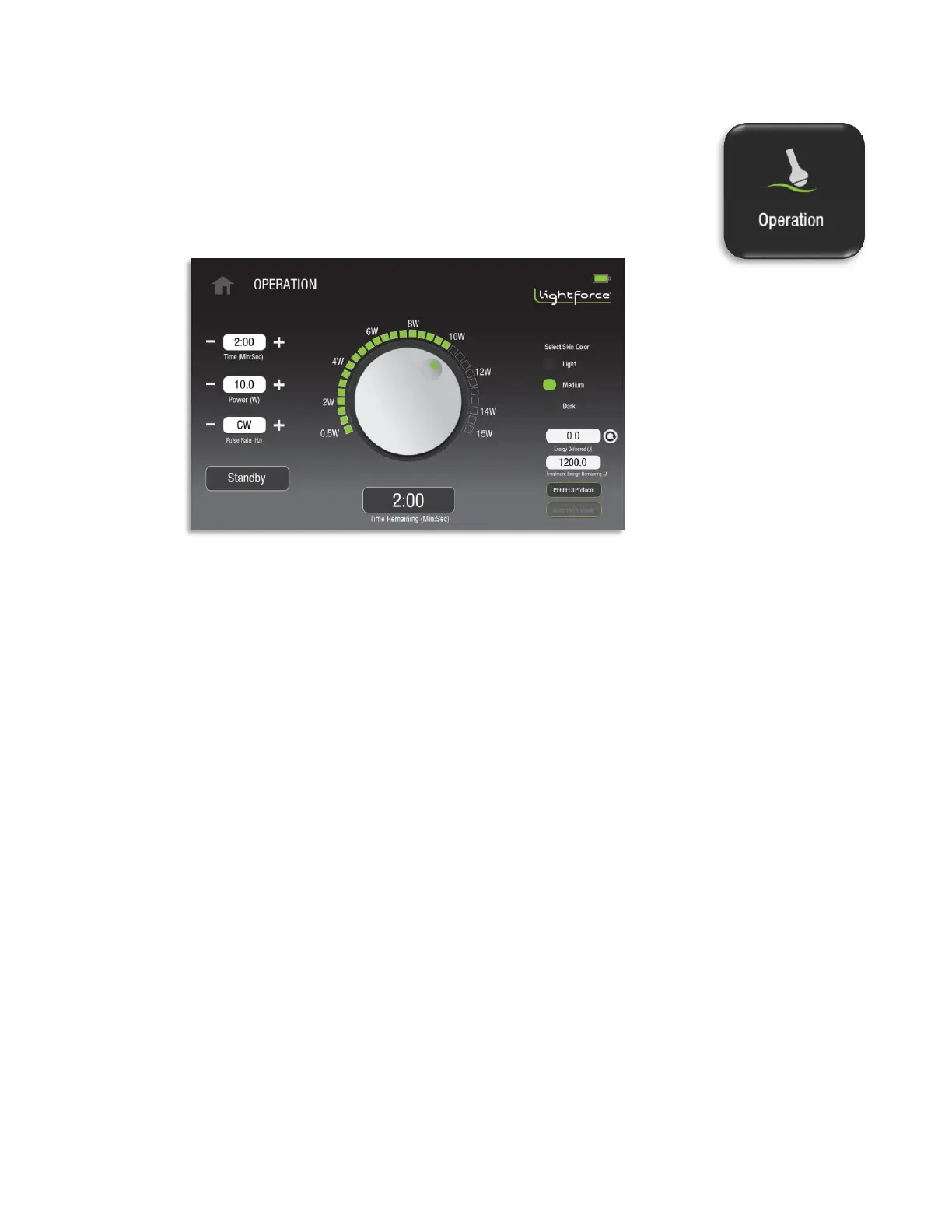
When entering the Operation screen through the Main Menu, the
operator is able to adjust the treatment time, power, pulse rate, and skin
color. The laser will be in Standby mode and the Operation screen
(Figure 24) will prompt the user to input all the treatment parameters.
The aiming beam is not active in Standby mode.
The following adjustments and options are available from the Operation screen:
• Time: Press the time “+” or “-” button to adjust the laser treatment time. To scroll to the
desired time value, maintain pressure on the desired button. The selected laser treatment
time will be shown in the time window in minutes and seconds (Min:Sec).
• Power: Press the “+” or “-” buttons or rotate the power dial to adjust the laser power. The
selected laser power will be shown in the power window in Watts as well as on the power
dial. To scroll to the desired power value, maintain pressure on the dial and rotate in a
clockwise direction. The user can also press on the squares around the perimeter of the dial
to jump to higher or lower powers.
• Pulse Rate: Press the pulse rate “+” or “-” button to adjust the laser pulse rate. The selected
laser frequency will be shown in the pulse rate window. To scroll to the desired frequency
value, maintain pressure on the desired button. The laser frequency can be set in CW
(continuous wave, not pulsed) or pulsed mode with frequencies of 2, 10, 20, 100, 200, 500,
1000, 2500, 5000, or 10,000 Hz. The duty cycle in the pulsed mode is 50%.
4.3.6. Laser Emission
When the operator has set the treatment parameters and is ready to start the treatment, the
operator should press the Standby button to proceed to Ready mode.


 To Next Page