Mirror and Decrypt
Next Generation Security Gateway Guide R80.20 | 40
Configuring Mirror and Decrypt in SmartConsole for Several
Virtual Systems
Workflow for several Virtual Systems:
Enable the HTTPS Inspection in the object of applicable Virtual Systems (for decrypting the
HTTPS traffic).
Configure the HTTPS Inspection Rule Base (for decrypting the HTTPS traffic).
Define the designated physical interface as VLAN Trunk in the object of the VSX Gateway, or
VSX Cluster.
Note - If the Recorder or Packet-Broker connects to the VSX Gateway, or VSX Cluster
members through a Switch, configure a VLAN Trunk on the applicable Switch port. The VLAN
Trunk port on the Switch must accept all VLAN IDs that you configure in the applicable Virtual
Systems.
Add the designated physical interface in the object of each applicable Virtual System.
Activate the Mirror and Decrypt in the object of each applicable Virtual System.
Configure the Mirror and Decrypt rules in the Access Control Policy for the traffic you wish to
mirror and decrypt.
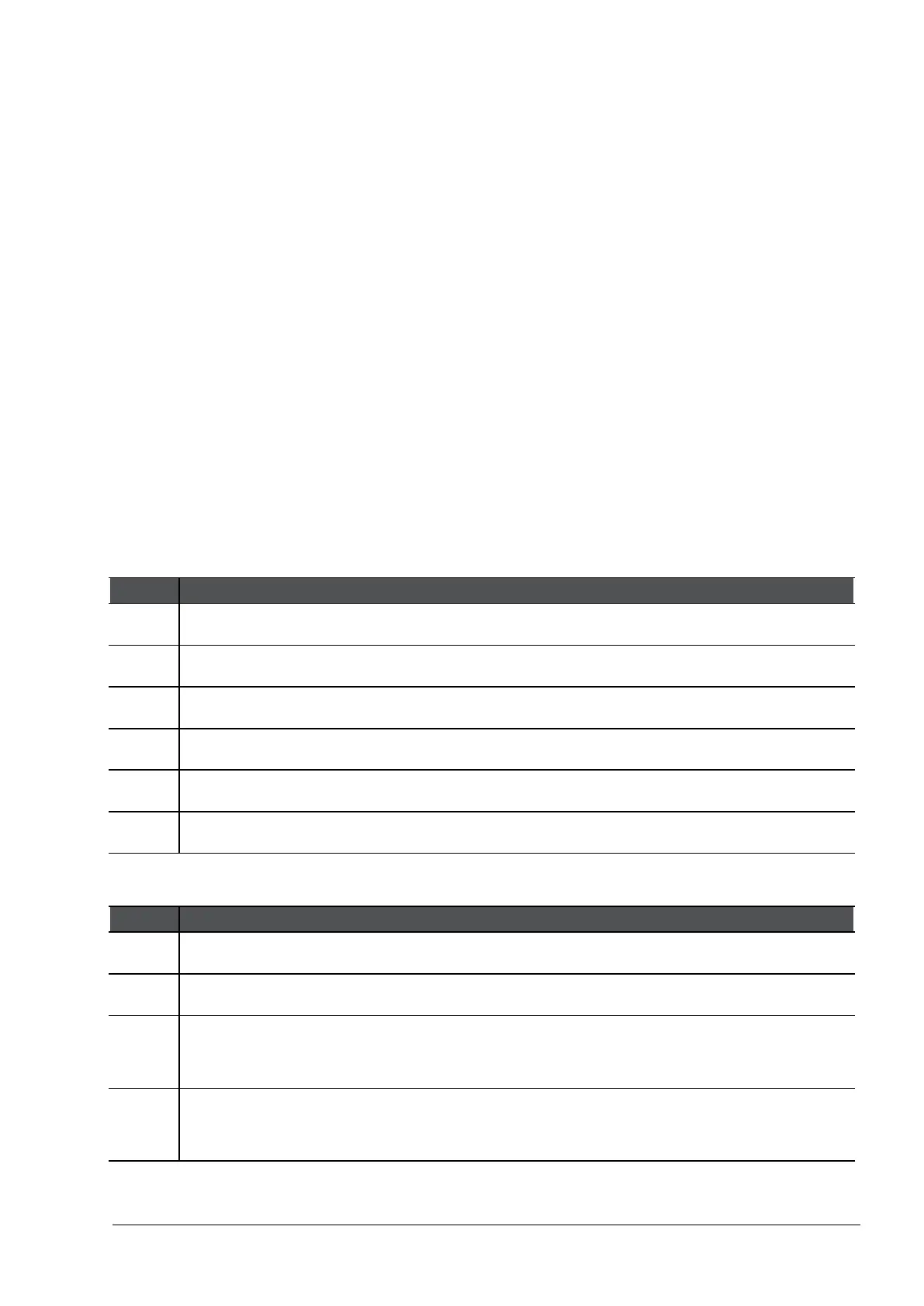
To enable the HTTPS Inspection in the object of applicable Virtual Systems:
1 In SmartConsole, from the left Navigation Panel, click Gateways & Servers.
2 Open the Virtual System object.
3 From the navigation tree, click HTTPS Inspection.
4 View and export the certificate.
5 Check Enable HTTPS Inspection.
6 Click OK.
To configure the HTTPS Inspection Rule Base:
1 In SmartConsole, from the left Navigation Panel, click Security Policies.
2 In the Shared Policies section, click HTTPS Inspection.
3 In the middle of the page, click Open HTTPS Inspection Policy in SmartDashboard.
The Legacy SmartDashboard opens.
4 Configure the HTTPS Inspection Rule Base.
For details, see
Configuring HTTPS Inspection
(on page 199).




 To Next Page