Installing GO
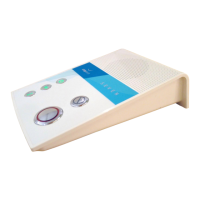
GO can be installed as a standalone device, or paired with a Chiptech Base Unit. Follow the steps
below for either option.
5.1 To Install and Demonstrate GO (Standalone)
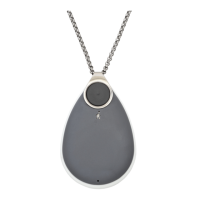
1. Unpack GO. The complete system should be supplied to the end user with the following: GO
device, user guide, stainless steel chain, split ring, wireless charging base, USB cable and plug
pack.
2. There are a number of limitations and disclaimers associated with the use of a mobile
personal response system. These are outlined in the GO User Guide, so please make sure
you, (the installer) are familiar with these, and that they are pointed out and explained to
the end user and their family/supporters.
3. Find a suitable, convenient location for the charger and connect it to the power. Perform a
System Check on GO and then place it on the charger to check that there is adequate cellular
coverage at the installation location of the charger. A “good” or “excellent” cellular
connection is required for cloud connects and updates, which are only initiated when GO is
placed on the charger.
4. Demonstrate to the user how to place GO for charging with the ‘walking person’ facing
upwards. GO is despatched in flight mode, so placing GO on the charger (or pressing one of
the buttons) disables this function.
5. Show the end user the System Check (Section 4) function by pressing and holding one
button. This will announce the battery level, the cellular connection, and send its GPS
location - if enabled to do so, and if it can be obtained. This check of all three functions
should take approximately two minutes. (Encourage the user to perform a System Check
when they visit a new location for the first time.)
6. Perform a request for help by pressing and holding both buttons at the same time on GO for
one second. A loud pre-alarm will sound before the report is sent to monitoring. Wait for
monitoring to call back into GO to confirm that the test has been successful. Voice messages
will guide you through this process.


 To Next Page