ci5000 Series Printer Operation Guide
Version 1.0 2-5
1. Home 主菜单
2. Message 信息菜单
3. Status 状态菜单
4. Service 维修菜单
5. Properties 属性菜单
6. Security 登录菜单
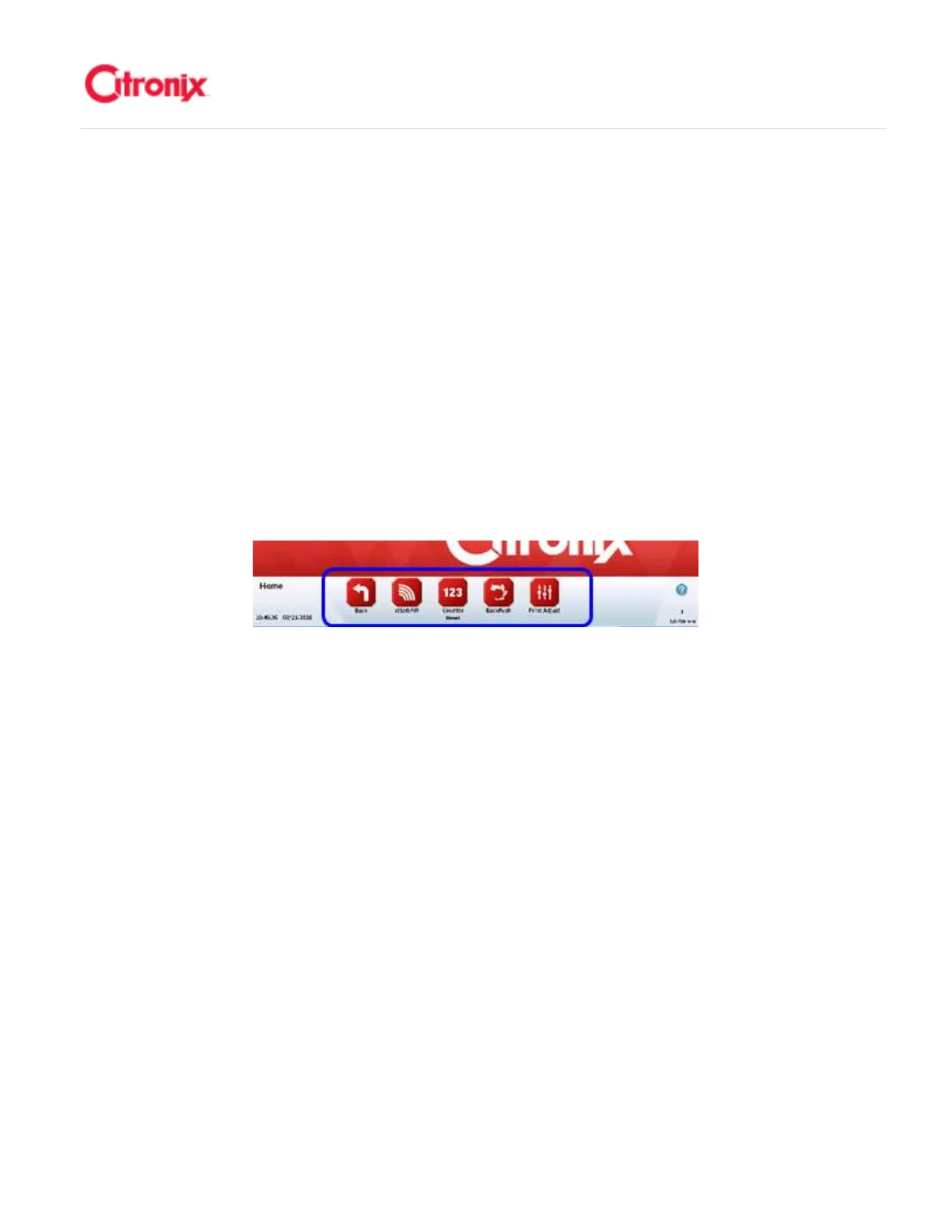
(3) Navigation Toolbar 快捷键
Each icon on the Navigation Toolbar takes the operator to a new screen. Screens are grouped
based on their common functionality and organized like a directory tree. Pressing an icon takes
one further down the directory tree and pressing the back button brings one up the directory tree.
按每个键可以进入一个新页面。页面按照其功能分组,整个像目录树一样。按一个键进入目录关系
的下一级页面,按返回键进入目录关系的上一级页面。
(4) Function Toolbar 功能键
The Function Toolbar is positioned on the right side of the screen only when additional
functionality is needed for the screen. Function Toolbars are used to edit or adjust specific
settings for each specific Menu screen. They will change depending on the Menu being viewed.
Some will expand by pressing the Arrow button shown below. This reveals additional Function
buttons. 当页面需要更多功能的时候,功能键在屏幕的右侧出现。在特定的功能页面上,功能键用
于编辑或调整特定的设置。它们根据当前查看的页面不同而不同。有些情况下可以通过按箭头键展
开,如下图显示。这种操作可以显示更多的功能键。



 To Next Page