English - 24 -
USB
Clone to USB
Clone from USB
Copy app cache
from USB
Copies app cache data from a connected USB device to the unit.
Note: This feature may not be available depending on the model of your unit.
USB Information
Press OK to open the USB information menu screen. Current Total space and Free
space information of the connected USB device will be displayed. You can also format the
connected USB device using the Format Disk
option in this menu (FAT32 format only).
Highlight and press OK to perform USB operations.
USB Option
Set as to disable the USB ports on the Display. You can also set this option as 5V
to provide 5 volts power over USB. In this case it will still not be available to browse the
USB content via Media Browser feature of the Display.
Safely Remove
You can use this option to remove the devices connected to the USB inputs of
the Display safely. Highlight this option and press OK. Wait for the message to be
displayed on the screen indicating that you can remove your device and then remove
device to other devices and you might have to format your USB device.
Video Wall Settings
Press OK to open the Video Wall Settings menu screen. Video Wall Settings Row
Count, Column Count, Cell and options are available.
Video Wall Settings: Enable or disable the Video Wall function by pressing Left/
Right directional buttons.
Row count: Adjust the number of Video Wall “rows” by pressing Left/Right directional
buttons. The maximum number that can be set is 10.
Column count: Adjust the number of VideoWall “columns” by pressing Left/Right
directional buttons. The maximum number that can be set is 10.
Cell:
Each Video Wall unit is called “Cell”. Adjust the number of a cell by pressing
Left/Right directional buttons. The maximum number that can be set is 100. In order
to disable video wall function of the unit and display the image in full-screen mode,
the Cell option should be set as 0.
Oset: Oset setting is used to adjust the refractions at the sides of the picture
depending on the bezel thickness between Video Wall units (Cells). The maximum
number that can be set is 50.
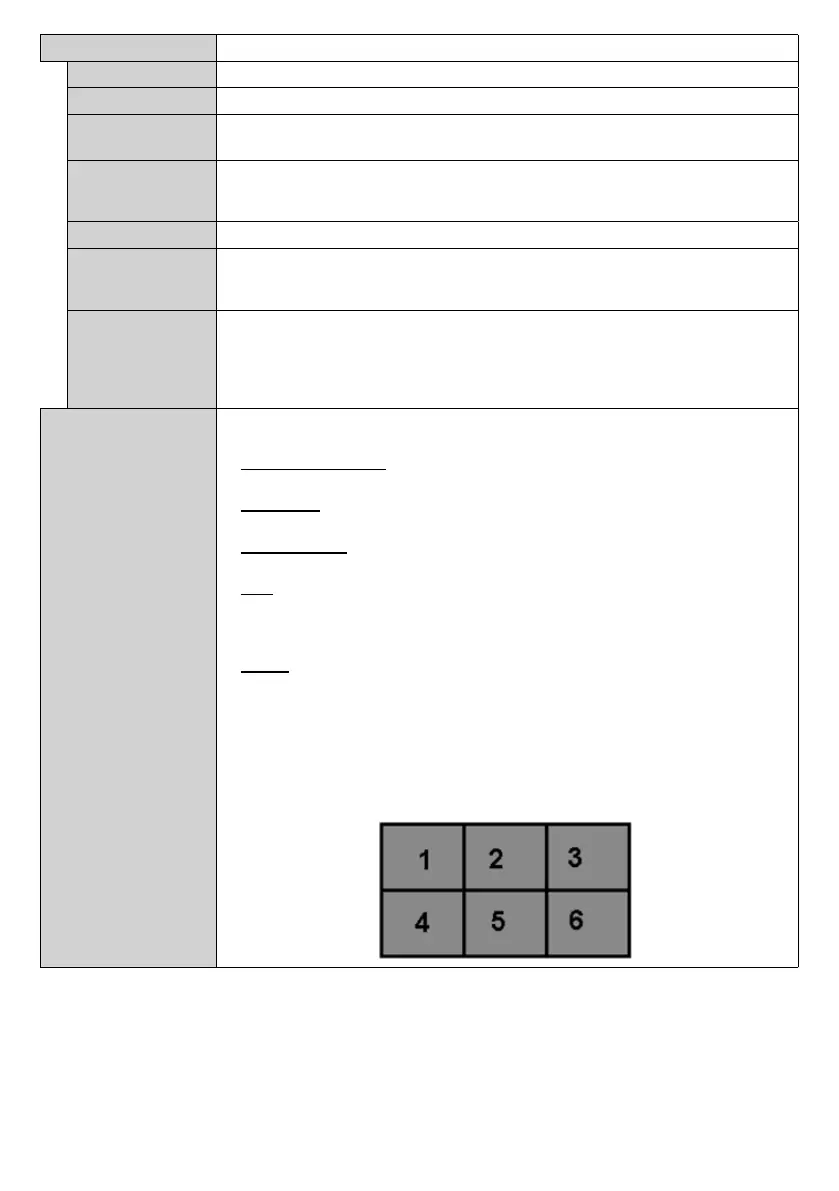
For example; For a 2x3 video wall matrix, Row count option should be set as 2 and
Column count option should be set as 3. Numbers of the cells in a video wall matrix will
be determined as shown in the template below. If you are setting the Display, which is
positioned same as the Display with the number 1 in this template, then the Cell option
should be set as 1 for this Display.


 To Next Page