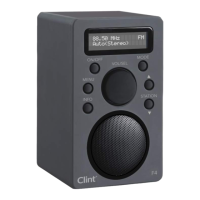
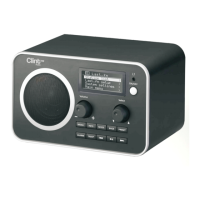
…it´s all about listening
www.clintdigital.com
25
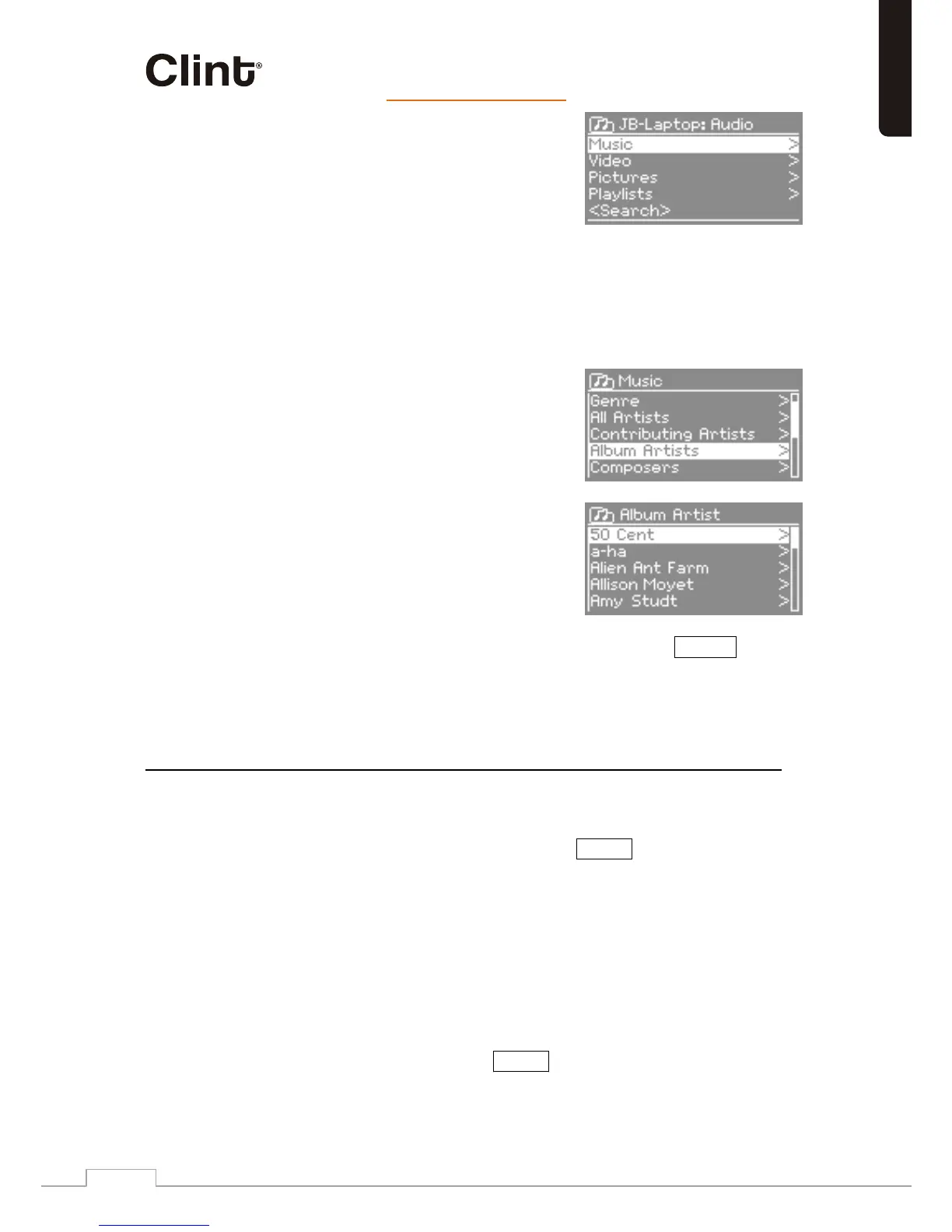
From this point on, the menus are
generated from the shared media
server (typically Windows Media
Player). The first menu shows a list of
media types, for example Music,
nac 1L .stsilyalP dna serutciP ,oediV
.stsilyalp d na cisum yalp ylno
There is also a search function, which
finds tracks in a similar way to
Internet radio search ( please see
specific paragraph for this issue).
From Music, there are numerous ways
of selecting tracks, including:
o Genre,
o Artist,
o Album,
o ,re sopmoC
o Rating.
Once you have found a track you want to play, press Select . L1 will
play the selected track, then any further tracks that were listed on
the same screen; usually this is the rest of the album.
)ecived egarots - ssam BS U ro krowten morf( sredlof derahS 2.01
Selecting shared folders
To play audio from shared folders, select Menu > Shared folders
>
If you have set up shared folders you should see an entry consisting
of <Computer name> : <Shared folder name> , for example
JB - Laptop: Audio . If you have more than one shared folder, the
alternatives are listed. Select the shared folder you want to browse.
ecived egarots - ssam BSU a gnitceleS (Optional)
hsalF BSU a sa hcus ecived egarots - ssam BSU a morf oidua yalp oT
stick or USB hard drive, Select Menu > USB Mass Storage .
English


 To Next Page