3. Upload and Print. Choose G-code file to be uploaded to printer. Print starts immediately after
upload.
4. Status bar indicating state of machine – idle, printing, busy.
5. Emergency Stop – stops machine and restarts control board in the middle of any operation.
6. Machine statistics – displays current machine coordinates in relation to defined Origo.
7. Main menu of Duet to access tabs such as Print Status, G-code Console, Settings and other.
8. Head Movement contains buttons to move printhead in positive or negative X,Y,Z direction. Right
click over particular button to change values on buttons.
9. Additional Axes is used to control “U Axis” – rotation and orientation of nozzle.
10. Extruder Control allows you to manually extrude material from the material hopper. Do not use if
hopper is empty – it will result in fast wear of the PCP unit.
11. User-Defined Macros Lists all macros created under the tab “Macros” under main menu of Duet
(7). Macros can be run at any time during operation.
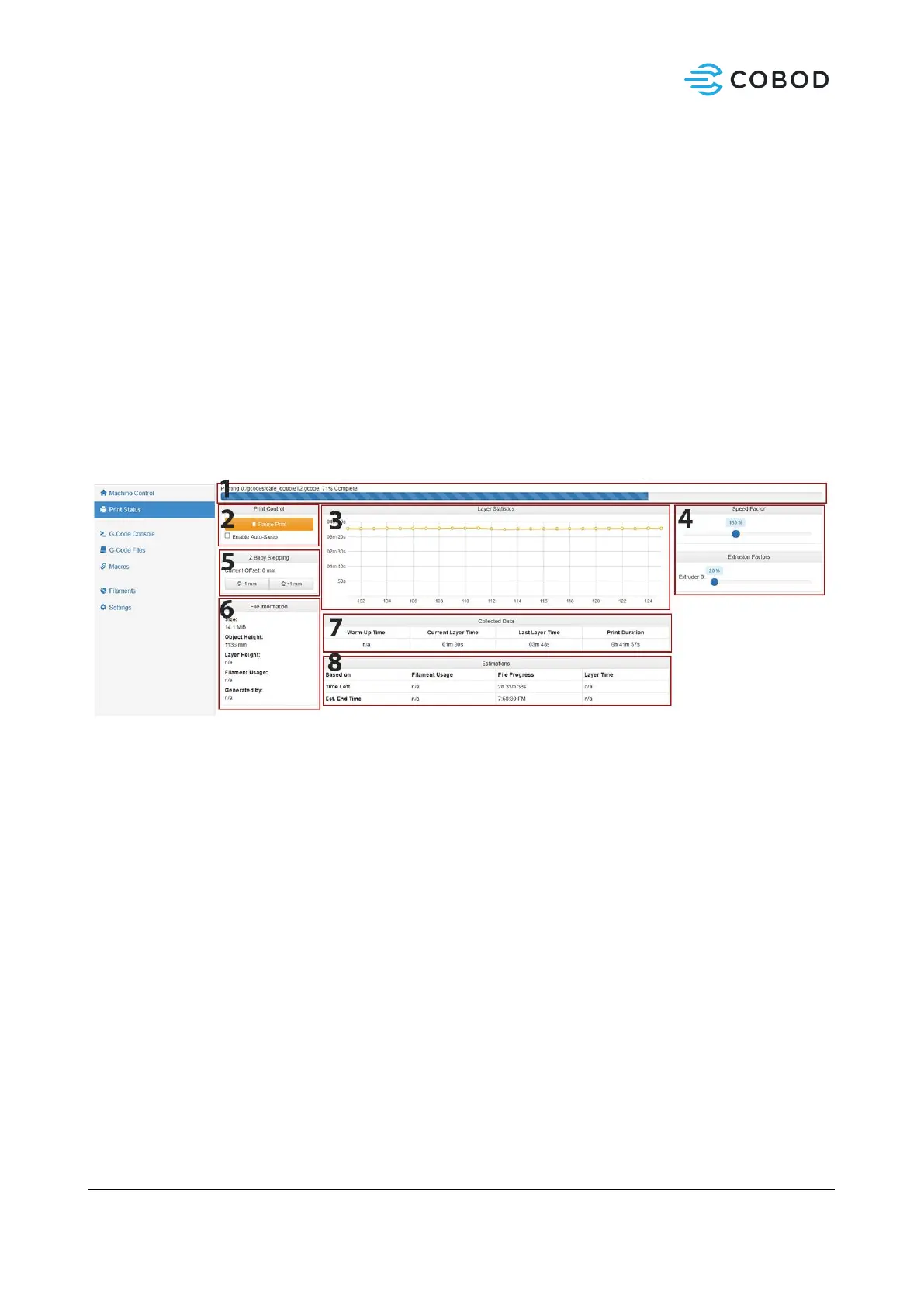
6.1.4.2.2 Print status window
1. Status bar indicating current print-job file as well as percentage of completion.
2. Print Control lets you pause the print. CAUTION: Pausing is not immediate – printer will carry out
pre-buffered G-code command before full stop. After pausing, Duet retains all coordinates and
print progression. After pausing, “Pause” button becomes “Resume” button.
3. Layer Statistics will gather data related to current print-job and plot it in the graph.
4. Speed Factor and Extrusion Factor allows to change speed and extrusion rates while printing.
5. Z Baby Stepping controls offset along Z-axis (height of the print).
6. File Information displays data Duet can read from the G-code file currently uploaded.
7. Collected Data shows information of Layer Time and Print Duration of the current print-job.
8. Estimations uses current print speed to assess file progress and estimated time remaining until
completion.



 To Next Page