Main Menu
Ø Rename: Use the “UP/DOWN” buttons to select a file/folder that you want to
rename in the file manager file/folder list, and press the “SETUP” button. Use
the “UP/DOWN” button to select “Rename”, and press the “ENTER” button. Use
the “UP/DOWN/PREV/NEXT (9 / :)” buttons to select letters on the keyboard,
and press the “ENTER” button to input the letter. When you are finished entering
the new name, select “ENTER” on the keyboard, and press the “ENTER” button
to rename the file. Press the “MENU/STOP” button to return to the previous
menu.
Settings
In settings, you can change various settings, view the player information, set the
password, reset the PMP and format the hard disk drive (HDD).
1. In the main menu, press the “UP/DOWN” button to select “Settings”, and press
the “ENTER” button.
2. The PMP will display eight menu items: Display setting, Audio setting, Slideshow
setting, Power, Player information, Password setting, Reset, Format HDD. Use
the “UP/DOWN/PREV/NEXT (9 / :)” buttons to select a menu item, and press
the “ENTER” button.
3. Press the “MENU/STOP” button to return to the previous menu or folder.
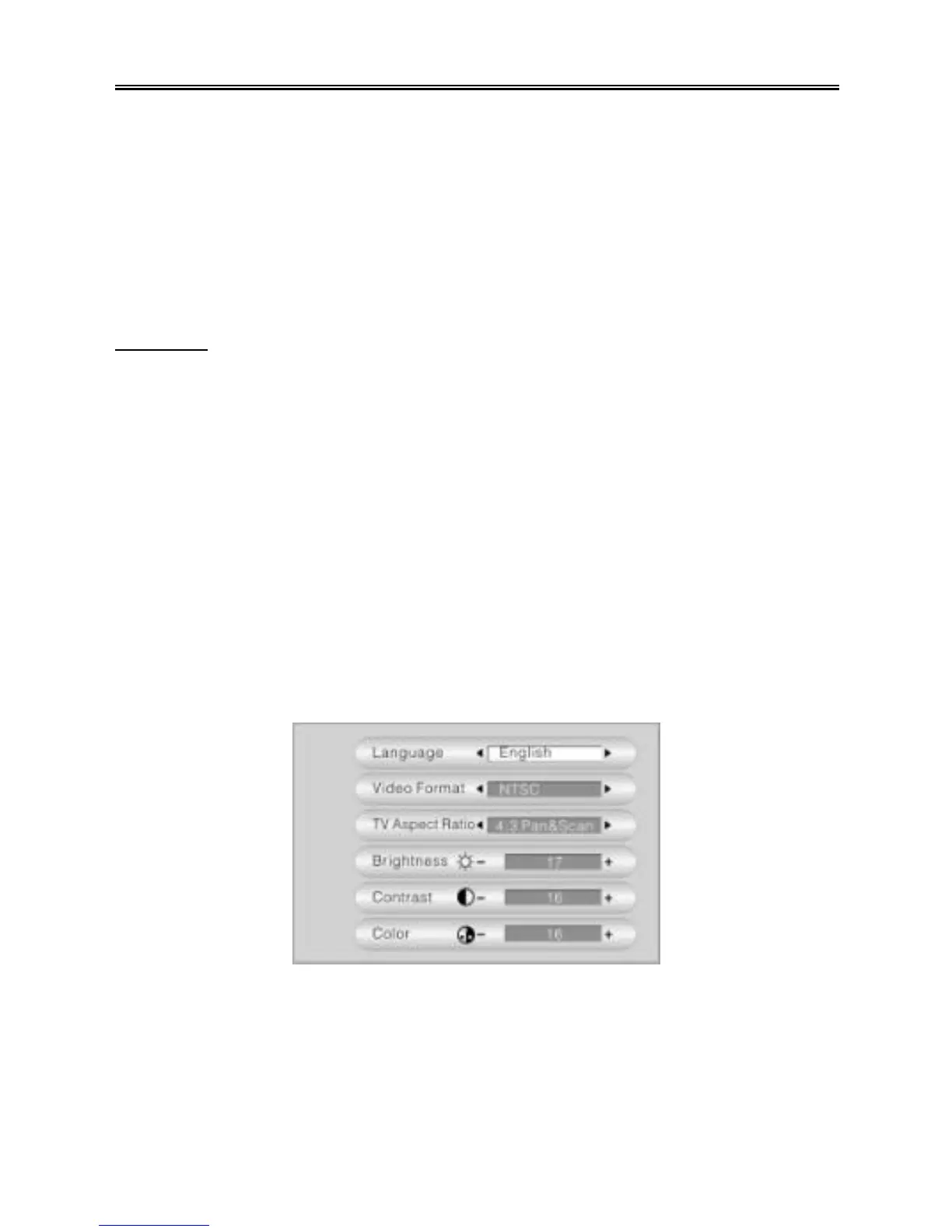
Display setting
There are six settings in the display settings menu: Language, Video Format, TV
Aspect Ratio, Brightness, Contrast, Color. See the figure below:
Press the “UP/DOWN” button to select an item. Use the “PREV/NEXT (9 / :)”
buttons to adjust the setting. Press the “MENU/STOP” button to return to the previous
menu.



 To Next Page