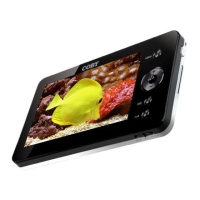
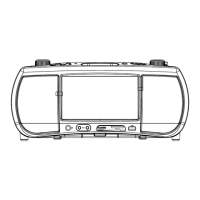
The PMP supports system upgrading. Please follow the steps below:
1. Use the USB cable to connect the player to a PC, and then turn on the power of
the PMP.
2. After the computer recognizes the PMP successfully, copy the file, ROMFS.BIN,
to the root folder on the PMP.
3. Disconnect the USB cable after copying, the player will restart and go to the main
setup menu. Press the “UP/DOWN” button to select “Settings”, and press the
“ENTER” button.
4. Press the “ENTER” button. The screen will display a selecting menu; select
“Upgrade BIOS”. Press the “ENTER” button, select “YES” and press the
“ENTER” button to confirm.
5. The PMP will return to the main setup menu after upgrading.
NOTE: Use the AC adapter when upgrading.
NOTE: If the player cannot be restarted after upgrading, please contact technical
support for help.



 To Next Page