www.colorlightinside.com
22
4. Test Mode
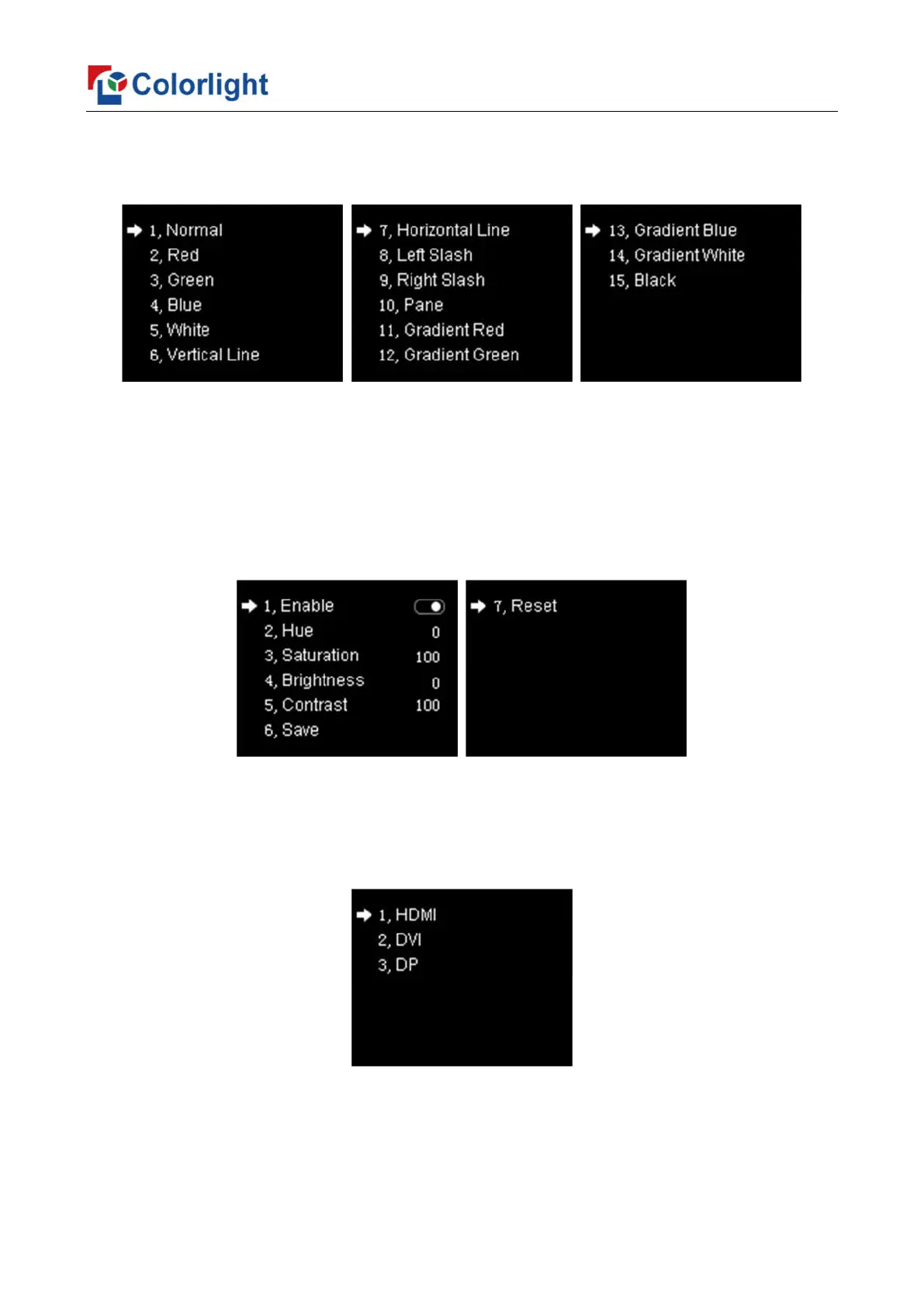
Enter the setting interface of “Test Mode”, rotate the knob to select test mode, press
ESC back to normal mode.
5. Picture Adjustment
Enter the setting interface of “Picture Adjustment”, and press the knob/OK to turn on/off
“Enable”. If “Enable” has been turned on, users can set hue, saturation, brightness and
contrast of image by knob then save the data; and users can also restore the default values
of every parameter, that is, hue and brightness default to 0, saturation and contrast default
to 100.
6.3.2 EDID Setting
Rotate the knob to select EDID setting, then press the knob/OK to enter submenu of
“EDID Setting”.
Enter the EDID setting interface of “HDMI” or “DVI” or “DP”. Rotate the knob to select
conventional resolution; or set width, height and frame rate by knob in the option of
“Custom”.


 To Next Page