www.colorlightinside.com
23
6.3.3 Cropping Setting
Rotate the knob to select cropping setting, then press the knob/OK to enter submenu
of “Cropping Setting”.
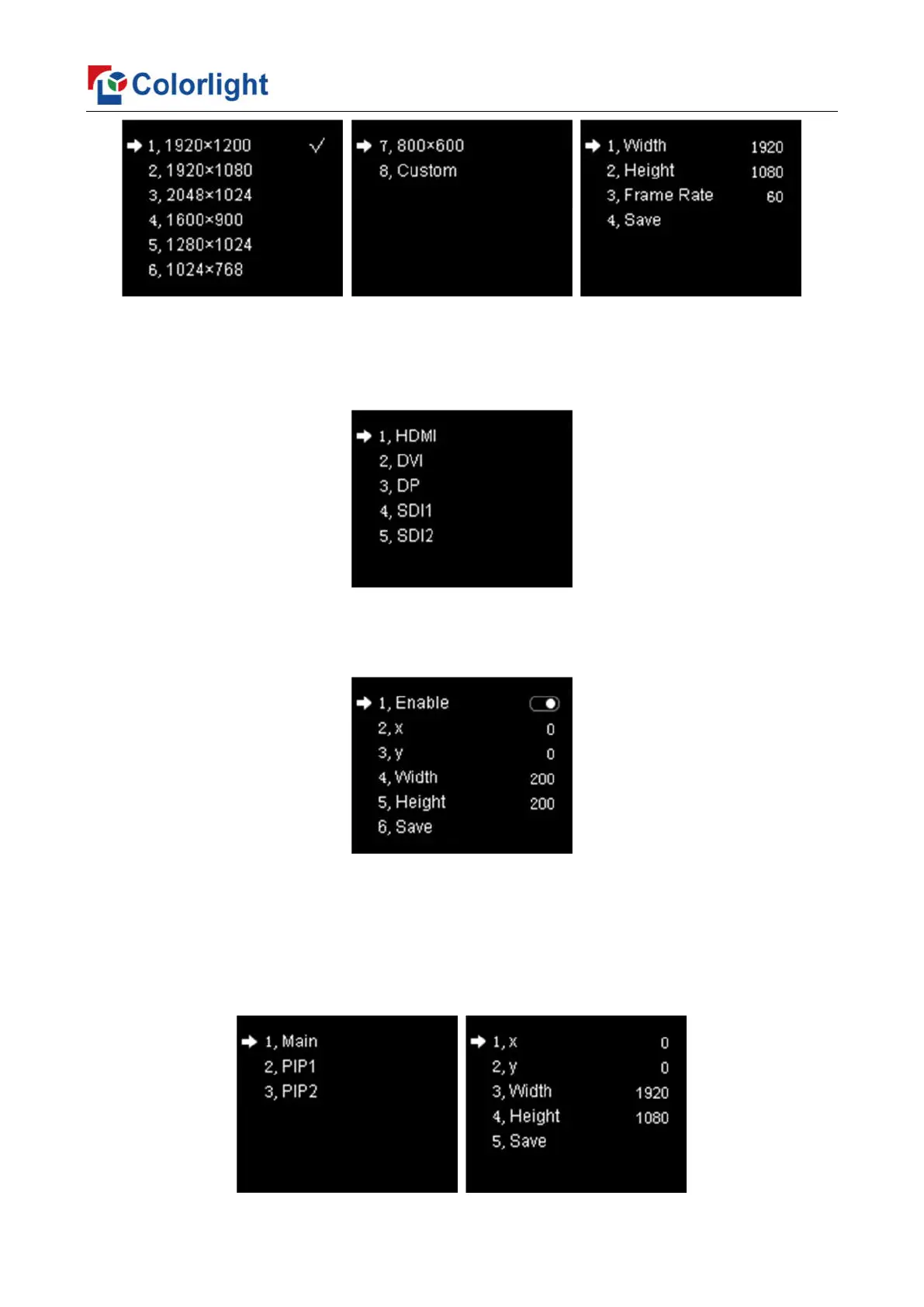
Enter the cropping interface of “HDMI” or “DVI” or “DP” or “SDI1” or “SDI2”, press the
knob/OK to turn on/off crop. If it has been enabled, set x, y, width and height of input signal
by knob then save the data.
6.3.4 Output Setting
Rotate the knob to select output setting, then press the knob/OK to enter submenu of
“Output Setting”; Continue rotating the knob to select “Main” or “PIP1” or “PIP2”, press the
knob/OK to enter the output setting interface. Rotate the knob to adjust x, y, width and
height of output image separately, then save it.


 To Next Page